An e-mail address (or mailbox) is an address such as contact@yourdomain.ch with its own inbox, its own password and its own storage space. In the Apanel console, the E-mail addresses screen lets you create, edit and delete the addresses of your domain.
In short: in the domain's Hosting management, E-mail card, open E-mail addresses and click Add; choose the name, the Quota and the Password, then Save. The name cannot be changed afterwards.
Requirements
- The mail service must be enabled on the domain and included in your plan: otherwise the E-mail card does not appear in Hosting management.
- The number of e-mail addresses depends on your plan. Once the limit is reached, the Add button disappears from the screen; delete an address you no longer use to create another one. The number of addresses in use is shown in the Account stats card of the dashboard (see See your disk space usage and add more).
- Some mail space must remain to be allocated: each address gets a quota, taken from the mail space of your account.
Good to know before you start
Open the E-mail addresses screen
- Log in to your Apanel console.
- From the dashboard, click your domain name to open Hosting management.
- In the E-mail card, click E-mail addresses.
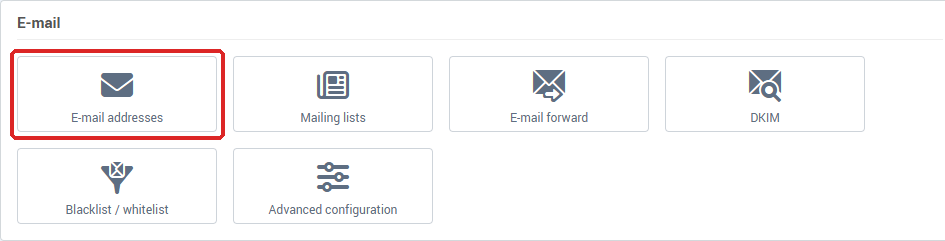
The screen has three blocks:
- Mail DNS diagnostics (if your mail is hosted with us): it checks the DNS records of your domain (MX, SPF, DKIM, DMARC) and shows No problems detected. or the list of points to fix. To edit a record, see Adding or editing a DNS record.
- E-mail addresses list: your addresses, with their Quota and their aliases.
- Global attributed mail disk space: the share of the mail space allocated to each of your domains.

How do I create an email address?
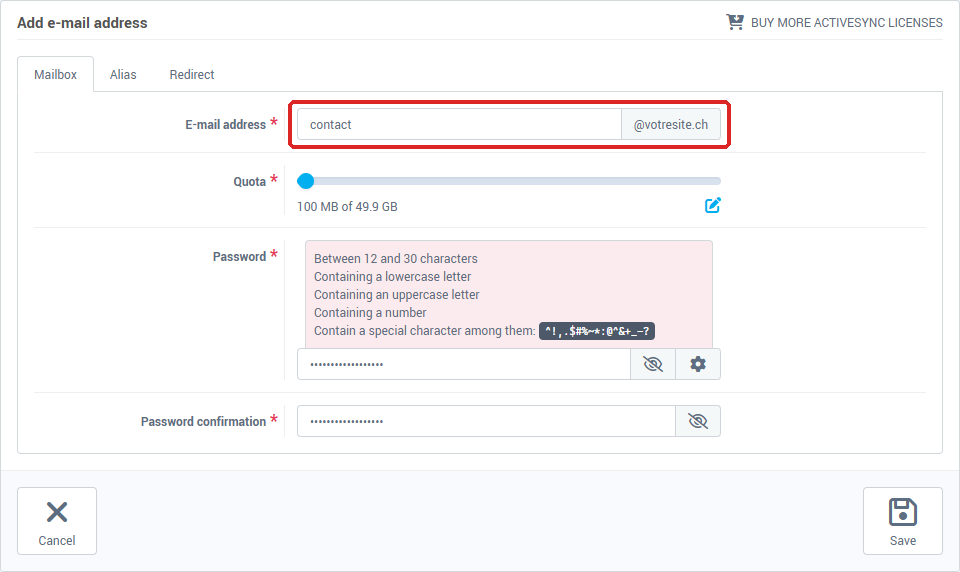
- In the E-mail addresses list, click Add.
- In E-mail address, type what comes before the
@: the domain name is already shown on the right. Use letters, digits, the dot, the hyphen and the underscore, starting with a letter or a digit, up to 64 characters. Capital letters are converted to lowercase.
- Set the Quota, the storage space of the mailbox, in MB (1 GB = 1,000 MB). The suggested value is 100 MB, the minimum is 10 MB, and the maximum is the mail space you still have left to allocate. Drag the slider, or click the pencil icon (Edit value) to type the number.
- Enter a Password, then repeat it in Password confirmation. It must be 12 to 30 characters long and contain at least one lowercase letter, one uppercase letter, one digit and one special character. The cog button opens a password generator, and the eye lets you check what you typed. The details of the rules are in Change the password of an e-mail address.
- If the Enable ActiveSync field is offered, turn it on to synchronise the mailbox with a device that uses this protocol. The number of ActiveSync licenses is limited; the Buy more ActiveSync licenses button lets you order more.
- Click Save.
The message Operation succeeded appears and you return to the list. The Alias and Redirect tabs of the form are optional: they give the mailbox another name or forward its messages (see Redirect your emails or add an alias to an address).
How do I use the new address?
In the list, each address has two icons on the right:
To read your messages in Outlook, Thunderbird or on a phone, see All email clients: global email configuration.

The Quota column shows the space used out of the space allocated.
How do I edit an email address?
In the list, click the address. There you can change the Quota, the Alias and the Redirect settings. The name of the address is locked and the password is changed with the Change password button at the top right of the card.
How do I delete an email address?
- In the E-mail addresses list, tick the box in front of the address.
- Click Delete.
- Read the confirmation: Are you sure you want to remove this email address? followed by Warning: this operation cannot be undone. Click Yes to confirm, or No to cancel.
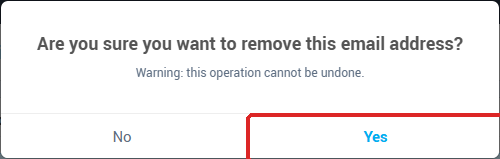
Deleting an address also deletes its aliases and removes it from the recipients of your forwarding addresses. The space of its quota becomes available again for your other mailboxes. Before you confirm, save the messages you still need: the console offers no way to undo it.
Troubleshooting
- "E-mail address format is incorrect": the name contains a character that is not accepted or does not start with a letter or a digit. Go back to the rules in step 2.
- "This username already exists": the name is already used by another address, an alias, a mailing list or a forwarding address of this domain, or it is a reserved name (
postmaster, con, prn, aux, nul, and com or lpt followed by a number). Choose another one.
- "This field is required": a required field is empty.
- The message "Your quota is reached, please make room for further" appears when you open the form: no mail space is left to allocate. Reduce the quota of another mailbox, or add space (see Mailbox full: increase the quota of an e-mail address). The same message appears when the number of addresses in your plan is reached.
- The Add button does not appear: the number of addresses in your plan is reached.
- "The password entered does not match our password requirements" or "The two password must be the same": see Change the password of an e-mail address.
- "An error occurred during the operation. Error code: …": note the code and send it to our support together with the domain name.
If the problem persists, contact our support and give the domain name.
Going further
- Manage the services of an e-mail address (webmail, POP, IMAP, SMTP, WebDAV), to choose how the address may connect.
- Configuring DKIM, SPF and DMARC to keep your e-mails out of the spam folder, to fix the issues reported by the email DNS check.
- Choose between IMAP and POP, and understand the role of SMTP, to choose how a mail program will fetch the new address.
- Create and manage a mailing list, to reach several recipients through a single address.