The Dashboard of the Apanel console shows how much disk space your hosting uses, and lets you add more when it is no longer enough. This article explains how to read these figures, where to see the detail of your mailboxes, how to free up space and how to order extra space.
See the space used
- Log in to your Apanel console: you land on the Dashboard. From another page, click Dashboard in the top bar.
- The Global disk space card shows two gauges and their Distribution.
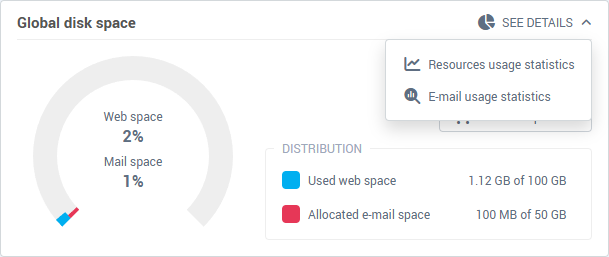
- Used web space: the space taken by the files of your hosting, compared with the space included in your plan (for example "1.12 GB of 100 GB").
- Allocated e-mail space: the sum of the sizes you assigned to your mailboxes, compared with the e-mail space included in your plan. This is not the space actually filled by messages: for that, see the next section.
The Account stats card next to it lists all the limits of your plan: web and e-mail disk space, independent domains, e-mail addresses, FTP accounts and MySQL databases, each shown as "used / allowed".
If a quota is exceeded, the card shows "Alert: One of your account quotas has been exceeded". Free up space (see below) or order extra space.
See mailbox usage
Click See details at the top of the card, then E-mail usage statistics. A window lists your domains with, for each, the space assigned to its mailboxes (Attributed), the space actually used (Used) and the percentage (% E-mail). These figures are cached for up to one hour: the Clear cache button recalculates them.
On some servers the same menu also offers Resources usage statistics: processor, memory, processes and concurrent requests of your hosting. These figures help understand a slow site or a temporary error, not measure disk space.
Free up web space
Web space is taken by the files of your hosting. To spot what takes room, browse your folders with the File explorer (Tools card) or with FTP software (see Create and manage an FTP account). The usual candidates for deletion:
- archives (
.zip, .tar.gz) and site backup copies left in the folder;
- old versions or test copies of the site;
- large files that are no longer useful (videos, exports, log files).
Delete only what you recognize: a deleted file cannot be recovered from the console.
Add disk space
- On the Global disk space card, click Add disk space.
- Choose Add more web space or Add more mail space.
- Choose the Additional space (in GB). The window shows the price excluding VAT per month, the prorata up to the next due date and the total with VAT.
- Tick the acceptance of the terms and conditions, then confirm the order.
The space is added once the order is paid.
Two messages can appear instead of the form:
- "A disk space order is already in progress for your account": the previous order is applied as soon as it is paid. If it does not go through, you will be able to place a new one later.
- "Disk space cannot be ordered at the moment, in particular close to your contract billing date": contact our support, who will add the space for you.
Troubleshooting
- The Add disk space button does not appear: online ordering is not offered with every type of hosting. Contact our support to increase the space.
- The dashboard figures do not change after a cleanup: they are not recalculated to the second. Check again a little later.