Each e-mail address has a quota: the storage space you have allocated to it. When a mailbox is full, it can no longer receive new messages (the sender sees an "Over quota" type of error). This article explains how to see how full your mailboxes are, how to increase the quota of an address and, if all the mail space of your account is already allocated, how to get more.
Requirements
Good to know before you start
There are two levels not to be confused:
- the mail space of your account: the reserve included in your plan, shared between all your mailboxes;
- the quota of a mailbox: the part of that reserve that you allocate to one address.
Increasing the quota of a mailbox means giving it a larger part of the reserve. The quota slider is therefore limited:
- at the minimum, by the space the mailbox already uses: you cannot go below it;
- at the maximum, by its current quota plus the mail space not yet allocated. On some plans, a mailbox is also capped at 1,000 MB (1 GB). The limits of each type of plan are described in Email box quota limits by SwissCenter services.
Quotas are expressed in MB (1 GB = 1,000 MB).
See how full your mailboxes are
- Log in to your Apanel console.
- From the dashboard, click your domain name to open Hosting management.
- In the E-mail card, click E-mail addresses.
In the E-mail addresses list, the Quota column shows for each mailbox the space used out of the space allocated, in GB, followed by the percentage.

Further down the same page, the Global attributed mail disk space card shows how the mail space of your account is shared between your domains. Domains that receive less than 1% are grouped under Others.

Increase the quota of an address
- In the E-mail addresses list, click the address.
- In the Mailbox tab, find the Quota field.
- Drag the slider to the right, or click the pencil icon (Edit value) and type the value in MB when the console asks for it (Please enter a value in MB).
- Click Save.
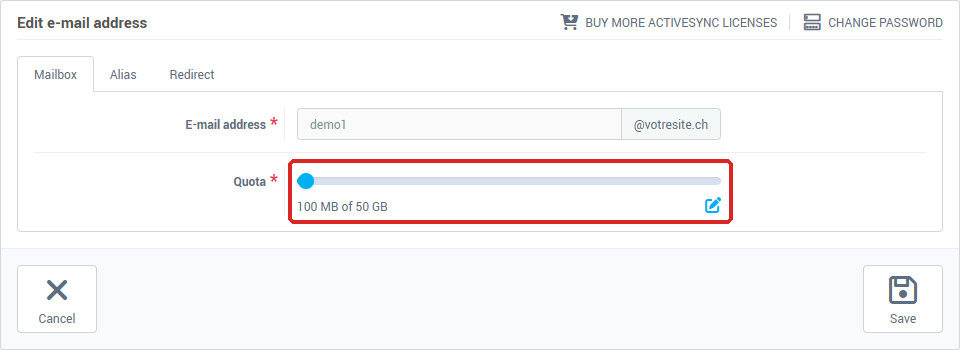
The message Operation succeded appears. To increase several mailboxes, repeat these steps for each address.
If the slider cannot go any further, all the mail space of your account is already allocated: see the next section.
No space left to allocate
Two options:
- Reduce the quota of another mailbox that is not very full, with the same steps as above: the space freed becomes available for the full mailbox. A quota cannot go below the space the mailbox uses.
- Order extra mail space. On the dashboard, in the Global disk space card, click Add disk space, then Add more mail space. The details of the order (price, proration, possible messages) are in See your disk space usage and add more.
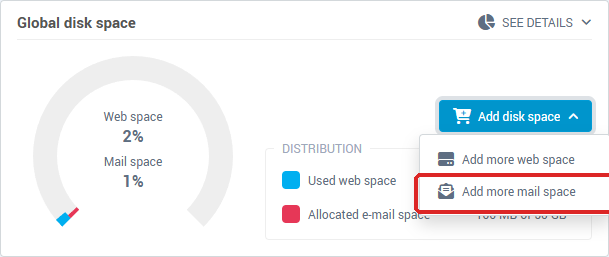
You can also free up space in the mailbox itself, by deleting large messages and emptying the trash from your webmail or your mail program. A redirection that keeps a copy of the messages fills the mailbox: see Redirect your e-mails to another address.
Troubleshooting
- "Quota value is too small": the quota you asked for is lower than the space already used by the mailbox. Choose a larger value, or delete messages first.
- "Quota value is too big": the quota you asked for is more than the mail space you still have to allocate. Lower the value, or free up space as described above.
- "Your quota is reached, please make room for further", when you open the form of a new address: no mail space is left to allocate. Same remedy.
- A sender gets "Over quota" although your mailbox is not full: the error comes from the mailbox of their correspondent, not from yours. See I am encountering an "Over quota" error.
- The Add disk space button does not appear: online ordering is not offered with every type of hosting. Contact our support.
If the problem persists, contact our support and give the domain name and the address concerned.