Redirecting your emails means automatically forwarding the messages received at one address to one or more other addresses, for example so that info@yourdomain.ch lands in the mailbox of two colleagues. An alias works the other way round: it gives an extra name to an existing mailbox, without creating a new mailbox. The Apanel console offers these three options; the choice depends on what you want.
|
E-mail forward |
Redirecting a mailbox |
Mailbox alias |
| What it is |
A forwarding address, created on purpose, whose messages are forwarded automatically to the recipients |
A setting in the Redirect tab of an existing mailbox |
Another name for an existing mailbox, set in its Alias tab |
| Where the messages go |
To the recipients, 10 at most |
To the target addresses, with no limit shown on the screen |
Into the mailbox itself |
| Copy in the original mailbox |
Not applicable |
Your choice, with Delete messages when forwarded |
Not applicable |
| Where to do it |
E-mail card → E-mail forward |
E-mail card → E-mail addresses → the address → Redirect |
E-mail card → E-mail addresses → the address → Alias |
In short: in the E-mail card, use E-mail forward to create an address that forwards its messages to up to 10 recipients, or open E-mail addresses → the address → Redirect or Alias tab for an existing mailbox.
Requirements
- The mail service must be enabled on the domain and included in your plan: otherwise the E-mail card does not appear in Hosting management.
- For a redirection or an alias, the email address must already exist (see Create, edit and delete an e-mail address).
Good to know before you start
- Forwarding to an address on another domain can cause problems. The console warns that forwarding to an address on a different domain may cause SPF and DKIM authentication checks to fail for the forwarded messages, which may result in some of them being rejected or classified as spam.
- A forwarding address is limited to 10 recipients. Beyond that, use a mailing list (see Create and manage a mailing list).
- By default, a redirection keeps no copy. The Delete messages when forwarded option is on from the start. If you turn it off to keep the messages in the original mailbox, watch its quota: see Mailbox full: increase the quota of an e-mail address.
- A name can only be used once per domain. A forwarding address or an alias cannot reuse the name of a mailbox, an alias, a mailing list or another forwarding address of the same domain.
- An alias stays on the mailbox's domain. You only type what comes before the
@. To receive messages from another domain, use a forwarding address on that other domain.
How do I forward the messages of a new address?
Choose it when you want to create an address that does not exist yet and share it between several people: for example a generic address info@yourdomain.ch, or a project address sent on to the graphic designer, the webmaster and management.
Open E-mail forward
- Log in to your Apanel console.
- From the dashboard, click your domain name to open Hosting management.
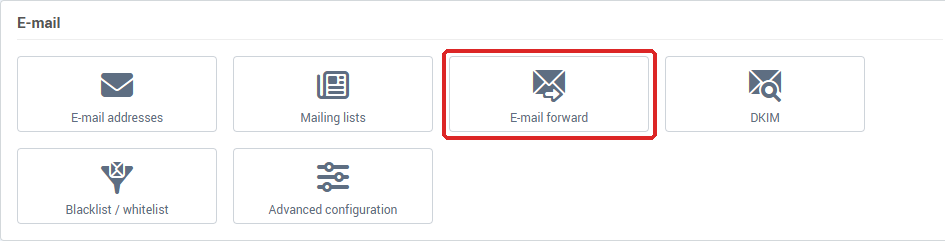
- In the E-mail card, click E-mail forward.
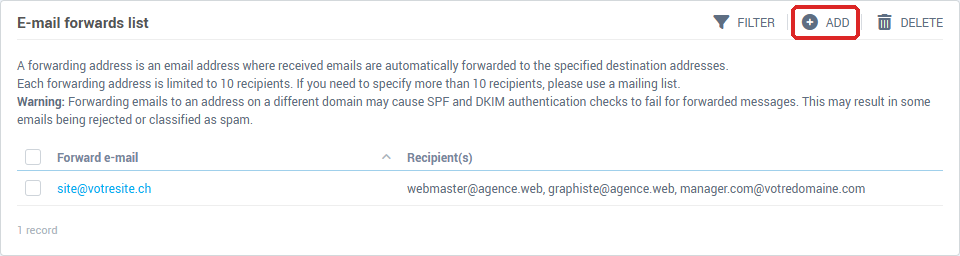
The E-mail forwards page explains the principle, then shows the E-mail forwards list with, for each one, the Forward e-mail and its Recipient(s).
How do I create a forwarding address?
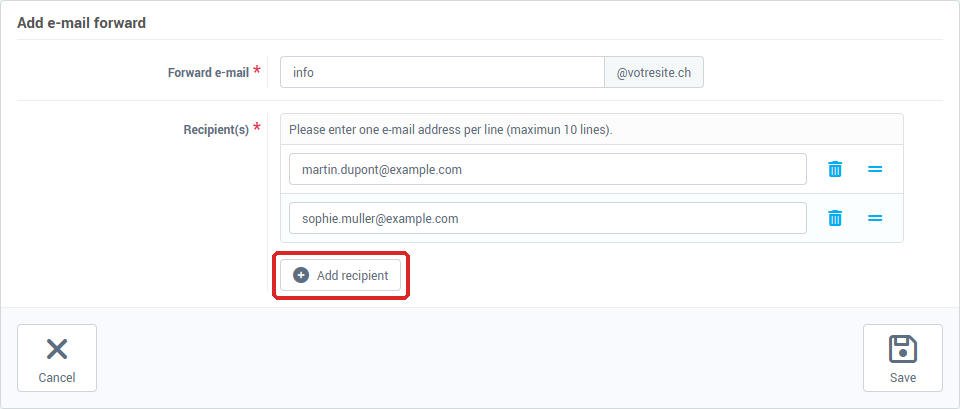
- Click Add.
- In Forward e-mail, type what comes before the
@: the domain name is already shown on the right.
- In Recipient(s), type one e-mail address per line (10 lines at most). Click Add recipient to add a line.
- Click Save.
The message Operation succeeded appears and you return to the list: every message sent to this address is delivered to the recipients.
How do I edit or delete a forwarding address?
- Edit: in the list, click the forwarding address, then add, change or remove recipients and click Save. The name of the address cannot be changed.
- Delete: tick the box in front of the address, click Delete, then confirm with Yes after reading Are you sure you want to remove this forwarding address? and Warning: this operation cannot be undone.
How do I redirect an existing mailbox?
Choose it when the address already exists as a mailbox and you want its messages to be forwarded, for example during an absence or after an address change.
- Log in to your Apanel console, then click your domain name to open Hosting management.
- In the E-mail card, click E-mail addresses.
- In the E-mail addresses list, click the address.
- Open the Redirect tab.
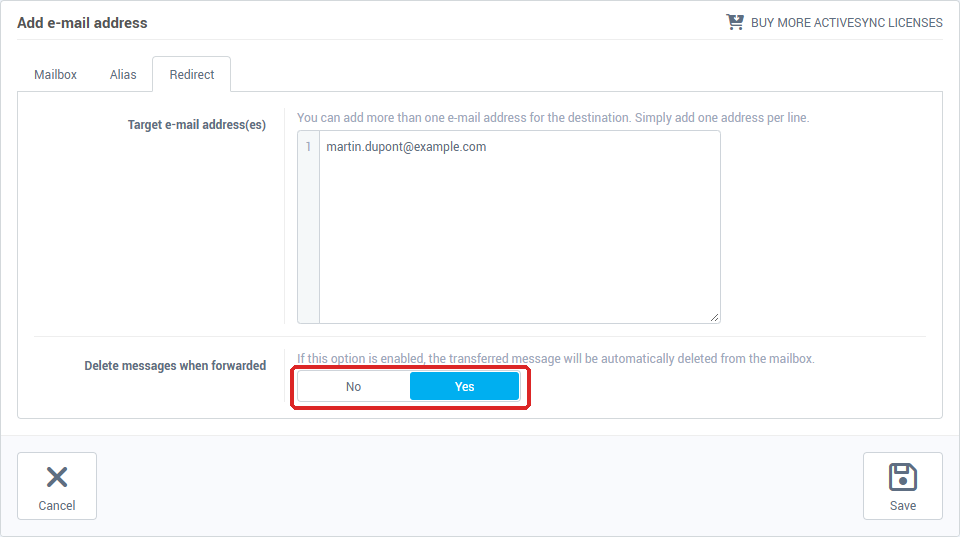
- In Target e-mail address(es), type one address per line.
- Set Delete messages when forwarded (on by default):
- on: the forwarded message is automatically deleted from the mailbox;
- off: a copy stays in the mailbox.
- Click Save.
The message Operation succeeded appears. To stop the redirection, go back to the Redirect tab, erase the target addresses and click Save.
How do I add an alias to a mailbox?
Choose it when one person must receive the messages of several addresses in a single mailbox: for example pascal.mole@yourdomain.ch who also receives the messages sent to management@yourdomain.ch and treasury@yourdomain.ch, or a variant of a name that is often misspelt. Messages sent to the alias arrive in the mailbox, as if they had been sent to its address.
- Log in to your Apanel console, then click your domain name to open Hosting management.
- In the E-mail card, click E-mail addresses.
- In the E-mail addresses list, click the address that must receive the messages.
- Open the Alias tab.
- In Alias name, type what comes before the
@: the domain name is already shown on the right. Do not type a full address.
- For one more alias, click Add new alias and fill in the new line.
- Click Save.
The message Operation succeeded appears. The Alias tab is also there when you create a new address: you can give it its aliases as soon as you create it.
To remove an alias, go back to the Alias tab, click the bin icon on its line, then click Save. Deleting an email address also deletes its aliases.
Troubleshooting
| What you see |
What to do |
| "E-mail address format is incorrect" on a forwarding page or in the Alias tab |
The name you typed or one of the recipients is not a valid email address. Check each line; for an alias, type only what comes before the @. |
| "The list of the destination addresses is incorrect. Each rows must contain e-mail addresses." in the Redirect tab |
A line contains something other than a valid email address, for example several addresses on the same line. Put one address per line. |
| "This username already exists" when creating a forwarding address |
The name is already used by a mailbox, an alias, a mailing list or another forwarding address. Choose another one. |
| "This alias is already defined on the e-mail address …" |
This alias already belongs to another mailbox. Remove it from that mailbox first, or choose another name. |
| "This alias cannot be used because an e-mail address already exists with this name" |
The name is already that of a mailbox, a forwarding address or a mailing list. Choose another name. |
| "An error occurred while creating the following aliases : …" |
The aliases listed were not created. Try again; if the message comes back, contact our support and give the address and the aliases. |
| Forwarded messages do not arrive, or arrive in the junk folder |
See the SPF and DKIM warning in "Good to know before you start". |
| You need more than 10 recipients |
Use a mailing list. |
| "An error occurred during the operation. Error code: …" |
Note the code and send it to our support together with the domain name. |
If the problem persists, contact our support and give the address concerned.
Going further