Gmail, Outlook and the other big mail providers check that your messages really come from your domain. Three records are used for that, and when one is missing your messages are more likely to be filed as spam, or even refused:
- SPF: the list of servers allowed to send mail on behalf of your domain;
- DKIM: a signature added to every message you send, which the recipient checks with a key published in your DNS;
- DMARC: the instruction given to recipients about what to do with a message that fails these checks.
In the Apanel console, DKIM is enabled on its own page, SPF and DMARC are created in one click from the DNS manager, and a diagnostic tells you what is missing.
In short: in Hosting management, enable DKIM from the DKIM tile of the E-mail card, then create SPF and DMARC with DNS manager > Tools > Automatic SPF and Automatic DMARC. The Mail DNS diagnostics block shows what is missing.
Requirements
- The e-mail service must be enabled for the domain, on our e-mail platform: the E-mail card then appears in Hosting management, with the DKIM tile.
- To create the SPF, DMARC and automatic-configuration records in one click, the DNS service must be enabled and your domain must use our name servers (see Adding or editing a DNS record). If your DNS is with another provider, follow the If your DNS is not with us section.
Before you start
- SPF and DMARC are often already in place: the console publishes them automatically when the DNS service is enabled for the domain. So start with the diagnostic below: it shows you what is really missing.
- Values published by our tools: the SPF is
v=spf1 a mx include:fwdsc.swisscenter.com -all and the DMARC is v=DMARC1; p=reject; sp=reject; np=reject; rua=mailto:dmarc@swisscenter.com; fo=1. These records are created with a TTL of one hour.
- The proposed DMARC is strict (
p=reject): a recipient that applies DMARC refuses a message that fails both SPF and DKIM. If a third-party service sends messages on your behalf (newsletter, invoicing, a form hosted elsewhere), allow it in your SPF before relying on this policy.
- DMARC reports go to a SwissCenter address (
rua=mailto:dmarc@swisscenter.com), not to yours. To receive the reports, edit the record in the DNS manager.
- A domain has only one SPF record and one DMARC record. Two SPF records, or two DMARC records, are ignored by recipients: never create a second record, edit the existing one.
- Editing a record that the console created makes it yours: the console will no longer delete it on its own, for example when a service is disabled.
How do I check the state of my domain?
- Log in to your Apanel console.
- From the dashboard, click your domain name to open Hosting management.
- In the E-mail card, click E-mail addresses.
At the top of the page, the Mail DNS diagnostics block checks the MX, SPF, DMARC, DKIM and automatic configuration of your domain live. It shows No problems detected. when everything is fine, otherwise one alert per problem, the most serious first. It changes nothing.

| Alert |
What it means |
What to do |
| No MX record |
The domain publishes no MX: nobody can send you mail |
Add an MX (see the DNS article) |
| The primary MX is not ours |
E-mail is enabled with us, but the primary MX points elsewhere: messages sent from our platform (your websites, other customers hosted with us) are delivered locally and never reach your external server |
If your mail really is hosted elsewhere, disable the e-mail service for this domain; if in doubt, contact our support |
| No SPF record |
The domain publishes no SPF |
Automatic SPF tool (next section) |
| Multiple SPF records |
RFC 7208 allows exactly one: recipients ignore your SPF entirely |
Merge them into one in the DNS manager |
| Invalid SPF record |
The SPF is malformed: recipients ignore it |
Fix it in the DNS manager |
| SPF does not authorize our servers |
include:fwdsc.swisscenter.com is missing |
Automatic SPF tool, or add the include: to your SPF |
| SPF record is too permissive |
The SPF ends in +all or ?all: any server can send on your behalf |
End it with -all |
| No DMARC record |
No DMARC policy |
Automatic DMARC tool |
| Multiple DMARC records |
Recipients discard all of them, with no visible error |
Keep only one |
| Invalid DMARC record |
The DMARC is malformed and is not applied |
Fix it in the DNS manager |
| DMARC policy is monitoring only |
The DMARC uses p=none: it observes without protecting |
Once you have reviewed the reports, move to p=quarantine and then p=reject |
| DKIM signing is disabled |
Your outgoing mail is not signed |
Enable DKIM (next section) |
| DKIM record missing from DNS |
DKIM is active but the …_domainkey record does not exist in your DNS |
Add the record shown on the DKIM page |
| Wrong DKIM key in DNS |
The record publishes a different key from the one used to sign |
Replace its content with the one on the DKIM page |
| Automatic configuration is incomplete |
autodiscover, autoconfig or _autodiscover._tcp records are missing: mail programs cannot configure themselves |
Automatic autodiscover tool |
If your mail is hosted elsewhere but your websites are with us, the diagnostic can also show No SPF for mail sent from your websites or SPF does not authorize mail from your websites: add include:fwdsc.swisscenter.com to your SPF so that the messages sent by your forms are not rejected.
The block can also show Diagnostics are unavailable right now., or say that some checks could not be performed: try again later.
How do I enable DKIM?
- In the E-mail card of Hosting management, click DKIM.
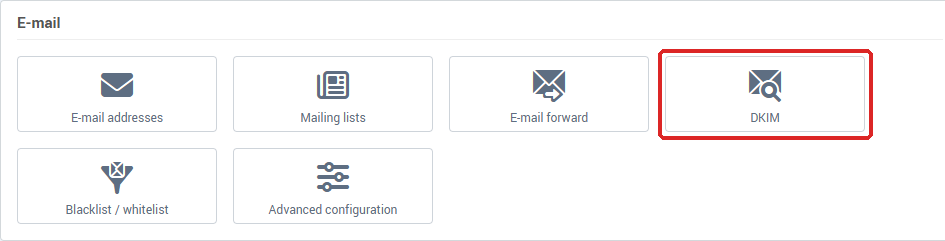
- On the DKIM configuration page, in the Details block, set Enable DKIM to yes.
- Click Save. The message Operation succeeded appears.
Enabling generates a 2,048-bit key and turns signing on. If your domain's DNS service is with us, the matching record is also added to your zone and published: there is nothing else to do. The same goes for the domain's e-mail aliases whose DNS is with us.
Once DKIM is active, the page shows the record to publish, under the sentence Below you will find the DNS record to add in case the DNS is not managed by SwissCenter. It has three columns, whose headings stay in French whatever the console language: Type (TXT), Nom de l'enregistrement (the record name, in the form selector._domainkey.yoursite.ch) and Contenu (the content, v=DKIM1;p= followed by your public key).
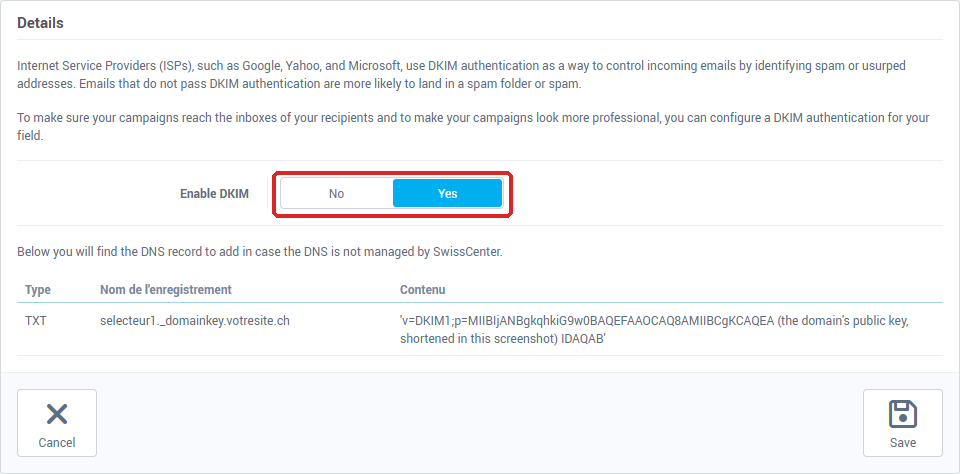
To disable DKIM, set Enable DKIM back to no and click Save: signing stops and, if your DNS is with us, the record is removed from the zone. Do not do it without a reason: without a signature, your messages are more easily filed as spam.
How do I add SPF and DMARC (DNS with us)?
- In Hosting management, in the DNS service card, click DNS manager.
- Above the list of records, click Tools. In the Special records section, click Automatic SPF, then, separately, Automatic DMARC.
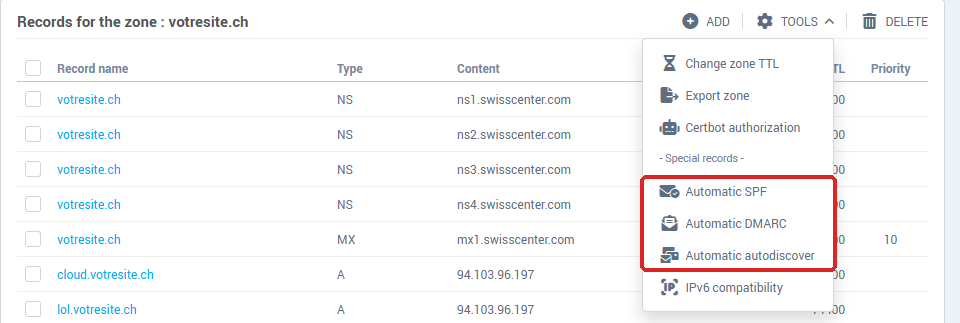
- A message appears in the list:
| Tool |
Message |
What happened |
| Automatic SPF |
SPF record added. |
There was no SPF: the default value was created |
| Automatic SPF |
Your existing SPF record was updated to also authorize our mail servers. |
Your SPF was completed with a, mx and include:fwdsc.swisscenter.com, without creating a second record |
| Automatic SPF |
An SPF record is already present, followed by "no change needed" |
Nothing was changed (see the note below) |
| Automatic DMARC |
DMARC record added. |
There was no DMARC: the default value was created |
| Automatic DMARC |
A DMARC record is already present, followed by "left unchanged" |
Your DMARC policy is never replaced |
- Click Synchronize in the DNS configuration is not synchronized with DNS servers banner to apply the change (see Adding or editing a DNS record).
Note: if your existing SPF is invalid, or if adding to it would exceed the limit of 10 DNS lookups, the tool does not change it, and the message no change needed still appears. Go back to the diagnostic after synchronizing: if it still reports SPF does not authorize our servers, add include:fwdsc.swisscenter.com by hand by editing the record.
Automatic autodiscover
The same menu offers Automatic autodiscover, which creates the records that let Outlook, Thunderbird and phones configure themselves: autodiscover and autoconfig (CNAMEs to automx.swisscenter.com) and _autodiscover._tcp (an SRV to the same server, port 443). It requires e-mail to be enabled and the domain's MX to be the one of our platform. Otherwise, the console answers Operation canceled because the mail service for this domain is not active! or Operation canceled because the mail server is not hosted by SwissCenter!. Here too, click Synchronize afterwards.
If your DNS is not with us
If your domain uses another provider's name servers, the tools above cannot write anything there: create the records with that provider, in its DNS manager. All of them are of type TXT.
| Record |
Name |
Content |
| DKIM |
the one in the Nom de l'enregistrement column of the DKIM page |
the one in the Contenu column, without the apostrophes around it |
| SPF |
the domain itself |
v=spf1 a mx include:fwdsc.swisscenter.com -all |
| DMARC |
_dmarc |
v=DMARC1; p=reject; sp=reject; np=reject; rua=mailto:dmarc@swisscenter.com; fo=1 |
If you already have an SPF, do not create a second one: add include:fwdsc.swisscenter.com to it before the final -all. The key is generated each time DKIM is enabled: always copy the one shown on the DKIM page.
How long before the change is visible?
A recipient can keep the old DNS answer in memory until the record's time to live (TTL) runs out: 5 minutes for the DKIM key published by the console, 1 hour for the SPF and DMARC created by the tools. Reopen the Mail DNS diagnostics block a little later: it should show No problems detected.
For a check seen from the outside, especially useful if your DNS is not with us, analyze your domain with diag.swisscenter.com (the tool is in French): in the Sécurité E-mail (email security) card, the SPF (Sender Policy Framework) line should carry the Valide (valid) badge, the DMARC line should show your v=DMARC1 record and its Politique (policy), and the DKIM (Recherche sur sélecteurs courants) line the Détecté (detected) badge. The tool goes through a DNS resolver subject to the same times to live. Each card is explained in Diagnose your domain and email with the SwissCenter diagnostic tool.
To understand SPF in detail, see Understanding your domain's SPF record.
Troubleshooting
- "There can only be one SPF record per DNS zone": an SPF already exists. Edit it instead of adding one.
- "There can only be one DMARC record per name": the same rule for DMARC.
- "This SPF record is malformed (check the v=spf1 syntax and its mechanisms)": copy the value in full, without typos.
- "This DMARC record is malformed (p, sp and np must each be a policy of none, quarantine or reject)": check those three settings.
- "This DKIM record is malformed (expected a v=DKIM1 record with a decodable p= public key)": the key was not copied in full. Take the Contenu shown on the DKIM page again.
- An "Operation canceled …" message when using Automatic autodiscover: see the matching section.
- "An error occurred during the operation" followed by an Error code, on the DKIM page: note this code and send it to our support with the domain name.
- The DKIM tile does not appear: the E-mail card only shows when the e-mail service is enabled for this domain, and the DKIM tile only concerns e-mail hosted with us.
- Your messages still land in spam even though the diagnostic shows no alert: SPF, DKIM and DMARC are necessary, not sufficient. Contact our support with a sample message and its full headers (see Understanding the header of an email).
Going further