The DNS manager in the Apanel console lets you change your domain's DNS records: point your site or a subdomain to another IP address, use an external mail service, add a TXT record requested by Google, Microsoft or another service to prove that you own the domain, and so on.
Requirements
- The DNS service must be enabled for the domain: the DNS service card then appears in Hosting management.
- Your domain must use our name servers (
ns1.swisscenter.com to ns4.swisscenter.com). Otherwise, the manager shows a red warning: the changes you make there have no effect, because the company where you bought the domain answers in our place.
Before you start
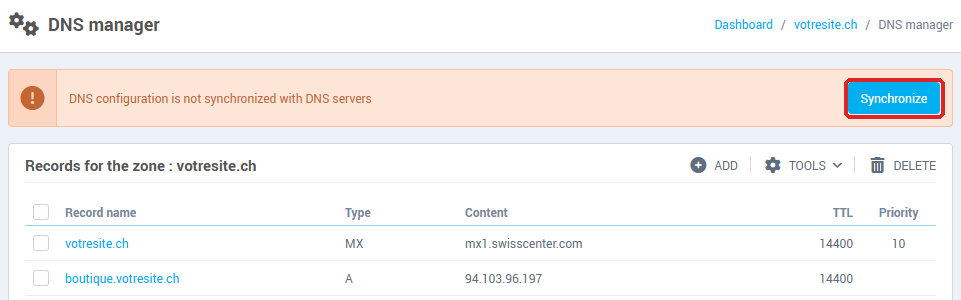
- A change is not applied until you click Synchronize. After each addition, change or deletion, an orange banner says that the DNS configuration is not synchronized with the DNS servers. You can make several changes in a row, then synchronize once at the end.
- The TTL is how long other servers keep an answer in memory. After a change, the old value can still be seen elsewhere until its TTL runs out (4 hours by default). For a planned change, lower the TTL a few hours beforehand.
- Some records are managed by our services (mail, dynamic DNS): they carry an icon and cannot be edited from this page.
Open the DNS manager
- Log in to your Apanel console.
- From the dashboard, click your domain name to open Hosting management.
- In the DNS service card, click DNS manager.

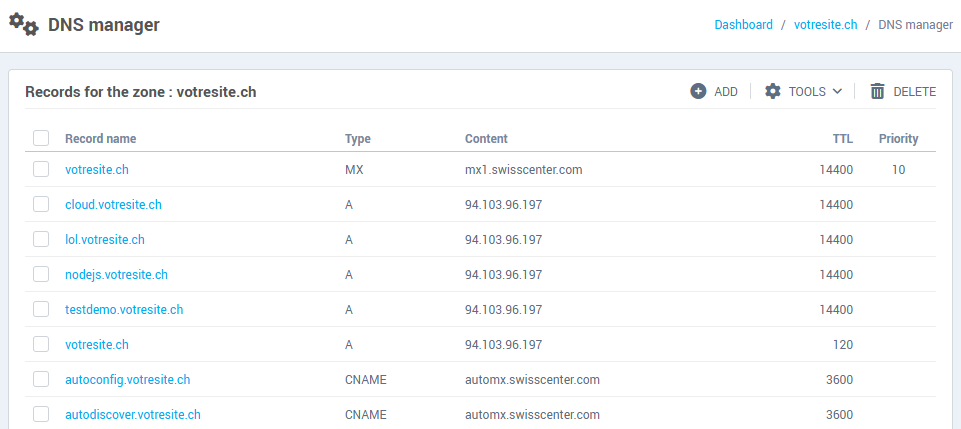
The page lists the Records for the zone of your domain, each with its Record name, Type, Content, TTL and, for MX records, its Priority.
Add a record
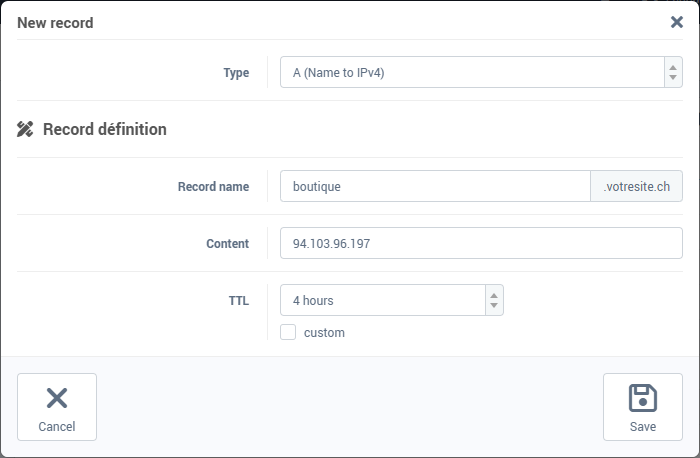
- Click Add.
- Choose the Type (see the table below).
- In Record name, enter only the part before your domain:
shop for shop.yourdomain.ch. Leave the field empty for the domain itself (yourdomain.ch). A * creates a record for every subdomain that does not have one.
- Fill in the Content.
- Keep the suggested TTL (4 hours), or pick another duration from the list. The custom box lets you enter a value in seconds, 120 at least.
- Click Save.
- Click Synchronize in the orange banner to apply the change.
The most common record types
| Type |
What it is for |
Expected content |
| A |
Point a name to a server |
an IPv4 address, for example 192.0.2.10 |
| AAAA |
Same, in IPv6 |
an IPv6 address |
| CNAME |
Make a name an alias of another name |
a domain name, for example yourdomain.ch |
| ALIAS |
A CNAME you can use on the domain itself (empty name) |
a domain name |
| MX |
Tell which server receives your e-mail |
a server name, and a Priority: the lowest number is tried first |
| TXT |
Ownership check, SPF, DKIM, DMARC |
the text given by the service, without quotes |
The form adapts to the chosen type: for an MX, a Priority field appears.
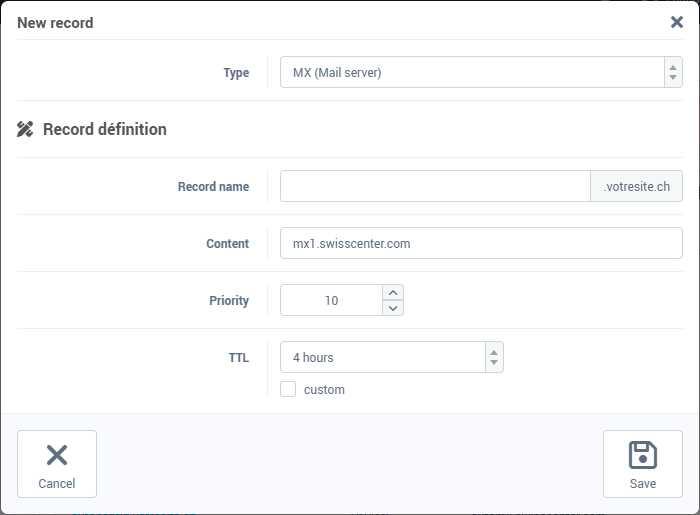
The values to enter for an external service (Microsoft 365 or Google mail, a site hosted elsewhere, a domain check) are given by that service: copy them as they are.
Edit a record
- In the list, click the record name.
- In the Edit record window, change the values, then click Save.
- Click Synchronize.
Delete one or more records
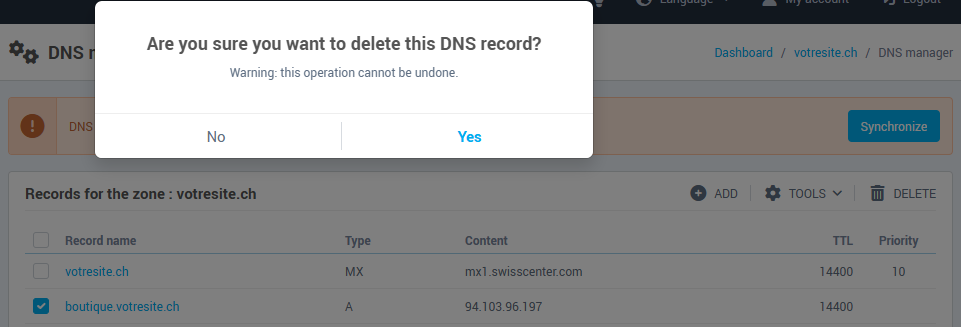
- Tick the box in front of each record to delete.
- Click Delete, then confirm with Yes.
- Click Synchronize.
Zone tools
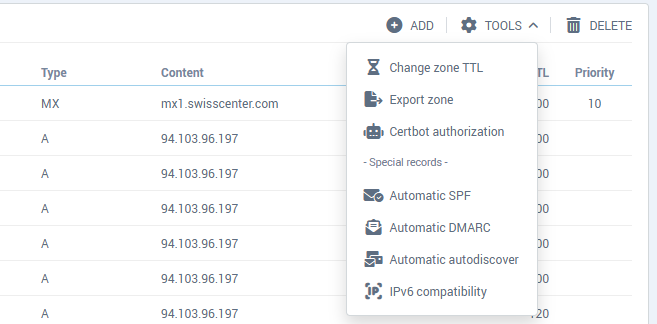
The Tools menu contains:
- Change zone TTL: applies the same duration to every record, useful before moving a site;
- Export zone: downloads the zone as text, to keep it or pass it on;
- Certbot authorization: lets you get a Let's Encrypt certificate by DNS validation from your own server;
- Automatic SPF, Automatic DMARC, Automatic autodiscover: create the records recommended for our mail service, without typing them. If an SPF record already exists, it is completed rather than duplicated.
Troubleshooting
- "This record already exists": the name is already used by an incompatible record. A name cannot have both an A record and a CNAME: this is often the case for
www, which is a CNAME. Delete the old record, then add the new one.
- "This field require an IP address": an A record only accepts an IPv4 address. To point a name to another name, use a CNAME.
- "There can only be one SPF record per DNS zone": do not create a second SPF. Edit the existing TXT record that starts with
v=spf1 and add the service you want to authorize.
- "This SPF record is malformed", or the same message for DMARC or DKIM: the value was not copied in full, or it contains a typo. Copy it again from the service that gave it to you.
- The change does not apply: check that the orange banner is gone, meaning that you did click Synchronize. If so, the old value is probably still cached elsewhere: wait until its TTL runs out.
- A red warning says that you do not use our DNS servers: your changes here have no effect. Either make your changes at the company that manages your domain, or enter our name servers there.