The DNS history in the Apanel console shows, for each of your domains, what was actually published on our DNS servers: which record was added, changed or removed, on which date and at what time, and by whom. It is the first thing to check when your website or your email stops working overnight: you can see at once whether the DNS zone changed at that moment.
Prerequisites
- Access to your Apanel console.
- A domain whose DNS zone is managed at SwissCenter: the DNS service card and its DNS manager button must appear in the Hosting management.
What you need to know before you start
- One line of the history is one publication of the zone on our DNS servers. A change made in the DNS manager but not yet synchronised (orange banner DNS configuration is not synchronized with DNS servers) is not listed: it appears when it is synchronised.
- The history is read-only. It cannot bring back an earlier state: to restore an old value, copy it from the Before column into the DNS manager, then synchronise.
- The history starts at the "Initial known state" of the zone. Nothing before it was recorded. Changes older than the launch of the history were rebuilt from past publications: their author is shown as Unknown (before history).
- DynDNS updates of the same record are grouped over 24 hours into a single line, with the number of updates in brackets, for example DynDNS update (×12). If the address goes back to its starting value, the line disappears.
- The temporary records created for a Let's Encrypt DNS validation (Certbot authorization) are not listed.
- If the domain has changed hands (transfer to another account), the new holder only sees the history from that transfer onwards.
Open the history
- Log in to your Apanel console, then open your domain to reach the Hosting management.
- In the DNS service card, click DNS manager:

- In the Records for the zone box, click History (clock icon):
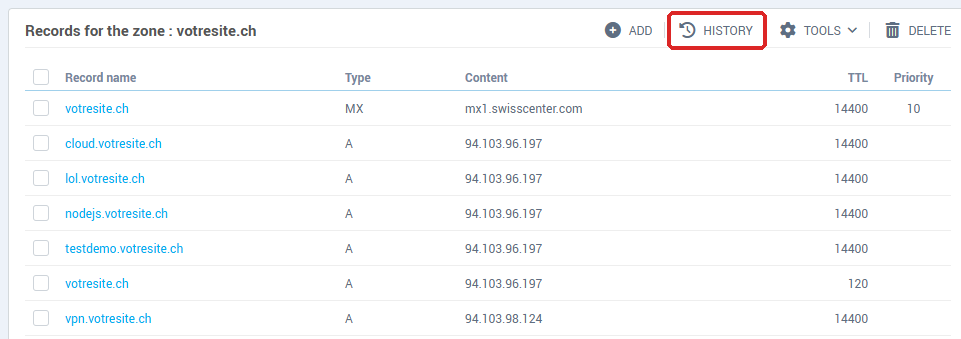
On a narrow screen, only the clock icon is shown, without the word History.
Read the list of changes
The DNS change history page lists the changes from newest to oldest, 25 per page. By default it shows the Last 30 days: choose Last 12 months or All at the top right to go further back. Back returns to the DNS manager.
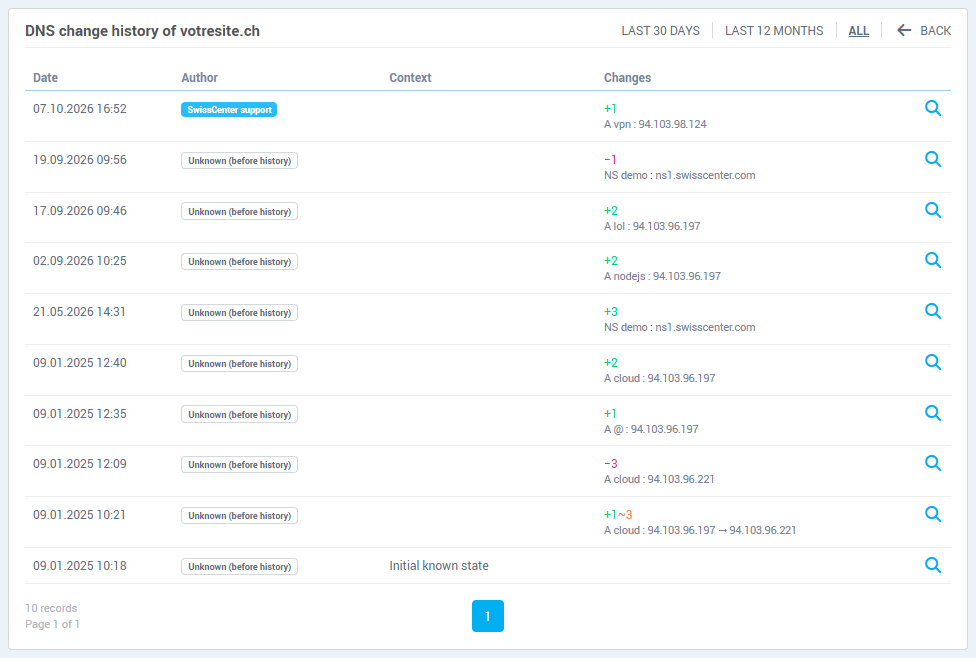
Each line shows:
| Column |
Content |
| Date |
The day and time of the publication. |
| Author |
Who made the change (see the next table). |
| Context |
For a particular operation, its nature: Server migration, Migration rollback, Account transfer, Transfer rollback, Automatic fix, Resynchronisation, DynDNS update or Initial known state. Empty for an ordinary change. |
| Changes |
The number of records added (+, green), changed (~, orange) and removed (−, red), and a preview of the first change, for example A cloud : 94.103.96.197 → 94.103.96.221. |
The possible authors:
| Author |
Meaning |
| You |
A change made from your console, or by your DynDNS device (router, NAS). |
| Your reseller |
A change made by the reseller who manages your account. |
| SwissCenter support |
A change made by our support team. |
| Delegated access |
A change made by someone you gave access to your hosting (webmaster, agency). |
| Automatic operation |
An operation of our systems: server migration, transfer, automatic fix, resynchronisation. |
| Unknown (before history) |
A change older than the launch of the history, whose author was not recorded. |
In a record name, @ stands for the domain itself (votresite.ch), and cloud stands for cloud.votresite.ch.
See the details of a change
Click the magnifying glass at the end of the line. The DNS changes on date at time window details the publication:
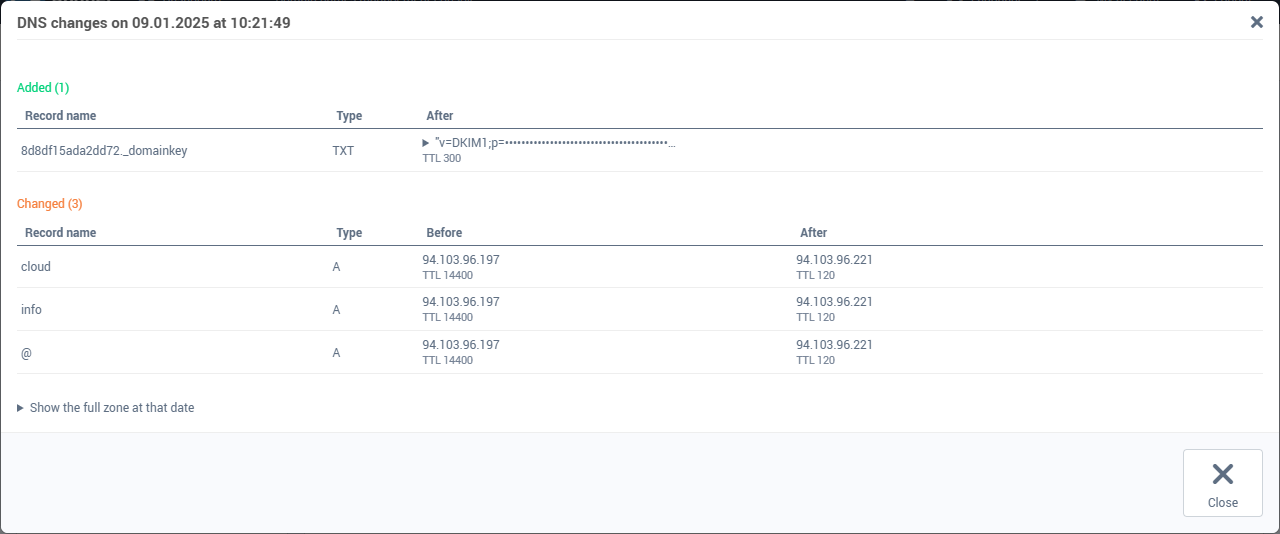
- Added: the records created, with their content in the After column.
- Changed: the records whose content or TTL changed, with the old value under Before and the new one under After. The TTL is shown below the value when it changed.
- Removed: the records taken out, with their last content in the Before column.
A long value (a DKIM key, for example) is shortened: click the small triangle in front of it to show it in full. Show the full zone at that date unfolds every record of the zone as it was published right after this change.
When several records with the same name and type change together (several MX, several TXT), the history cannot tell which one replaces which: they then appear as removals and additions rather than as changes.
For the Initial known state line, the window says that the history of the zone starts here and shows the zone as it was published at that date.
Troubleshooting
| What you see |
What to do |
| No change in this period. |
Nothing was published in the selected period: click All in the message or at the top right. |
| No change recorded for this zone. |
The zone has no history entry yet. The next synchronisation will record it. |
| A recent change is missing |
It is probably not synchronised: go back to the DNS manager and click Synchronize if the orange banner is shown. |
| A change whose author you do not recognise |
Check the Author column: Delegated access is someone you opened your hosting to, SwissCenter support is our team. If in doubt, contact support with the date and time of the line. |
Going further