Does your webmaster, agency or a colleague need to work on your hosting? The delegated access feature of the Apanel console lets you give them access without sharing your password. They receive a personal link by e-mail, limited to the services you choose (web, DNS, mail), with an optional end date. You can change or remove this access at any time.
Prerequisites
- A SwissCenter hosting account, and being the account holder: the Delegated access page is not offered to reseller accounts or to accounts limited to domain names.
- The password of your Apanel account: it is asked to create an access and to resend a link.
- A valid e-mail address for the person you give access to: the link is sent straight to them, you never see it.
What to know before you start
- The delegate has their own password. The first time they use the link, they create a password of their own. After that, they log in with the link and that password. The link alone never opens a session, and you never know their password.
- They work in your space, with the rights you ticked. Anything that is not explicitly allowed is refused.
- They never get access to the "My account" page: they cannot change your password or your details, view your invoices, terminate the contract or create other delegated access. They cannot delete a domain either, nor enable or disable its services.
- No two-step authentication for them. They do not go through your account's two-step authentication: their personal link and their password take its place.
- One access per e-mail address. You cannot create two active accesses for the same address.
- Their actions are logged. Every change they make appears in Account activity, with a badge showing their e-mail address.
- Choose the rights carefully. A delegate with web, DNS or mail rights can act on sensitive settings (mailboxes, DNS records, SSH keys). Only grant access to someone you trust.
Open the "Delegated access" page
- Log in to your Apanel console.
- Click My account at the top right.
- In the left menu, click Delegated access.
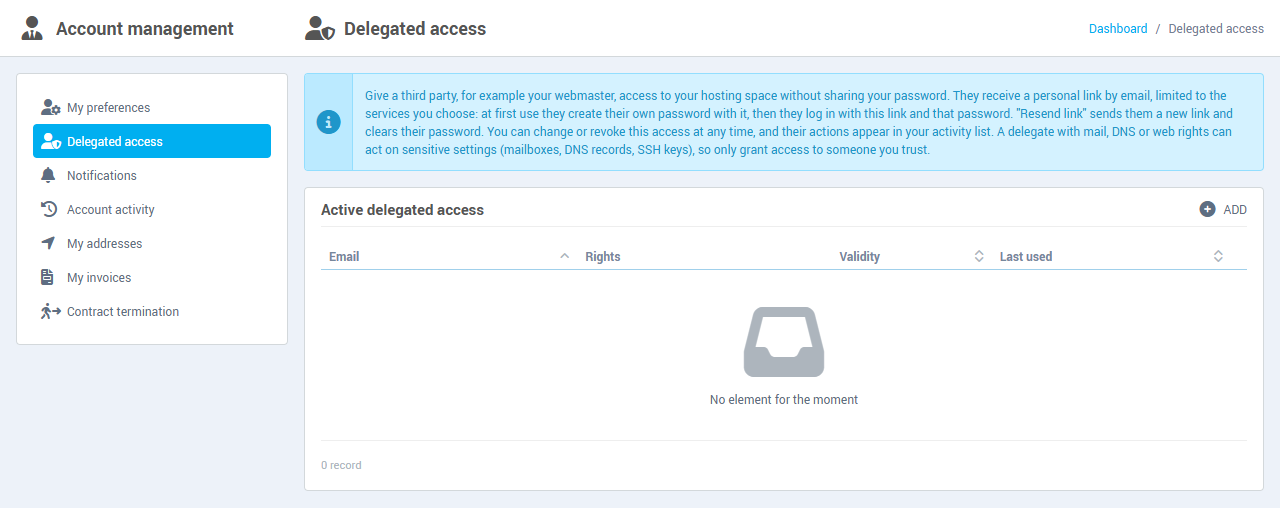
The Active delegated access list shows, for each access, the delegate's Email, their Rights, the Validity and the Last used date. Revoked accesses no longer appear.
Give an access
- Click Add, at the top right of the list.
- Fill in the Add a delegated access form (fields detailed below).
- Click Create and send the link.
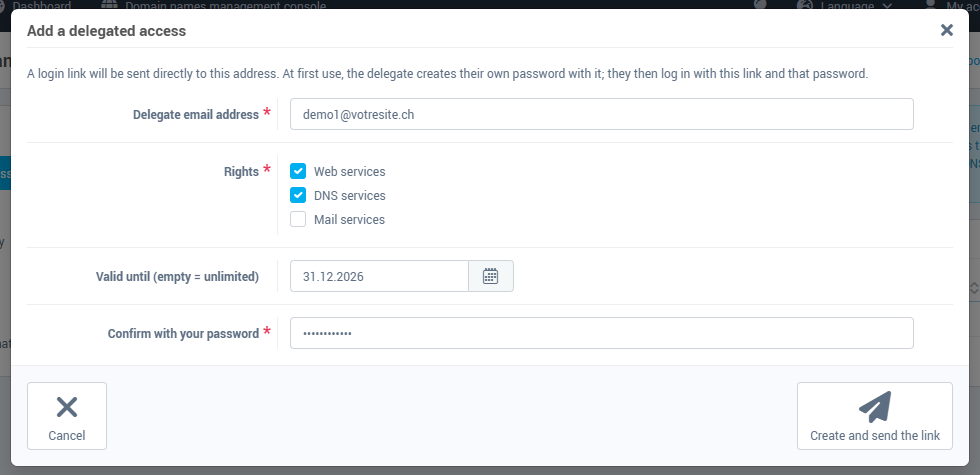
| Field |
What to enter |
| Delegate email address |
The address of the person who will receive the link. Use a plain address, without spaces, quotes or special characters such as < or >. |
| Rights |
Tick at least one right: Web services, DNS services, Mail services (see the table below). |
| Valid until (empty = unlimited) |
Optional. The access stays usable until the end of the day you give. Leave it empty for an access with no time limit. The date cannot be in the past. |
| Confirm with your password |
The password of your Apanel account. |
A message confirms: "The access was created and the link sent to …". The delegate receives an e-mail titled "Your access to the hosting space of …", which shows the rights granted, the validity and an Open the hosting space button.
The three rights
Web services and DNS services are ticked by default, and ticking Web services also ticks DNS services (you can untick it). Mail services is never ticked by default.
| Right |
What the delegate can do |
| Web services |
Manage the "Web technologies", "Website", "Databases" and "Tools" cards of a domain: website settings, FTP accounts, databases and the Valkey cache, scheduled tasks (cron), SSL certificates, statistics, redirections, directory protection, subdomains, domain aliases and the file explorer. |
| DNS services |
Manage the domain's DNS zone ("DNS service" card). |
| Mail services |
Manage the domain's mail ("E-mail" card). |
In every case, the delegate sees the dashboard and the list of your domains, and can add a domain: the form then only offers the services they have the right to, the others are created disabled. Cards they have no right for are not displayed.
What the delegate does
- They open the link received by e-mail. They land on the Create your password page.
- They choose their password, confirm it, then click Create the password and log in.
- Their session opens in your space. A "Delegated access: their address" banner is shown at the top of the screen.
- Next times, they open the same link, enter their password and log in.
If they forget their password or lose the link, they must ask you: Resend link sends them a new link and clears their password (see below). They must not forward the link: it is personal.
Change the rights or the validity
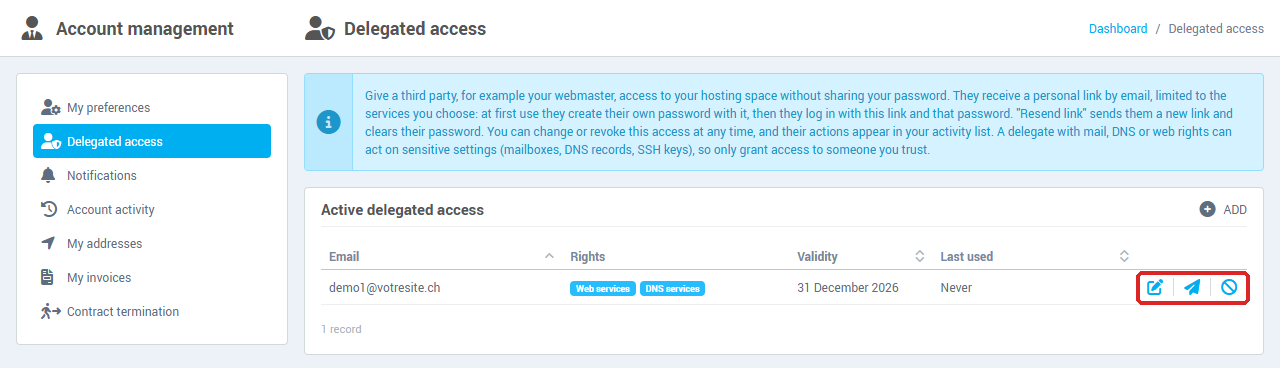
- In the list, click the first icon of the row, Edit a delegated access.
- Change the Rights or the Valid until date.
- Click Save.
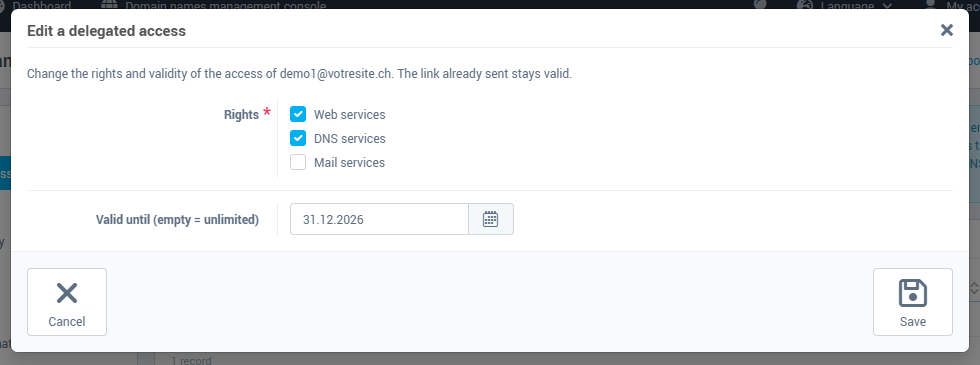
This window does not ask for your password, because it creates no new link: the link already sent stays valid. To change the delegate's e-mail address, revoke the access and create a new one.
Resend the link
Use the second icon, Resend link, if the delegate lost their link, forgot their password, or if you suspect the link was passed on to someone else.
- Click the Resend link icon on the row.
- Enter your password in Confirm with your password.
- Click Resend link.
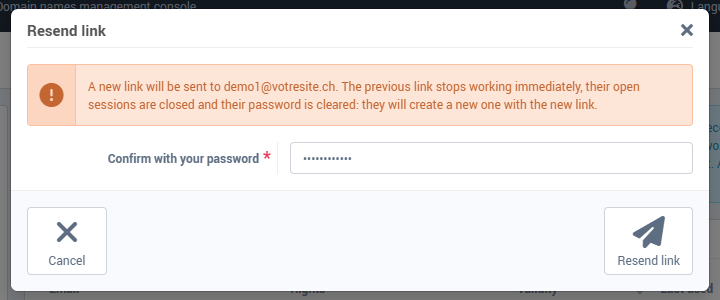
Immediate effects: a new link is sent to the delegate, the previous link stops working, their open sessions are closed and their password is cleared: they create a new one with the new link.
Revoke an access
- Click the third icon of the row, Revoke.
- Confirm by clicking Yes to the question "Revoke the delegated access of …?".
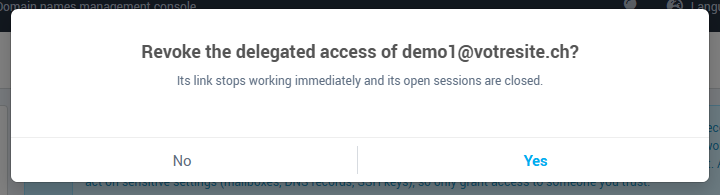
The link stops working immediately and its open sessions are closed. The access disappears from the list, and your Account activity keeps a record of the revocation. No e-mail is sent to the delegate.
Troubleshooting
| Message or situation |
What to do |
| "The access was saved but the email could not be sent. Use "Resend link"." |
The access exists: click Resend link so the delegate gets their e-mail. |
| "A delegated access already exists for this email address." |
Edit the existing access, or revoke it before creating a new one. |
| "This email address is not accepted." |
Use a plain address, without quotes, spaces or special characters such as < or >. |
| "Select at least one right." |
Tick Web services, DNS services or Mail services. |
| "The validity date cannot be in the past." |
Choose a date from today on, or leave the field empty. |
| The delegate sees "Invalid access link" |
The link is invalid or no longer valid (access revoked, validity date passed, link replaced by a resend). Revoke and recreate the access, or use Resend link. |
| The delegate sees "Your delegated access has ended" |
Same cause: they must ask you for a new link. |
| The delegate sees "Incorrect password" |
They can try again. If they forgot it, use Resend link: they will create a new password. |
| The Validity column shows "Expired" |
The end date has passed: the delegate can no longer log in. Change the date to reactivate the access, or revoke it. |
Need a more limited access?
If your webmaster only needs file transfer and a database, you can also create limited FTP and MySQL access for them: see Creating limited FTP and MySQL access for a webmaster.