You keep your website with SwissCenter, but you want your email handled by another provider (Microsoft 365, Google Workspace or another one). The switch happens in your domain's DNS: the MX records tell senders which server receives your messages. Once the switch is complete, you disable the mail service with us.
In short: in the DNS manager, replace the mx1.swisscenter.com MX record with your provider's and complete the SPF record, retrieve your old messages, then set Use mail service to No in Service management (this deletes your mailboxes).
Requirements
- An account with your new provider, with your domain declared there and the mailboxes created. The provider gives you the DNS values to publish: one or more MX records, a verification TXT record, the item to add to your SPF record, and sometimes CNAME records (DKIM, automatic configuration).
- The DNS service enabled for the domain, and your domain on our name servers. Otherwise, these changes are made with the company that manages your DNS.
- Being the account holder: the Service management button does not appear for someone who only has delegated access.
Before you start
- Disabling the mail service deletes all your mailboxes and their content. Apanel says so before saving: "Warning: Disabling the mail service will result in the deletion of all mailboxes and their contents". Retrieve the messages you want to keep first.
- You do not need to disable the mail service to change the MX records. The MX record can be edited in the DNS manager like any other. This is why the recommended order is: change the MX records, retrieve your old messages, disable the mail service. No message is lost along the way.
- But you must disable it at the end. As long as it stays enabled, mail sent from our platform (the forms on your websites, other customers hosted with us) is delivered to your old SwissCenter mailboxes and never reaches your new provider, without any error message.
- One SPF record per domain. You complete the existing SPF record; you do not create a second one.
1. How do I replace the MX records?
- Log in to your Apanel console.
- Click your domain name to open Hosting management.
- In the DNS service card, click DNS manager.
- In the list, find the MX record whose Content is
mx1.swisscenter.com, and click its name.
- In the Edit record window, replace the Content with the server given by your provider, and the Priority with the provider's value. Click Save.
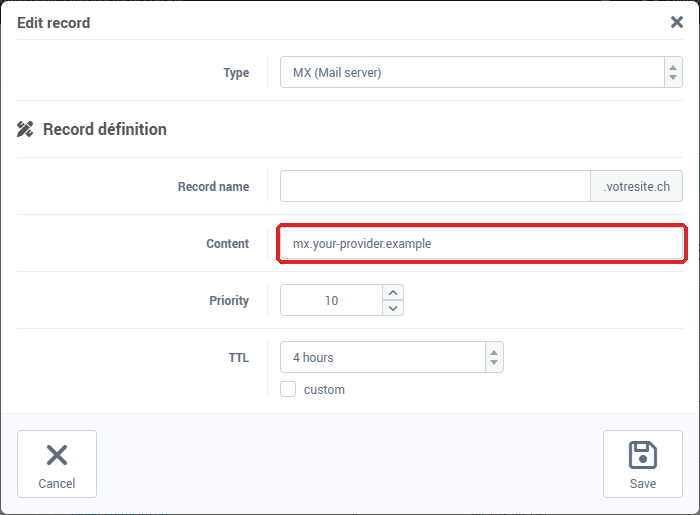
- If your provider gives several MX records, add the others with Add, type MX (Mail server), Record name left empty. The procedure is described in Adding or editing a DNS record.
- If an MX record still points to
mx1.swisscenter.com or mail01.swisscenter.com, delete it: otherwise part of your mail would keep arriving with us.
- Add the verification TXT record the same way and, if any, your provider's DKIM records. If the provider asks for an
autodiscover CNAME, edit the one that already exists (it points to automx.swisscenter.com) instead of adding a second one.
2. How do I complete the SPF record?
The SPF record says which servers are allowed to send email on behalf of your domain. It starts with v=spf1.
- In the list, click the TXT record that starts with
v=spf1.
- Add the
include: item given by your provider just before -all. For example, v=spf1 a mx include:fwdsc.swisscenter.com -all becomes v=spf1 a mx include:fwdsc.swisscenter.com include:spf.your-provider.example -all, where spf.your-provider.example is your provider's value.
- Keep
include:fwdsc.swisscenter.com if the websites you host with us send email (contact form, orders, notifications): they go through our servers, even when your mailboxes are elsewhere.
- Click Save, then Synchronize in the orange banner.
3. How do I retrieve my old messages?
After the synchronization, some senders still use the old value for the length of its TTL (4 hours by default), so messages can still arrive in your mailboxes with us. Wait at least that long.
To confirm the switch, analyze your domain with diag.swisscenter.com (the tool is in French): in the Entrées Web & Mail (web and mail records) card, the Serveurs Mail (MX) section should list your new provider's servers, and no server in swisscenter.com any more; in the Sécurité E-mail (email security) card, the SPF (Sender Policy Framework) line should contain the include: added in step 2. The tool also goes through a DNS resolver, which keeps the old answer until its TTL runs out. The cards are explained in Diagnose your domain and email with the SwissCenter diagnostic tool.
Then copy the messages you want to keep to your new provider. Most providers offer an IMAP import tool; otherwise, set up both accounts in your email software and move the folders from one to the other. Follow your provider's documentation. The name of our IMAP server is shown in the left-hand column of Hosting management, under E-mail SSL server name.
4. How do I disable the mail service?
Once your messages are retrieved:
- In Hosting management, click Service management, in the left-hand column, below the domain information.
- Set Use mail service to No. The mailbox deletion warning appears.
- Click Save.
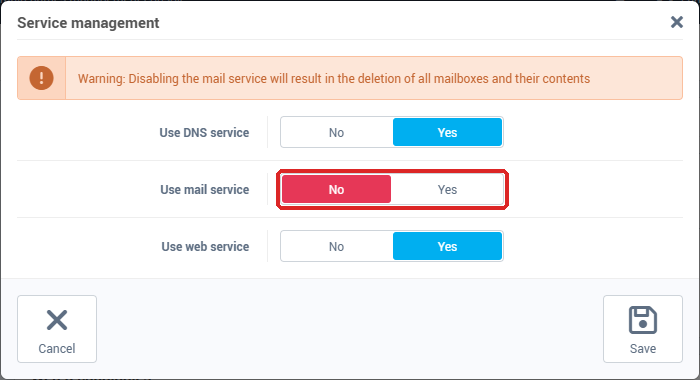
Apanel deletes your mailboxes and removes from your DNS zone the records it had created for our mail service: webmail, automatic configuration, DKIM key, and an MX record pointing to our servers if one was left. The records you added or edited yourself are kept, and so is the domain's SPF record.
Troubleshooting
| What you see |
What to do |
| The primary MX is not ours, in the Mail DNS diagnostics (E-mail card, E-mail addresses) |
This is expected during the transition: your MX records already point to your new provider while the mail service is still enabled. Finish with step 4. |
| Messages from your contact form do not reach the new provider |
The mail service is still enabled with us: these messages stay in your old mailboxes. Disable it (step 4). |
| No SPF for mail sent from your websites or SPF does not authorize mail from your websites, at the top of Hosting management |
Add include:fwdsc.swisscenter.com to your SPF record (step 2). |
| There can only be one SPF record per DNS zone |
Do not create a second SPF record: edit the existing TXT record that starts with v=spf1. |
| This field require a domain name, on the Content of an MX record |
Enter only the server name, without the final dot some providers add, and put the priority in the Priority field. |
| Outlook still connects to SwissCenter |
The autodiscover record still points to our servers: edit it as your provider says, or disable the mail service, which removes it. Then recreate the Outlook profile. |
| The Service management button is missing |
You are logged in with delegated access: ask the account holder to do this step. |
Going further