A mailing list lets you write to many recipients at once: the sender sends a single message to the list address, for example newsletter@yourdomain.ch, and the server automatically passes it on to all subscribers. You create the list, choose who may write to it and manage its subscribers from the Apanel console.
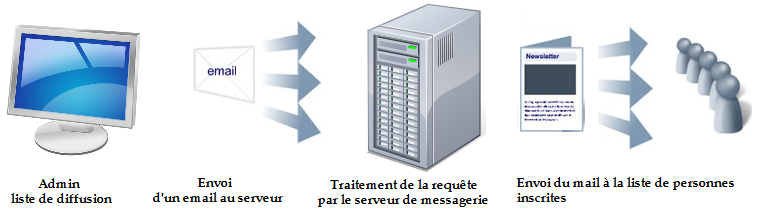
In short: in the Apanel console, open Hosting management, then Mailing lists in the E-mail card, and click Add: choose the Name, the Moderator and the Approved senders. You then add subscribers in the Subscribers tab.
Requirements
- The mail service must be enabled on the domain: the E-mail card then appears in Hosting management, with the Mailing lists tile.
- At least one email address must exist on the domain: it will act as moderator (see Create, edit and delete an e-mail address).
Good to know before you start
- The name creates the list address. The Name
newsletter creates the address newsletter@yourdomain.ch. This name must not already be used by a mailbox, an alias, a forwarding address or another list, and it can no longer be changed after creation.
- The moderator is one of your email addresses. The advanced options of the list are set from its webmail.
- The approved senders decide who can write to the list. The console offers two settings:
- Moderator only (offered by default): only the moderator can send to the list, as for a newsletter;
- Subscribers only: each subscriber can write to all the others, as for a discussion list.
- Add your subscribers yourself. The list page mentions the address
stList@yourdomain.ch for subscribing and unsubscribing by email, but lists are created from the console with subscriptions by email turned off: the Subscribers tab is the reliable way to subscribe or unsubscribe someone.
How do I create a mailing list?
- Log in to your Apanel console.
- From the dashboard, click your domain name to open Hosting management.
- In the E-mail card, click Mailing lists.
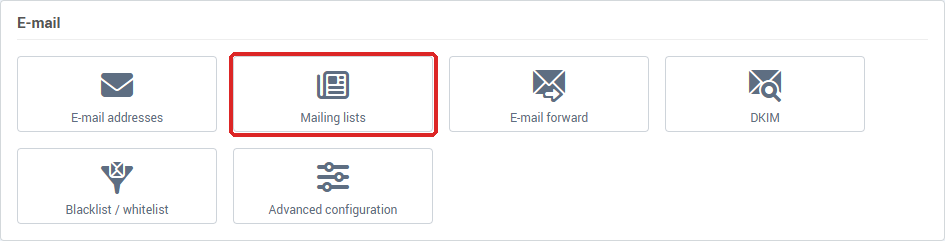
The Mailing lists page shows your lists with their Name, their Moderator, their Description and their number of Subscribers.

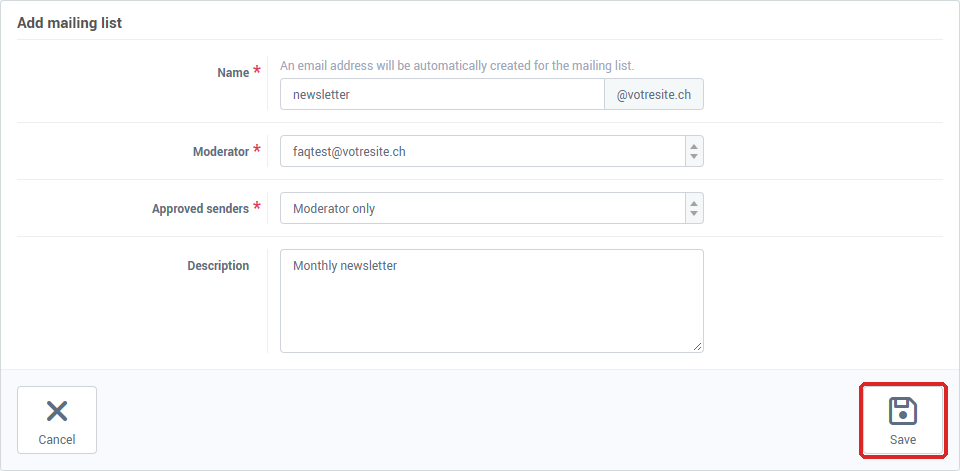
- Click Add.
- In Name, type what comes before the
@: the domain name is already shown on the right.
- In Moderator, choose the email address that will manage the list.
- In Approved senders, choose Moderator only or Subscribers only.
- In Description, state the purpose of the list (optional).
- Click Save.
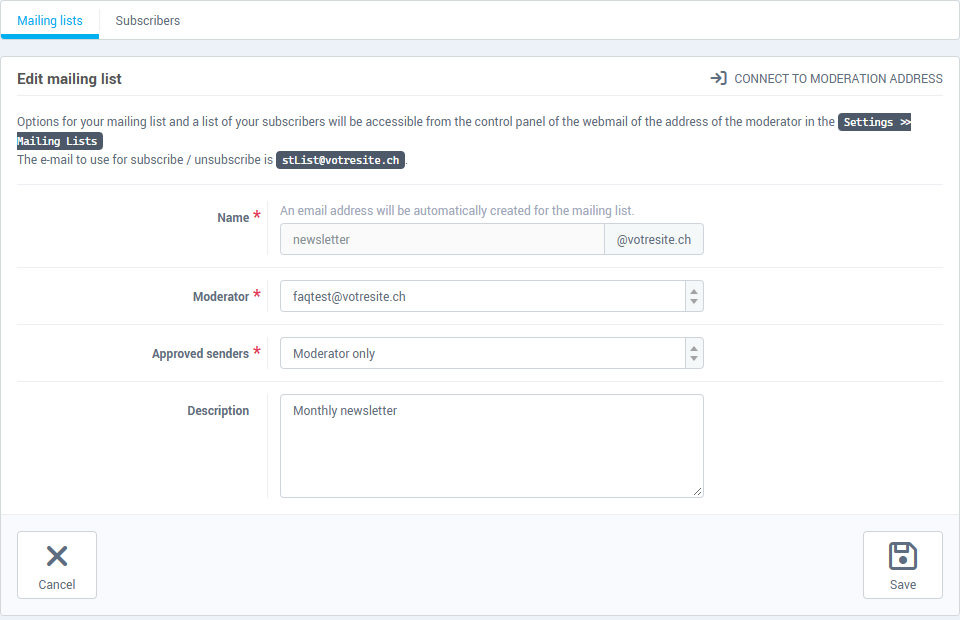
The message Operation succeeded appears and the list page opens, with two tabs: Mailing lists (its settings) and Subscribers.
How do I add and remove subscribers?
- On the Mailing lists page, click the list.
- Open the Subscribers tab: the Subscribers list shows each e-mail address and its subscription date (Subscribed at).
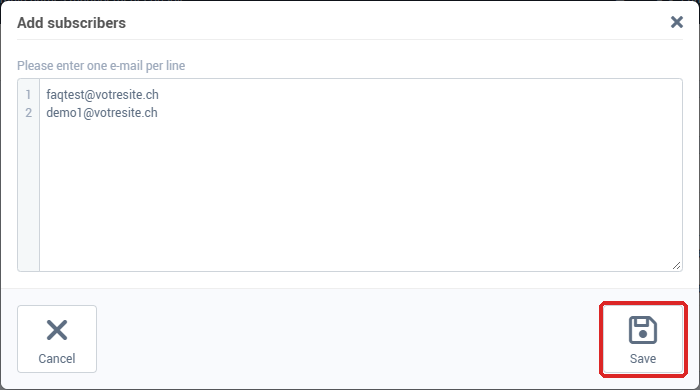
- To add subscribers, click Add. In the Add subscribers window, type one email address per line, then click Save.
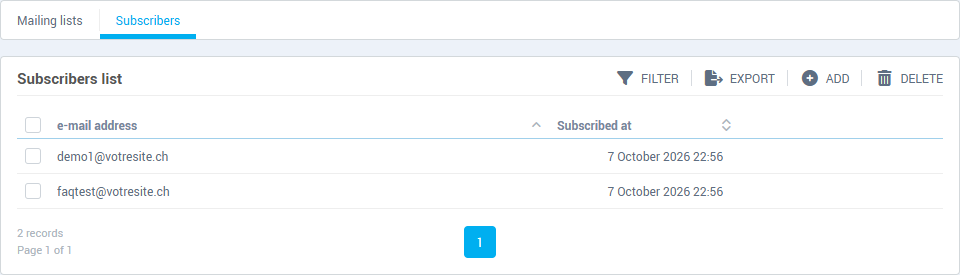
- To remove subscribers, tick the box in front of each address, click Delete, then confirm with Yes.
The Export button downloads the subscribers list as a text file, one address per line: handy for keeping a copy.
To add many addresses at once, copy the column of addresses from your spreadsheet and paste it into the Add subscribers window: each line becomes a subscriber.
How do I send a message to the list?
Write to the list address, for example newsletter@yourdomain.ch, from an address allowed by the Approved senders setting: the moderator's address for Moderator only, a subscriber's address for Subscribers only. The server delivers the message to all subscribers.
How do I edit or delete a list?
- Edit: click the list, change the Moderator, the Approved senders or the Description in the Mailing lists tab, then click Save. The Name cannot be changed.
- Delete: on the Mailing lists page, tick the box in front of the list, click Delete, then confirm with Yes after reading Are you sure you want to remove this mailing list ?
Advanced settings, in the moderator's webmail
The other options of the list are set in the webmail of the moderation address.
- Open the list in the console, then click Connect to moderation address: the moderator's webmail opens in a new tab, without typing the password again. The same connection is offered by the icon at the end of the list's row, on the Mailing lists page.
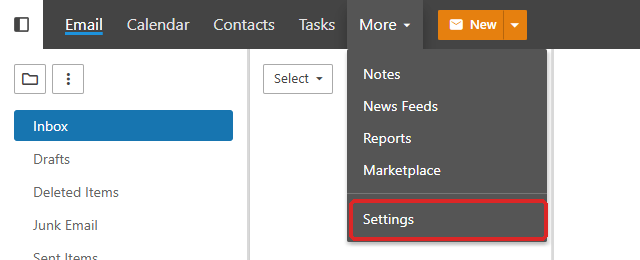
- In the top bar of the webmail, click More, then Settings:
- In the left-hand menu, click Mailing Lists, then the name of the list:
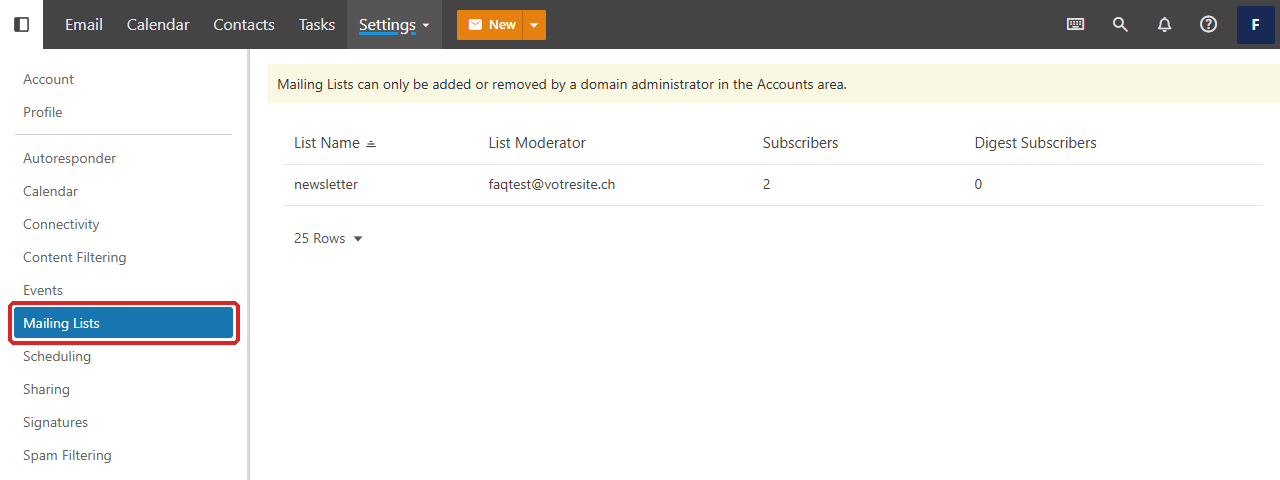
Many settings are available there. Do not change anything without first reading the documentation of SmarterMail, the software behind our webmail: a wrong setting can stop the list from working.
Import subscribers from a CSV file (webmail)
If your subscribers are already in a file, you can also import it from the moderator's webmail. In most cases, pasting the addresses into the console's Add subscribers window is enough and saves you this step.
-
Prepare the file:
- a text file, saved with the
.csv extension (for example import.csv);
- the first line contains exactly
EmailAddress;
- each following line contains a single email address, with no space, tab or other column.
EmailAddress
email1@example.ch
email2@example.com
email3@example.org
-
Open the moderator's webmail with Connect to moderation address, then the list under More, Settings, Mailing Lists.
-
Click the Subscribers tab, then the three-dot button and Import CSV File, and choose your file:
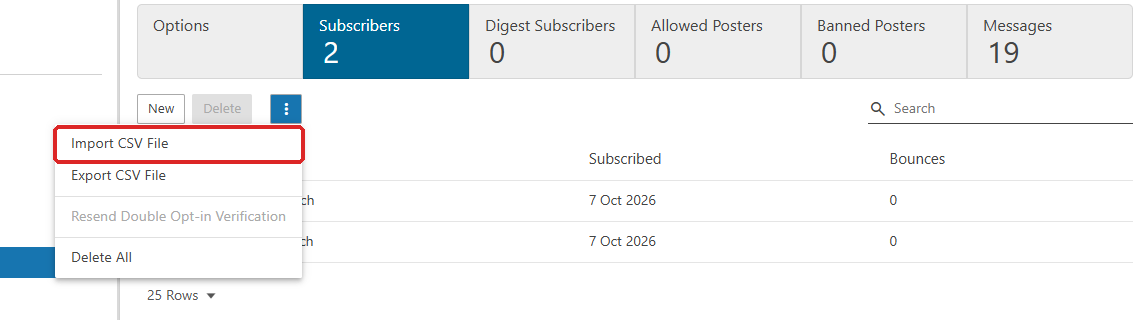
- Go back to the Subscribers tab of the console to check that the addresses are there.
Troubleshooting
| What you see |
What to do |
| The Mailing lists tile does not appear in the E-mail card |
Mailing lists are not available for this domain's mail service. Contact our support and give the domain name. |
| "You must have an email address on your domain in order to create a mailing list." under the Moderator field |
First create an email address on the domain, then come back to create the list. |
| "This username already exists" |
The list name is already used by a mailbox, an alias, a forwarding address or another list. Choose another one. |
| The Add subscribers window refuses to save |
Each line must contain a single valid email address whose domain receives email. Fix or remove the line concerned, and leave no empty line. |
| Someone who subscribed by email does not appear under Subscribers |
Subscriptions by email are turned off when the list is created. Add the person yourself with Add. |
| "The connection to the moderation address is disabled because the password for the moderation address does not match the password requirements of our services.", or the Connect to moderation address button is missing |
Change the password of the moderator's address to a stronger one, then try again. |
| A subscriber does not receive the list's messages |
Check in the Subscribers tab that the address is there and correctly spelt, and ask the person to look in their junk folder. |
| "An error occurred during the operation. Error code: …" |
Note the code and send it to our support together with the domain name and the list name. |
Going further