An FTP account lets you upload and edit your website's files from software such as FileZilla. You can create as many as your plan allows, for example to give a webmaster limited access to your site's folder without sharing your Apanel console login.
In short: in the Website card of Hosting management, click FTP Accounts, then Add: choose the Base directory, the Username and the Password. Then connect with the full username, prefix included.
Requirements
- The number of FTP accounts depends on your plan. If you have reached it, the add form shows "You have reached the limit of the number of FTP account you can add to this account": delete an unused account to create another.
Open the FTP accounts page
- Log in to your Apanel console.
- From the dashboard, click your domain name to open Hosting management.
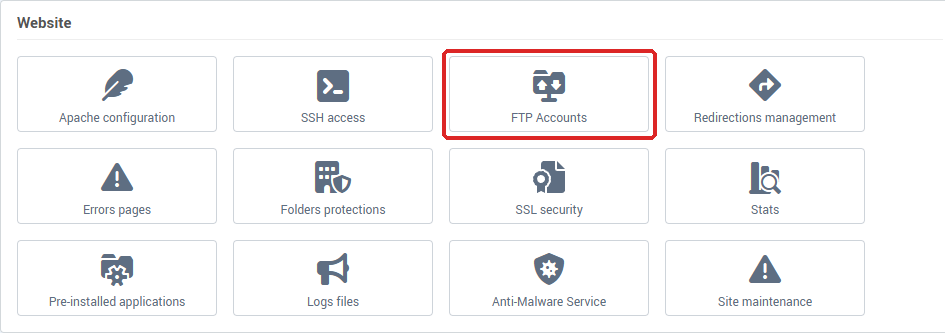
- In the Website card, click FTP Accounts.
The FTP accounts list shows each account's Username, Description and Path, meaning the folder it gives access to. The main account of your domain is already there: it cannot be deleted.

How do I create an FTP account?
- Click Add.
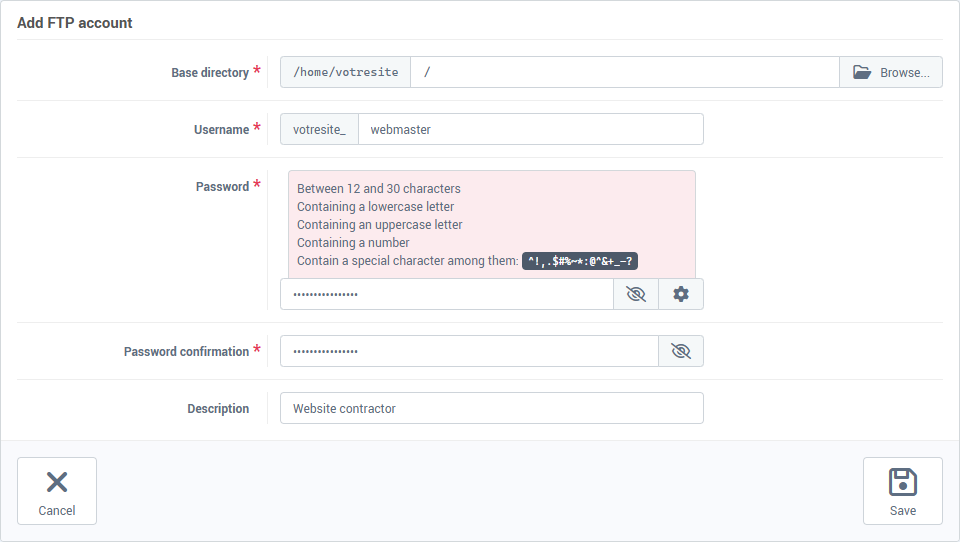
- In Base directory, click Browse and choose the folder the account should reach. For a webmaster, choose only the folder of their site, for example the one named after your domain. The account cannot leave that folder. Careful: the default value,
/, gives access to your whole hosting space.
- In Username, enter the end of the login: the console puts your account name followed by
_ in front, for example votresite_webmaster. Use lowercase letters, digits, and optionally - or _ between two words. Some reserved names, such as admin or test, are refused.
- Enter a Password of 12 to 30 characters, with at least one lowercase letter, one uppercase letter, one digit and one special character among
^ ! , . $ # % ~ * : @ & + _ - ?. Accented characters are not accepted. The gear button opens a password generator, and the eye lets you check what you typed.
- Repeat it in Password confirmation.
- Optional: add a Description to remember whose account it is.
- Click Save.
How do I connect with the account?
In your FTP software, enter:
- Host: the FTP server name shown in the Misc informations box, on the left of Hosting management;
- Username: the full username, prefix included (
votresite_webmaster in the example);
- Password: the one you just set;
- Port: leave it empty, port 21 is used by default.
For the rest (uploading files, encrypted connection), see the article Publish your website by FTP.
How do I edit an FTP account?
In the list, click the account's username. You can change the base directory, the description and the password: leave the password fields empty to keep it. The username cannot be changed; to change it, delete the account and create it again.
How do I delete an FTP account?
- Tick the box in front of the account.
- Click Delete, then confirm with Yes.
Delete the accounts you gave to a contractor as soon as their work is done.
Troubleshooting
- "This username already exists": the login is already taken, including by another of your accounts. Pick another one.
- "The password entered does not match our password requirements": check the rules in step 4, or use the generator.
- "The two password must be the same": the confirmation differs from the password.
- The connection is refused: check that you entered the full username with its prefix, not only the end.
To also give a webmaster access to a database, see Give your webmaster or agency access to your hosting.
Going further