Folder protection in the Apanel console keeps a directory of your website for the people you choose: to see its content, the browser asks for a username and a password. It is the simple way to share documents with a few people, or to close off an admin area or a site under construction.
In short: in the Website card, click Folder protection then Add, enter the directory's Path and save, then create one user per person in the Restrictions by users tab.
Requirements
- A domain with web hosting in your Apanel console.
- The directory to share must already exist: create it over FTP first if needed.
- Preferably an SSL certificate on the domain, so you can connect over
https:// (see Install an SSL certificate on a domain).
What to know before you start
- The directory becomes password-protected for everyone, browsers included: a visitor has to enter a username and a password to see its content. Pick a dedicated subdirectory, for example
/documents, and do not protect the root / of a site that must stay public.
How do I password-protect a directory?
- Log in to your Apanel console.
- From the dashboard, click your domain name to open Hosting management.
- In the Website card, click Folder protection. The page shows the Protected folders list.
- Click Add.
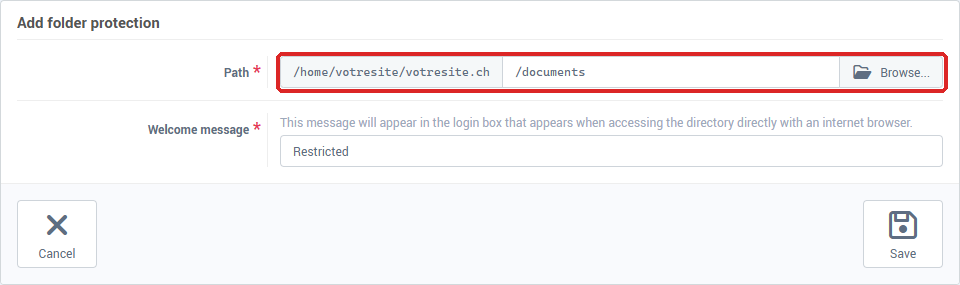
- In Path, enter the path of the directory starting from your domain's folder, for example
/documents, or pick it with Browse.... The beginning of the path, up to the domain's folder, is shown in front of the field.
- In Welcome message, keep "Restricted" or enter the text that will appear in the browsers' login window.
- Click Save.
The directory's page opens, with three tabs: Basic configuration, Restrictions by location and Restrictions by users.
How do I create a user?
- Open the Restrictions by users tab, then click Add.
- In Username, enter at most 16 characters: letters, digits and underscore.
- Enter the Password, then the Password confirmation. It must be at least 12 characters long and contain a lowercase letter, an uppercase letter, a number and a special character among
^ ! , . $ # % ~ * : @ & + _ - ?. No other character is accepted, neither spaces nor accented letters.
- Click Save.
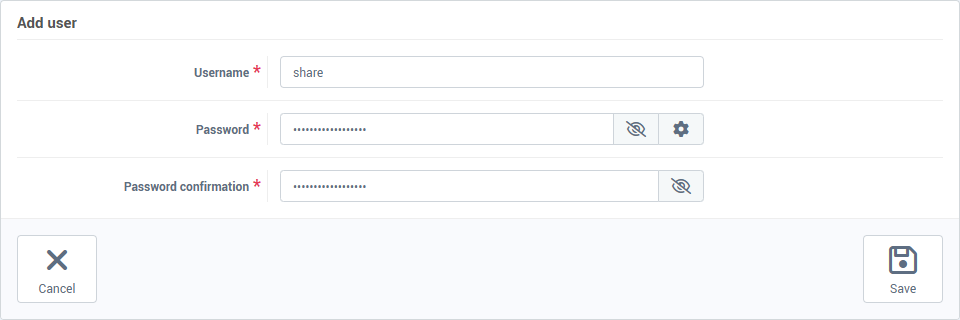
Add one user in the same way for each person who needs access to the directory.
How do I open the protected directory?
The directory's address is your domain name followed by the Path, for example https://yourdomain.ch/documents/. The browser shows a login window with the Welcome message: enter the username and password created above.
How do I remove the protection?
Tick the directory in the Protected folders list, click Delete, then confirm with Yes. The directory becomes public again; its files are not deleted.
The Basic configuration tab also has a WebDAV switch, to open the directory as a network folder. It is not covered here: if you need it, contact our support team.
Troubleshooting
| What you see |
What to do |
| "This directory doesn't exists" |
The Path does not match any directory in your domain's folder. Create the directory over FTP first, or pick it with Browse.... |
| "This path contains a character that is not allowed…" |
The path contains a forbidden character, for example $, ;, &, <, > or a double quote. Rename the directory without that character. |
| The Add link does not appear above the list |
The screen hides it when your plan has reached its maximum number of FTP accounts. Delete an unused FTP account, or contact our support team. |
| "The password entered does not match our password requirements" |
The password does not follow the rules described above: length, types of characters, allowed characters. |
| "The two password must be the same" |
The two password entries differ: type them again. |
| "This username already exists!" |
This username is already defined on this directory: choose another one, or edit the existing user by clicking its name. |
| Your site suddenly asks every visitor for a password |
The protection covers the site's own directory, often the root /. Delete that protection and create it on a dedicated subdirectory. |
Going further