A MySQL database stores the dynamic content of your website (articles, accounts, orders): most CMSs and online shops need one. In the Apanel console you create a database with a few fields, choosing the SQL engine that will run it. The console creates its default user at the same time, and you can then add other users, for example for your webmaster, with limited rights.
In short: in Hosting management, Databases card, click MySQL then Add: type the name, choose the SQL engine and the password of the default user. Your website connects with the full name (prefix included), on localhost, port 3306.
Requirements
- Your plan must include MySQL databases. If it does not, the Databases card of Hosting management does not show the MySQL and phpMyAdmin tiles.
- The number of databases depends on your plan. If you have reached it, the add page shows "You have reached the limit of the number of MySQL databases you can add to this account.": delete an unused database to create another one.
Good to know before you start
- The database name and the names of its users always start with your account name followed by
_, for example yoursite_demo. Your website must use this full name, not only the end.
- These names accept only letters (without accents) and digits, with no space or hyphen. The full name, prefix included, cannot exceed 32 characters (16 on the oldest of our servers): the field stops the input by itself.
- The default user has exactly the same name as the database and holds the DB admin credential, that is all rights on this database. Keep it for your own website.
- The SQL engine is chosen when the database is created, database by database, and cannot be changed afterwards from the console. Two engines are offered, MySQL Percona 8.4 and MariaDB 11.4. If in doubt, keep the one marked "(default)"; to decide with full knowledge, see MySQL Percona 8.4 or MariaDB 11.4: which engine to choose?.
- The database is created with the
utf8 character set (utf8_general_ci collation). If your accents display badly, see Fix incorrectly displayed accents by switching PHP, MySQL and the browser to UTF-8.
Open the MySQL manager
- Log in to your Apanel console.
- From the dashboard, click your domain name to open Hosting management.
- In the Databases card, click MySQL.

The MySQL databases list shows for each database its Database name, Description, Size, SQL engine and Linked domain. The size is measured once a day: a database created today shows -- until the next measurement. The Linked domain is empty for databases created before October 2026 or detached from any domain. The Filter button lets you find a database by name or description.
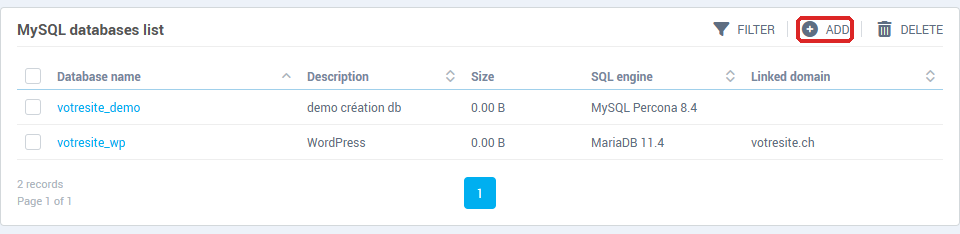
How do I create a database?
- Click Add.
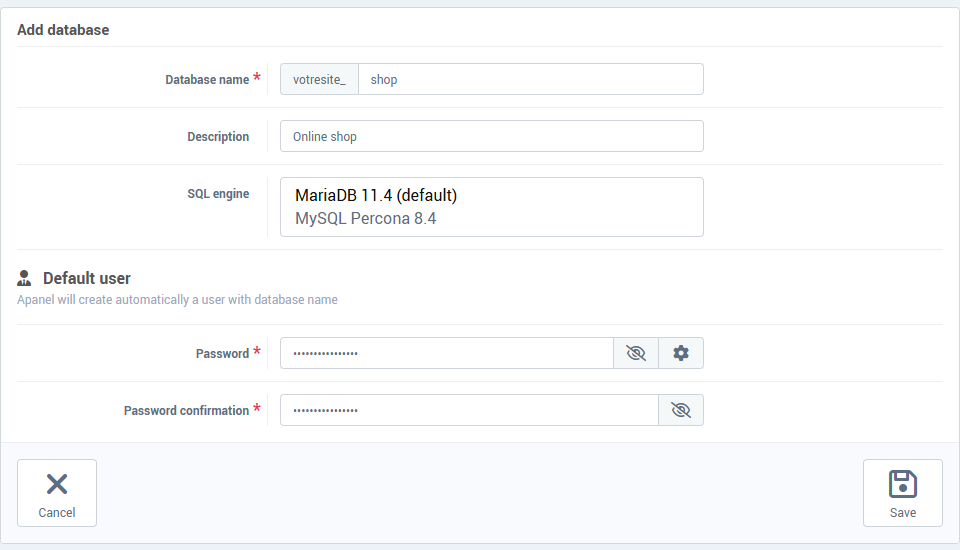
- In Database name, type the end of the name: the console adds
yoursite_ in front. Pick a short, meaningful name, for example demo, which gives yoursite_demo.
- Optional: type a Description (250 characters at most) to remember what the database is for.
- In SQL engine, choose MySQL Percona 8.4 or MariaDB 11.4. The choice proposed in advance, marked "(default)", is the one of your hosting: it suits most websites. If the field does not appear, your hosting does not offer this choice and the database is created on the database server of your hosting.
- Under Default user, type a Password. While you type, the list under the field shows the rules to follow: between 12 and 30 characters; at least one lowercase letter, one uppercase letter and one digit; at least one special character among
^ ! , . $ # % ~ * : @ & + _ - ?. Any other character, including accented letters, is refused. The gear button opens a generator: New password suggests another one, Choose keeps it, Choose & copy keeps it and puts it in the clipboard. The eye lets you check what you typed.
- Repeat the password in Password confirmation.
- Click Save.
The message "Operation succeeded" appears and the console opens the page of the new database. Write the password down in a safe place: your website will need it.
The database is linked to the domain you added it from (the one shown at the top of the page). This link tells which website it belongs to; it also decides which databases a person you gave access to that domain can see (see Give your webmaster or agency access to your hosting).
Where do I find the connection details?
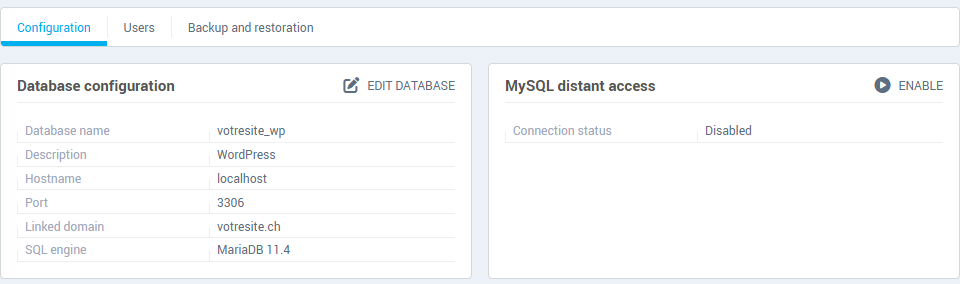
The database page has three tabs: Configuration, Users and Backup and restoration. The Configuration tab holds what you must enter in the configuration file of your website or CMS:
- Database name: the full name, prefix included;
- Hostname:
localhost;
- Port:
3306;
- the user name: the one of the default user, identical to the database name;
- the password: the one you set.
The Linked domain and SQL engine lines remind you of the domain the database is attached to and of the engine it runs on. The host and the port are the same whichever engine you chose.
The How to connect using PHP ? card gives three code examples (mysqli, PDO and a DSN string): replace username and password with your credentials.
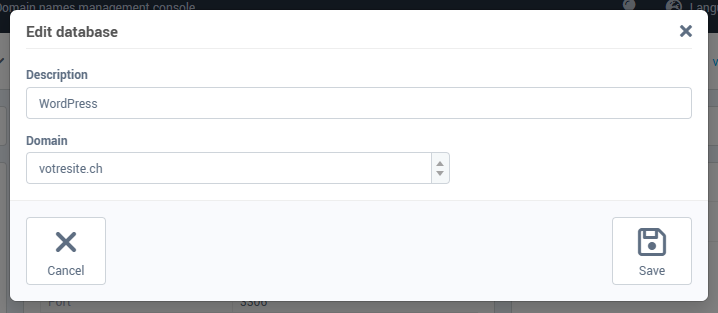
The Edit database button changes the Description and the Domain the database is linked to. It cannot change the SQL engine.
How do I connect from another computer (MySQL distant access)?
The localhost hostname only works for programs running on your hosting. To connect from your computer or a contractor's, with a database management tool:
- In the Configuration tab, find the MySQL distant access card. The Connection status shows Enabled or Disabled.
- If it is Disabled, click Enable. Once Enabled, the card shows the Hostname and Port to use instead of
localhost.
- In your tool, enter this hostname and port, the database name and the credentials of a user of the database.
While access is enabled, the SSL certificates button downloads a ZIP archive with the certificate files of your account. The Disable button closes the access: do it as soon as you no longer need it, for example at the end of a job.
How do I add a user for my webmaster?
Do not give a third party the default user or your Apanel credentials. Create a user just for them instead: you can delete it or change its password without touching your own access. For the matching FTP account, see Give your webmaster or agency access to your hosting.
- Open the database page (click its name in the list), then the Users tab.
- The MySQL users list shows each user's Username and Credential. Click Add.
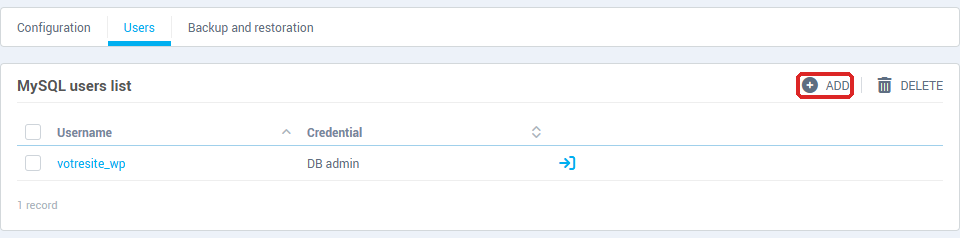
- In Username, type the end of the identifier: the console adds
yoursite_ in front. Letters and digits only, for example webmaster.
- Type a Password that follows the same rules as above, then repeat it in Password confirmation.
- Choose the lowest Credential that is enough (the three choices are detailed under the screenshot).
- Click Save.
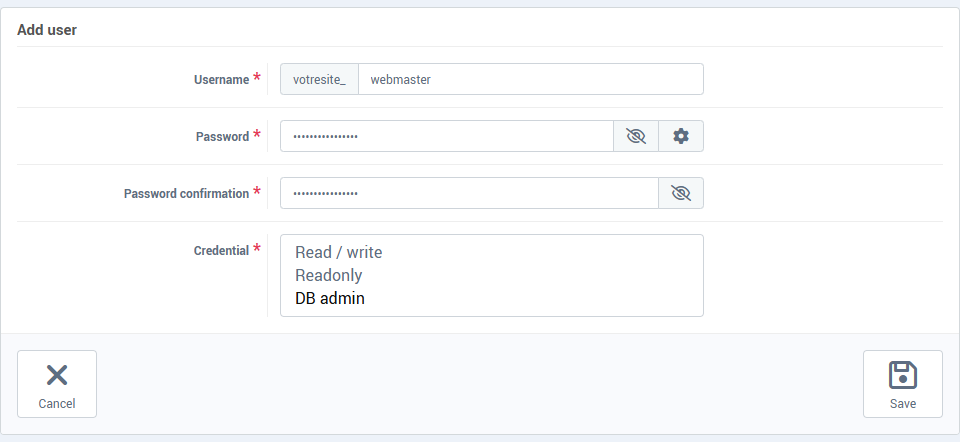
The three credentials:
- Readonly: read the data (SELECT), and therefore export it;
- Read / write: read, add, change and delete data (SELECT, INSERT, UPDATE, DELETE), without being able to create or drop tables;
- DB admin: all rights on the database, including creating and dropping tables. This is the level needed to install a CMS. It is proposed by default: remember to change it.
Then give your webmaster the hostname, the port, the database name, their full user name (prefix included) and their password. To let them connect from their computer, also enable MySQL distant access (previous section).
Edit or delete
- Edit a user: in the Users tab, click their name. You can change the credential and the password; leave the password fields empty to keep it. The name cannot be changed: delete the user and create it again. If you change the password of a user your website uses, change it in the website configuration too.
- Open phpMyAdmin: the arrow icon to the right of a user opens phpMyAdmin with that user (see How to export / import a MySQL database?).
- Delete a user: tick the box in front of them, click Delete, then confirm with Yes.
- Delete a database: in the MySQL databases list, tick the box in front of the database, click Delete, then confirm with Yes. The console asks "Are you sure you want to remove this database?" and states that the operation cannot be undone; the users of the database are deleted with it. If you are not sure, make a backup first (see How to restore your database).
- Back up or restore: Backup and restoration tab of the database page, described in How to restore your database.
- Import or export the content: see How to export / import a MySQL database?.
- Change the SQL engine: the engine of an existing database cannot be changed. Create a new database on the other engine, copy the content into it (export then import), then update your website configuration; the steps are described in MySQL Percona 8.4 or MariaDB 11.4: which engine to choose?.
Troubleshooting
- "This database name already exists!": the full name is already taken, including by another database of your account. Choose another one.
- "An user with the same username as your database name already exists!": a MySQL user already has this name, and the console must create the default user under the database name. Choose another database name.
- "This username already exists!": the user identifier is already taken. Choose another one.
- "The password entered does not match our password requirements": go back over the rules in step 5 of the creation, or use the generator.
- "The two password must be the same": the confirmation differs from the password.
- "An error occurred during the operation. Error code: …": note the code and give it to support.
- The SQL engine field does not appear: your hosting does not offer this choice. The database is created on the database server of your hosting.
- Your website cannot connect: check that the configuration holds the full database name and user name, with the prefix, the current password, and
localhost as host. From another computer, the host is the one shown in MySQL distant access, which must be Enabled.
Going further