The Pre-installed applications of the Apanel console install WordPress, Joomla and dozens of other web applications for you: the installer copies the files to your website, creates the database the application needs and configures it. There is nothing to download or upload by FTP.
In short: in Hosting management, Website card, click Pre-installed applications, choose the application (for example WordPress), then Install Application; the installer also creates the database. Your hosting must include MySQL databases.
Prerequisites
- A web hosting plan that includes MySQL databases: without them, the Pre-installed applications button is not shown.
- The domain or subdomain you install the application on must be hosted with us.
Before you start
- The installer opens in a new window. If nothing opens, your browser has probably blocked the window: allow pop-ups for the Apanel console, then click again.
- Two PHP functions are enabled automatically. The installer needs the
exec and shell_exec functions. Each time you open the installer, the Apanel console enables them for the domain you open it from. You will find them ticked in PHP configuration, under Not recommended PHP functions. If you do not use the installer's automatic updates, you can untick them once the installation is finished: they will be enabled again the next time you open the installer.
- Password protection blocks the installation. If the installation folder is protected (Folder protection), the installer gets a 401 error: see Troubleshooting, below.
How do I open the installer?
- Log in to your Apanel console.
- On the dashboard, click your domain name to open Hosting management.
- In the Website card, click Pre-installed applications.
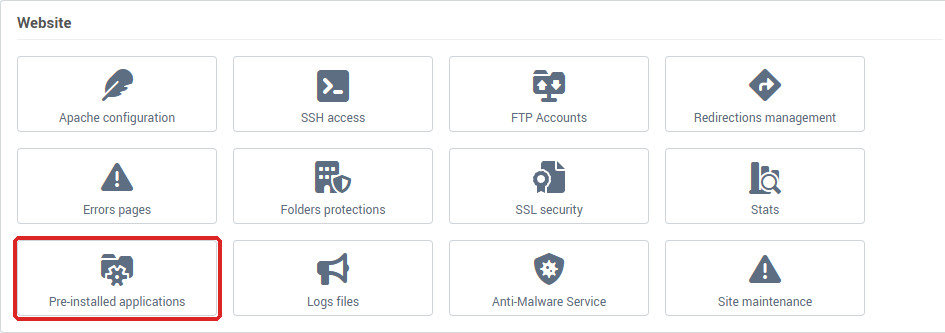
A new window shows Login in progress..., then the application catalogue.
How do I install an application?
- In the catalogue, find the application (for example WordPress) and click it.
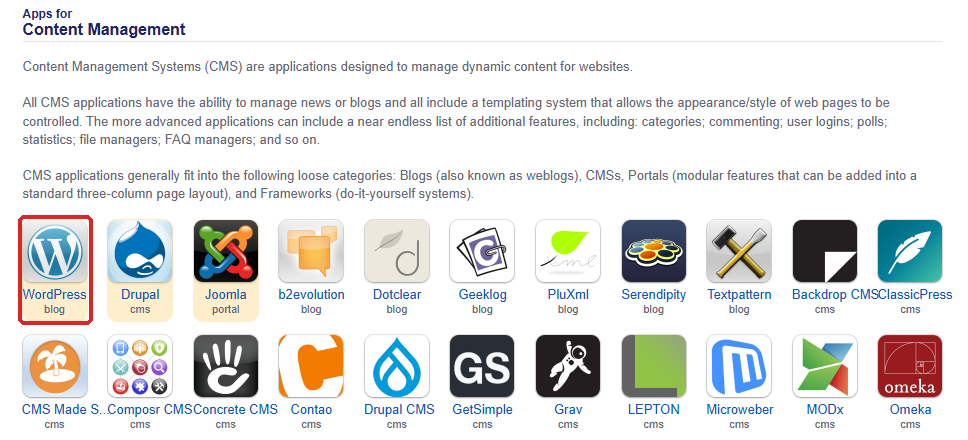
- On the application's page, click Install Application.
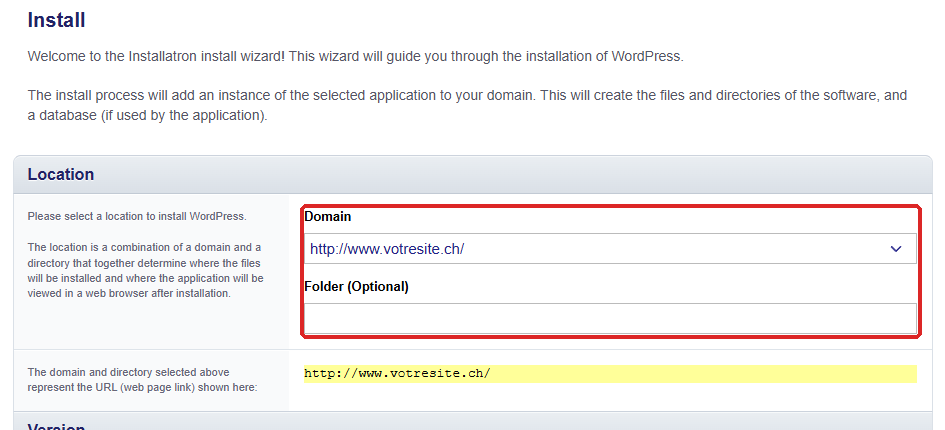
- Choose the location: the website address (your domain, with or without
www, or a subdomain) and, if you wish, a folder. Without a folder, the application is installed at the root of the website and answers directly on yourdomain.ch.
- Fill in the requested settings: language, the application's administrator account (username, password, email address). Write down the username and password: they open the application's administration.
- Keep the other options at their defaults, then start the installation.
At the end, the installer shows the address of the website and of its administration. If the application uses a database, it has been created for you: it appears in MySQL, in the Databases card. Do not delete it, or the website will stop working.
The installer also lets you find your installed applications, update them and back them up. The detailed guide to these screens is in the Installatron documentation, the publisher of the installer.
To get started with WordPress once it is installed, see the official documentation.
Troubleshooting
| What you see |
What to do |
| No window opens |
Allow pop-ups for the Apanel console in your browser, then click Pre-installed applications again. |
| A 403 page titled Pre-installed application manager says the connection to the application manager is not possible at the moment |
The installer could not open your session. Click Close, wait a few minutes and try again. If the message persists, contact support. |
| The Pre-installed applications button is not shown |
Your hosting plan does not include MySQL databases. Contact us to upgrade your plan. |
Only the http:// address of your domain is offered |
The domain does not have an SSL certificate yet. Enable it in SSL security (see Install an SSL certificate on a domain), then open the installer again. |
| A 401 error during the installation |
The installation folder, or a folder that contains it, is password protected: the installer cannot access it. In the Website card, click Folder protection. If the Protected folders list contains this folder or one of its parent folders (/ covers the whole website), write down its Path and its users if you want to create it again later, tick it, click Delete and confirm with Yes. Then start the installation again. A protection written in a .htaccess file (AuthType and Require valid-user lines) blocks the installer in the same way: remove these lines for the duration of the installation. As long as a protection is in place, the installer cannot update the application either. |
| The installation fails, and the Global disk space card on the Dashboard shows "Alert: One of your account quotas has been exceeded." |
Your web space is exceeded: past the tolerance margin, no file can be written on the hosting any more, including the installer's files. Free up space or add more (see See your disk space usage and add more), then start the installation again. |
Going further