Your site's PHP configuration is set from the Apanel console, on the PHP configuration screen: the PHP version, how errors are displayed, the maximum size of uploaded files, OPcache, sending e-mail with mail(), the PHP functions you can re-enable, and your own environment variables. There is no file to edit for any of this.
In short: in the Apanel console, open the domain's Hosting management, then PHP configuration in the Web technologies card; pick the PHP version and click Save. The setting applies to that domain only.
Requirements
- A domain with web hosting in your Apanel console: the screen is in the Web technologies card of its Hosting management.
What to know before you start
- Each domain has its own PHP configuration. The version and settings apply to the domain whose Hosting management you opened; another domain of your account can stay on another version.
- PHP memory and maximum execution time cannot be changed here: they are set by your plan and shown read-only. You can only boost the memory for 24 hours (see below).
- After you click Save, the console applies the setting on the server. Test your site right afterwards.
- A
.htaccess file at the root of your account, generated by the console, links each domain to its PHP version. It is rewritten at every change: do not edit it by hand to pick a version.
Where is the PHP configuration screen?
- Log in to your Apanel console.
- From the dashboard, click your domain name to open Hosting management.
- In the Web technologies card, click PHP configuration.

The Available options form opens. It ends with two buttons: Cancel (back to Hosting management) and Save. Nothing you change is applied until you click Save; the console confirms with a success message.
How do I change the PHP version?
- In PHP version, pick the version you want from the list.
- Click Save.
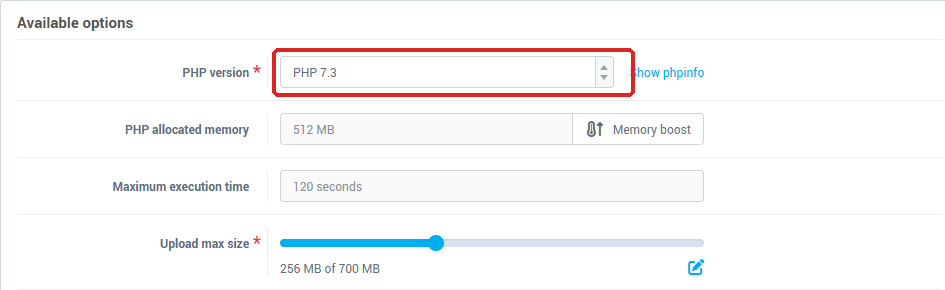
The list puts the oldest versions (before PHP 7.2) in a Deprecated PHP versions group. An end-of-life PHP version no longer receives security fixes: prefer the most recent version your application supports. The official release calendar is published on php.net.
- Before changing: an old application may stop working on a recent PHP version. First update your application (core, extensions, theme), make a backup, then move up in steps rather than in one big jump. Then test the home page, forms and administration area.
- If something breaks, go back to the previous version on the same screen, then update your application before trying again.
- Show phpinfo, to the right of the list, opens a window that displays the configuration actually in effect: handy to check a value after a change.
- A version your server does not offer cannot be activated directly: when you select it, the console opens the Request for server change window. It offers a free server change that needs no action on your side and that our team carries out manually in 24 to 48 hours. The new server runs MySQL 8: some older sites may no longer be compatible.
What memory, time and upload limits apply?
Under the version, three lines:
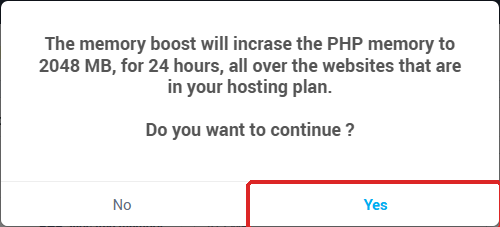
- PHP allocated memory: the memory available to PHP, set by your plan. The Memory boost button raises it to 2048 MB for 24 hours, across all the websites of your hosting, after confirmation. During that time the line reads "Boosted until the" followed by the date. Useful for a migration or a heavy import.
- Maximum execution time: in seconds, set by your plan.
- Upload max size: the maximum size of a file sent through a form on your site, from 2 to 700 MB. This value is also used as the maximum size of all the data in one request.
PHP errors management
- Display php errors: when enabled, errors are written into the page. Useful for the time of a diagnosis, then switch it off: error messages show paths and details of your site to your visitors. For a step-by-step guide, see Temporarily Enable PHP Error Display in SwissCenter.
- PHP error reporting: the level of errors reported, from Disabled to All errors, through Only script execution errors, Only script execution errors and notices, All errors except notices and warnings and All errors, except notices. The first entry, Default server value (E_ALL & ~E_DEPRECATED), restores the server's setting.
Advance configuration
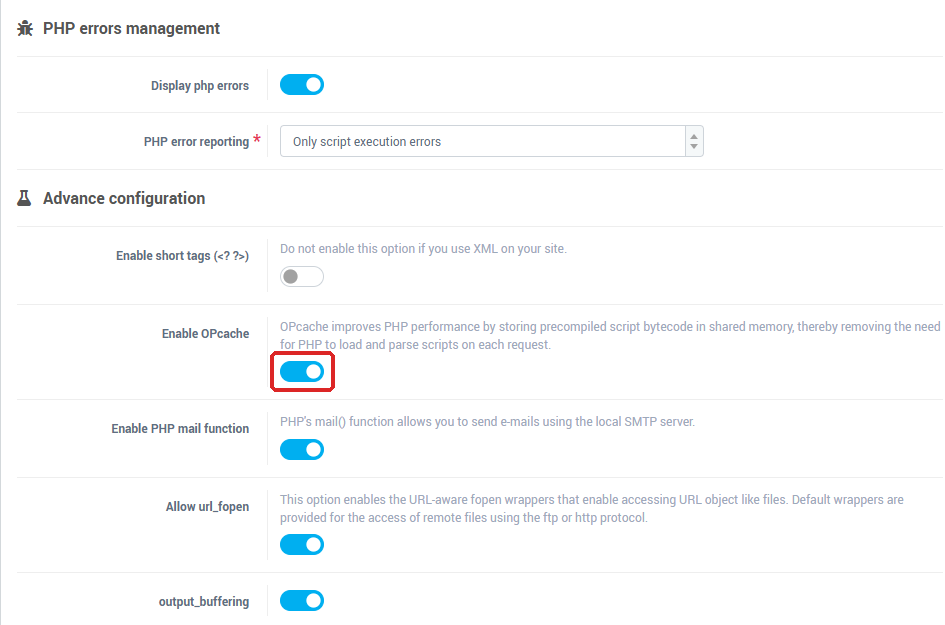
- Enable short tags (
<? ?>): only enable it if your code needs it. Do not enable it if you use XML on your site.
- Enable OPcache: OPcache keeps already compiled PHP code in memory, which speeds up most sites. This switch only appears for PHP 7.0 and later versions.
- Enable PHP mail function: allows PHP's
mail() function, which sends e-mails using the local SMTP server. When it is off, mail is added to the forbidden functions. See Send emails from a PHP script (mail() function or SMTP).
- Allow url_fopen: enables the extended file-access functions that can work with web addresses (FTP or HTTP). Only enable it if your application requires it.
- output_buffering: buffering of PHP's output.
Not recommended PHP functions
For security, some PHP functions are disabled on your site. The Not recommended PHP functions block lists those you can re-enable: exec, passthru, shell_exec, system, proc_open, popen, curl_multi_exec and inject_code. Tick a function to allow it.
Disabled functions are disabled for a reason. The console warns you: enabling these functions may create security holes on your site, and we are not responsible for any problems. Only enable what your application explicitly requires, and untick as soon as it is no longer needed.
How do I declare environment variables?
The Environment variables block lets you declare your own variables, for example an identifier or a setting specific to your application. They are passed to your site by the web server (the SetEnv directive of its Apache configuration); your application's documentation explains how to read them.
- Click Add variable.
- Enter the Variable name: letters, digits, hyphen and underscore only.
- Enter the Variable value: it cannot contain double quotes (
").
- Click Save. A line left completely empty is ignored.
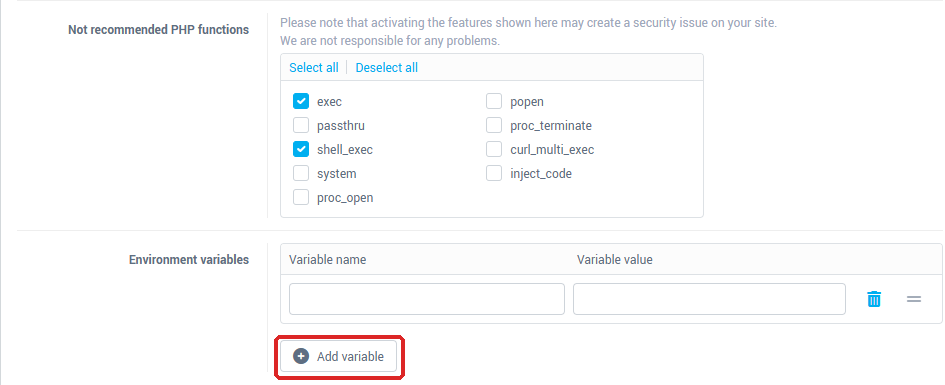
These variables belong to the domain. After a change, the console reloads the web server configuration for your site.
How do I change a directive that is not in the list?
The screen only offers the settings above. For any other php.ini directive, contact our support, telling us the domain, the directive and the value you want. The reference documentation for directives is the PHP project's: php.ini directives list.
Troubleshooting
- "We will soon delete the version you selected. Please contact us if you really need this version of PHP": you picked a version older than PHP 5.6 while your site is not already on one of that level. Pick a more recent version, or contact our support if you absolutely have to keep the old one.
- "Variable name incorrect": the name contains a character other than a letter, a digit, a hyphen or an underscore.
- "Invalid value, unauthorized character (double quotes)": a variable's value contains a double quote.
- An error with a code is shown ("An error occurred during the operation. Error code: ..."): the configuration could not be applied. Note the code and send it to our support along with your domain name.
- The site shows a blank page after a version change: most often the application is not compatible with that version. Go back to the previous version, then see Temporarily Enable PHP Error Display in SwissCenter to read the error.
Going further