Your Apanel console lets you get back an earlier version of your files yourself, without opening a ticket: the File explorer offers Previous versions, which puts the files of a folder back as they were on a date you choose. Databases are restored from another screen, presented below.
This article covers your website files and MySQL databases. It does not cover email mailboxes.
In short: open the folder in the File explorer (Tools card), click Previous versions, choose a date in Choose snapshot, tick the files and click Restore. Databases are restored from MySQL, Backup and restoration tab.
Prerequisites
- Have access to your Apanel console.
- Know which folder contained the files you want back and, if possible, on which date they were still correct.
What you need to know before you start
- The restoration happens in the folder you have opened in the File explorer, and the list of files offered is the one from the same folder on the chosen date. Open the relevant folder first.
- By default, a file that already exists is replaced by its older version. You can turn this replacement off (see below).
- You can only restore into a folder that belongs to you.
How do I restore a file or a folder?
- Log in to your Apanel console.
- From the dashboard, click the name of your domain to open Hosting management.
- In the Tools card, click File explorer. It opens in a new tab.

- Open the folder where you want your files back. To recover a folder you deleted, open its parent folder.
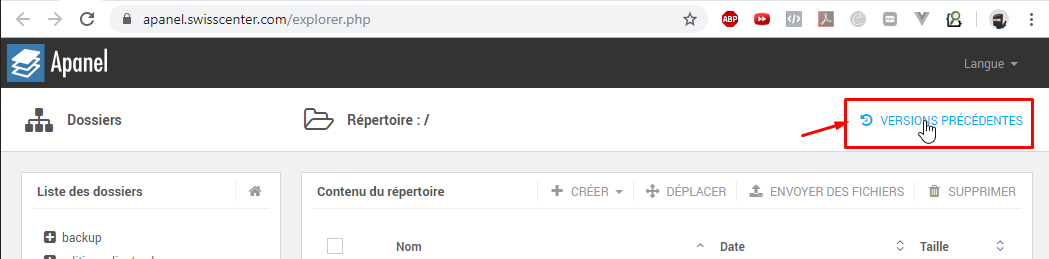
- Click Previous versions, at the top of the page.
- In the File restoration system window, choose the date and time in Choose snapshot. The snapshot is the status of your folder on the date selected. Depending on your server, the list is shown in three groups (Frequently, Hourly, Daily) or as a single list of dates.
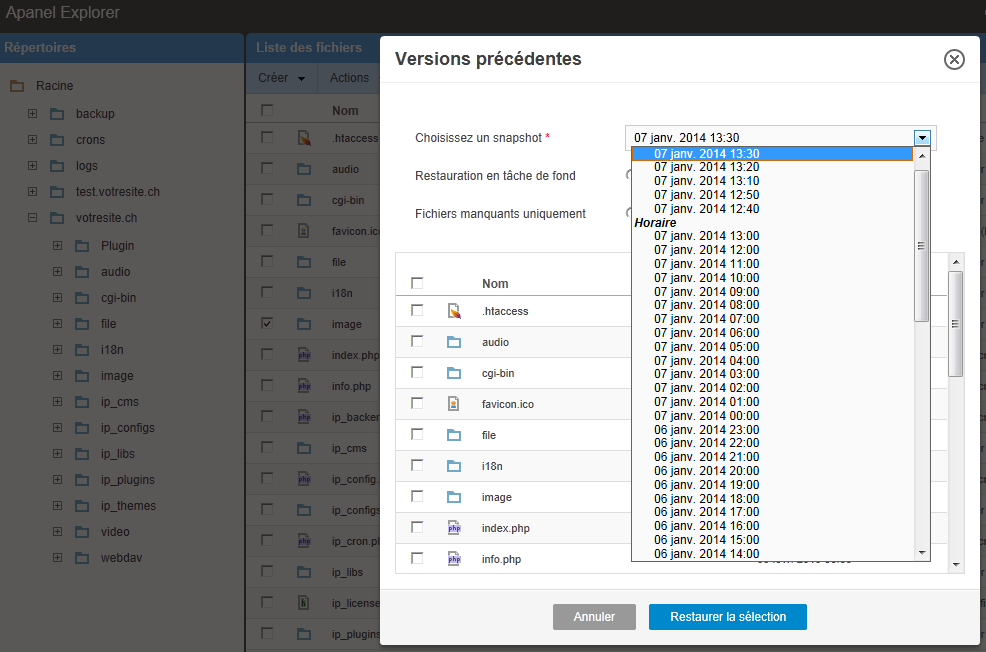
- Set the two options:
- Restoration in background task (on by default): the restoration runs in the background and you must refresh the list manually to see the restored files.
- Replace existing files (on by default): if the file already exists in your directory, it is replaced by the snapshot file. When off, files already present are kept and only missing files are restored.
- In File(s) to restore, tick the files or folders you want. The list shows the Filename and Modification date of each one. Ticking a folder also restores its contents. Some system files of the account (for example
.ssh or .bashrc) are not offered.
- Click Restore.
If no file appears, the message This directory is empty means the folder did not exist or was empty on the chosen date: try another snapshot.
If you click Restore without ticking anything, the message Please select at least one file is shown.
How far back can I go?
The dates offered in Choose snapshot are the only ones you can restore: the console offers no others. If the date you need is not in the list, it is no longer available in self-service.
Keep your own backups outside the hosting account, especially before a delicate operation: a CMS upgrade, a migration, a change of PHP version. For a complete copy of a site (files and databases), see Create a downloadable archive of your site.
How do I restore a database?
A database is restored from the console, in MySQL, Backup and restoration tab: see Restore a database.
Another method: the backup folder
The backups of your databases are also files you can download. In the File explorer, at the root of your space, the backup folder contains a mysql subfolder. Each file is named after the database, with the date and time of the backup, for example databasename-2026-09-28_02:00.sql.zst. A backup started on demand also has -manual before .sql. Files end in .sql, .sql.gz or .sql.zst (compressed).
- Download the file for the date you want.
- Decompress it if needed, with a tool that handles its format (
.gz or .zst).
- Import the database with the method of your choice, for example phpMyAdmin, following the restore part of Export or import a MySQL database.
These database backups are kept for 7 days, then deleted automatically.
If something goes wrong
- You cannot find the Previous versions button: it only appears in a folder that belongs to you. Open a folder of your website.
- The file list stays empty: see above, the folder did not exist on that date.
- You do not see the restored files: with Restoration in background task, refresh the folder list after a few moments.
- The date you need is not in the list: contact our support, giving the domain name, the path of the folder or file and the date you want.
Going further