phpMyAdmin is a web tool to browse and manage the content of a MySQL database. From the Apanel console it opens in one click, already logged in to the database: it is the simplest way to export a database (to back it up or move it) or to import an SQL file (to fill it or restore it).
In short: in the Databases card, click phpMyAdmin, then the login icon of a user. Export with the Export tab (SQL format), import with the Import tab after logging in with a DB admin user.
Requirements
- A MySQL database with at least one user. To create one, see How to create a database.
- Your plan must include MySQL databases, otherwise the phpMyAdmin tile does not appear in the Databases card.
Good to know before you start
- You choose the user phpMyAdmin opens with, and its rights (its Credential) decide what you can do:
- Readonly: read the data without being able to change it: no import;
- Read / write: add, change and delete data, but not create tables;
- DB admin: all rights on the database. This is the one you need to import a file that creates the tables, as a full export usually does.
- phpMyAdmin opens in a new tab, with no password to type: the console passes the credentials of the chosen user by itself. phpMyAdmin addresses do not work as direct access: you must always go through the console.
- Before importing into a database that already holds data, make an export, or start a backup from the console (see below).
How do I open phpMyAdmin?
- Log in to your Apanel console.
- From the dashboard, click your domain name to open Hosting management.
- In the Databases card, click phpMyAdmin.

The Users list shows all the MySQL users of your account, all domains together, with their Username, Credential, the Database name they give access to and its Description. The Filter button helps you find a row.
- On the row of the user you want, click the login icon at the end of the row (its tooltip reads "Connect to PHPMyAdmin").

A new tab shows "Login in progress... Please wait!", then phpMyAdmin opens. Clicking the database name in the left column shows its tables.
How do I export a database?
phpMyAdmin's labels may vary slightly with its version; the principle stays the same. The options are detailed in the phpMyAdmin documentation.
- In phpMyAdmin, click the database name in the left column.
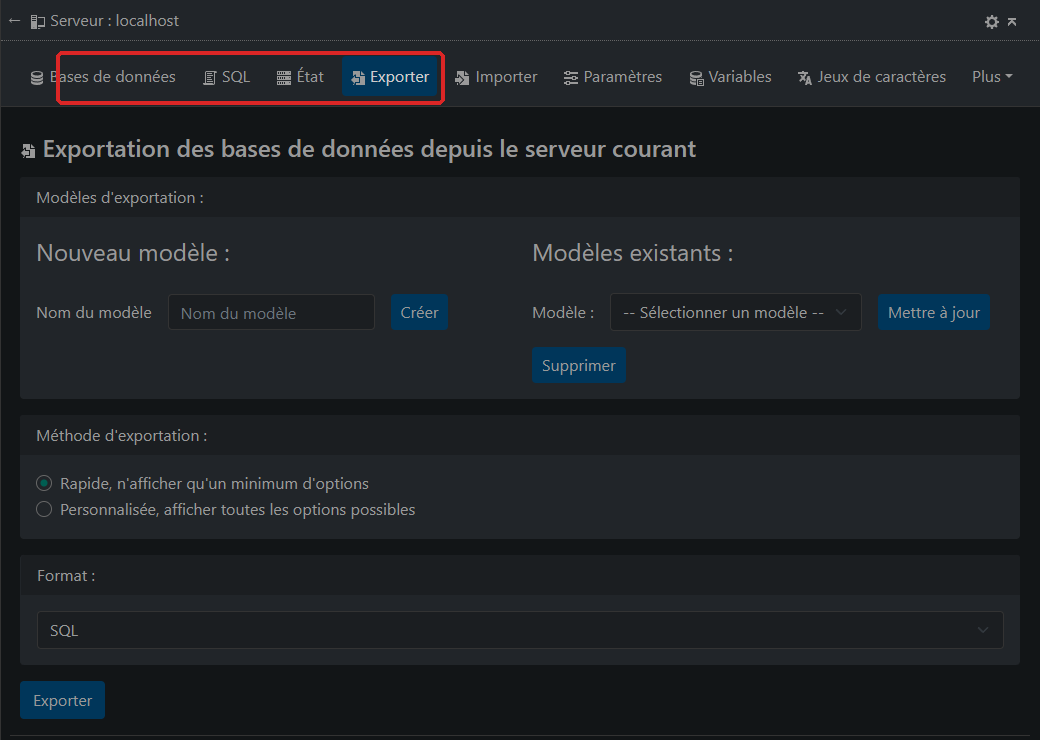
- Open the Export tab.
- For a full backup, keep the default settings: Quick export method, SQL format.
- Confirm with the Export button at the bottom of the page. Your browser downloads a
.sql file: keep it somewhere safe.
How do I import an SQL file?
- If the database does not exist yet, create it first in the console (see How to create a database).
- Open phpMyAdmin with a DB admin user of this database.
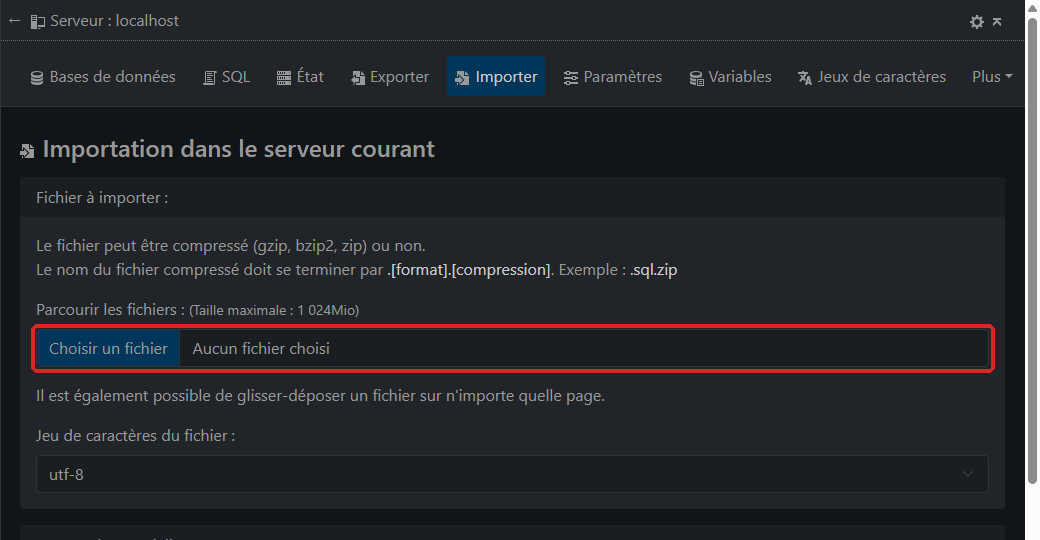
- Click the database name in the left column, then open the Import tab.
- Click Choose file and select your file on your computer. The file can be compressed (gzip, bzip2 or zip): its name must then end in
.sql.zip, .sql.gz or .sql.bz2. The Maximum size is shown under the field (1,024 MiB on our server at the time of writing).
- Confirm with the Import button at the bottom of the page. When the import is over, phpMyAdmin shows a success message and the tables appear in the left column.
The console creates the database with the utf8 character set. If accents display badly after the import, see Fix incorrectly displayed accents by switching PHP, MySQL and the browser to UTF-8.
Above the maximum size shown by phpMyAdmin, the file is refused: split it, or contact support. phpMyAdmin appears in your browser's language, so its labels may differ from the ones quoted here.
Alternative: the console backups
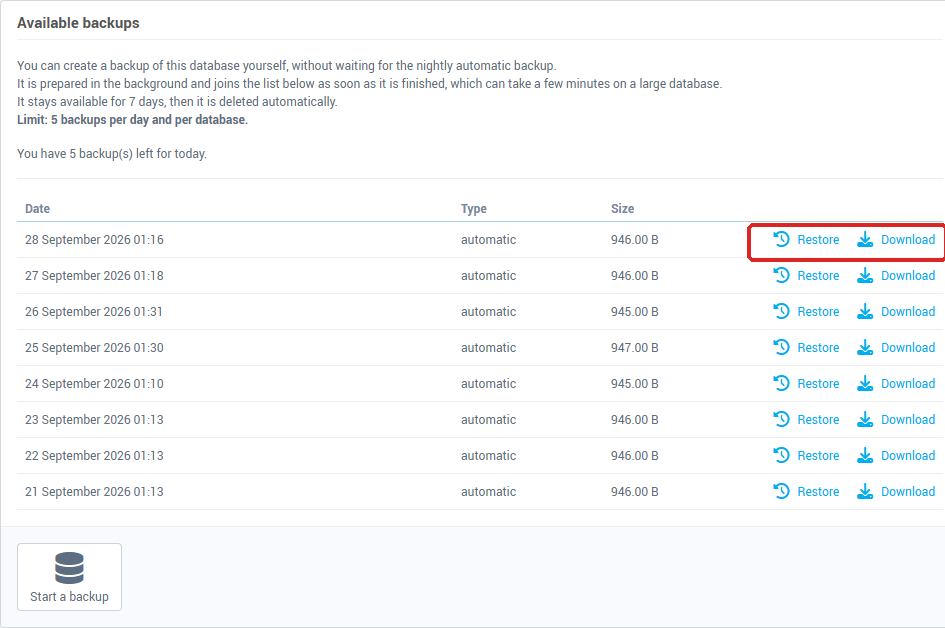
Without going through phpMyAdmin, each database page has a Backup and restoration tab. The Available backups table lists the backups with their Date, Type (automatic or manual) and Size. Each row offers Download and Restore. Depending on your server, the Start a backup button creates one on demand, without waiting for the nightly one: the limit is 5 backups per day and per database, and each stays available for 7 days.
- In the Databases card, click MySQL, then the database name.
- Open the Backup and restoration tab.
To put a backup back in place, see How to restore your database: the restore overwrites the current version of the database.
Troubleshooting
- "The phpMyAdmin direct connection has been disabled for security reasons, please go through the management console to access it.": you opened a phpMyAdmin address directly. Open it from the console, as described above.
- The list shows "No element for the moment": no MySQL user exists yet on your account. Create a database and its user.
- phpMyAdmin refuses a query of the imported file: the user probably lacks the required rights. Reopen phpMyAdmin with a DB admin user.
- A new tab does not open: the connection opens in a new tab; check that your browser is not blocking it.
- "An error occurred during the operation. Error code: …": note the code and give it to support.
Going further