From the Apanel console, you can gather your site's files and the databases of your choice into a single archive, then download it through a temporary link sent by email. This is useful to retrieve your site before moving it, to keep a copy before a major change, or to hand the site over to a developer.
The archive is prepared outside your hosting space: it does not count towards your disk quota and cannot be reached by FTP, by SSH or from your website.
Prerequisites
- Access to the Apanel console as the account holder. The button is not offered to third-party access.
- A site hosted on one of our latest-generation servers. If the Archives button does not appear in the Website card, the feature is not offered on your site's server yet: contact support, who can prepare the archive for you.
- The button exists for a domain and for a subdomain that has its own folder, not for a domain alias.
What to know before you start
- Content of the archive: the site folder you choose, one SQL file per selected database, and a
README.txt file that explains how to restore. Mailboxes are not included, nor is the rest of your hosting space.
- Format: a single
.tar.zst file (a tar archive compressed with zstd).
- Maximum size: 20 GB per archive, files and databases included.
- One archive at a time per site: while an archive is being prepared or is available, you cannot create another one for that site. Revoke it first.
- Three archives per site in 24 hours at most. Revoked archives count too.
- Link lifetime: 1, 3 or 7 days. After that, the link stops working and the archive is deleted.
- The link is enough to download: anyone who has it can download the archive. The site's configuration files (
wp-config.php, .env, etc.) contain your database passwords: only share the link with people you trust.
Create an archive
- Log in to your Apanel console.
- Choose the domain (or subdomain) in the selector at the top left.
- In the Website card, click Archives.
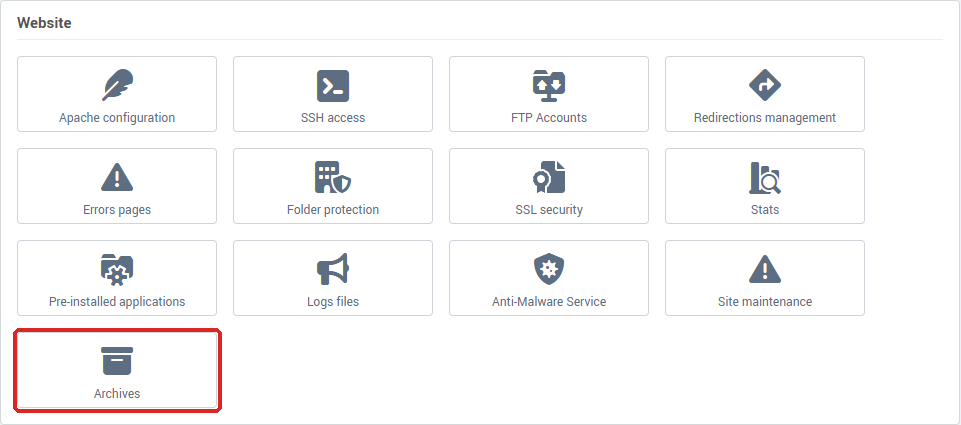
- On the Site archives page, click Create an archive.
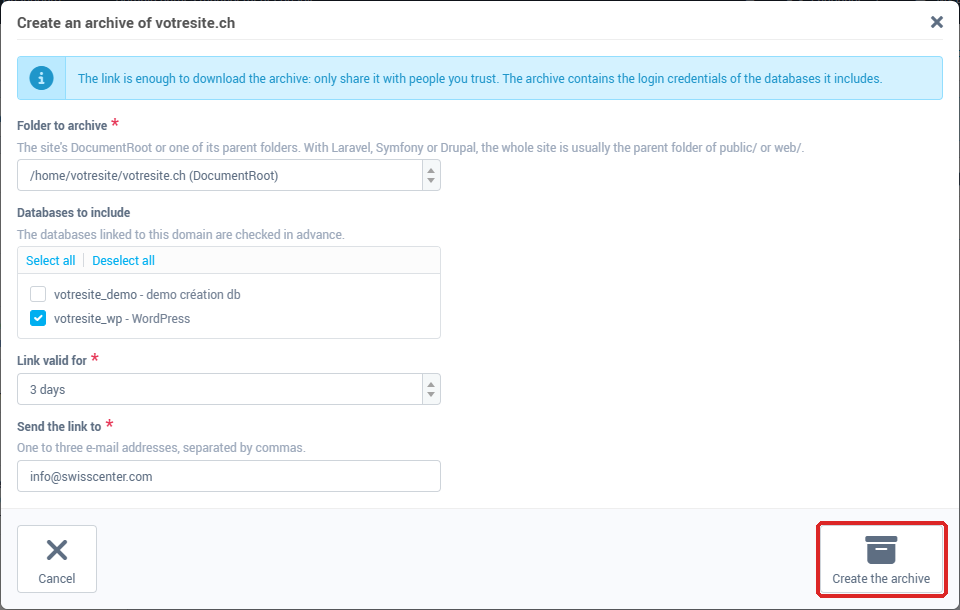
- Fill in the form:
- Folder to archive: the site's DocumentRoot (the folder published on the web) or one of its parent folders. With Laravel, Symfony or Drupal, the whole site is usually the parent folder of
public/ or web/: the console then suggests it automatically. If the chosen folder also contains other sites of your account, their names are shown next to it ("also includes: ...").
- Databases to include: select the databases to add. Those linked to this domain are checked in advance.
- Link valid for: 1 day, 3 days (the default) or 7 days.
- Send the link to: one to three email addresses, separated by commas.
- Click Create the archive.
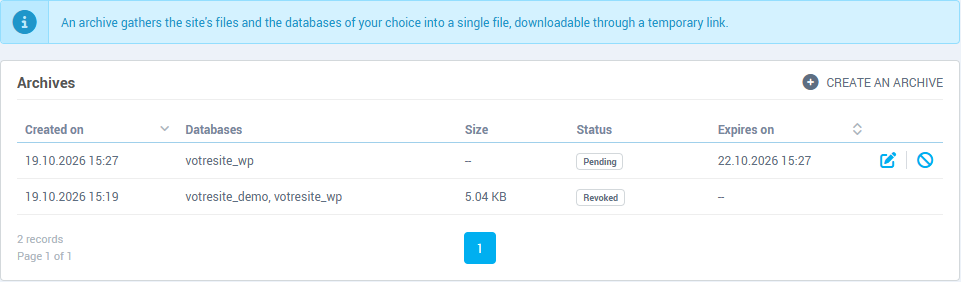
The console confirms that the archive is being prepared, and the row appears in the list with the status Pending, then Being prepared. You can close the page: the preparation goes on without you.
While the archive is being prepared, the Change the recipients icon lets you correct the addresses that will receive the link.
Download the archive
When the archive is ready, its status changes to Ready and each recipient receives the email Your archive is ready. It contains the Download the archive button, the size, the SHA-256 checksum, the databases included and the date until which the link is valid. If the connection drops, the download can resume where it stopped.
In the list, three icons are offered on a ready archive:
- Copy the link: copies the download link to the clipboard.
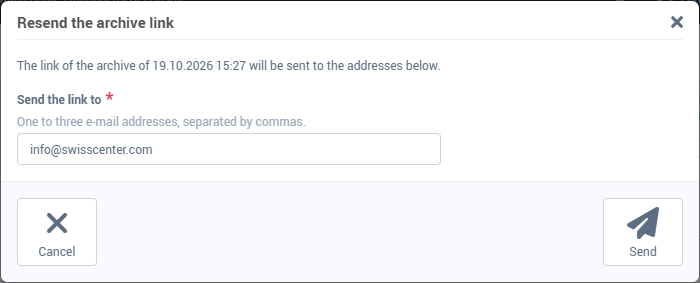
- Resend the link: sends the email again, to the same addresses or to others.
- Revoke: deletes the archive before it expires.
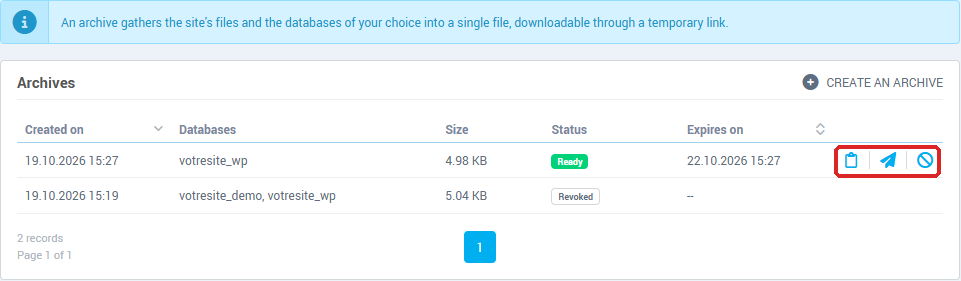
To resend the link, click Resend the link, check or change the addresses in Send the link to, then click Send.
Open the archive and rebuild the site
The .tar.zst file opens with the tar command (macOS, Linux, or over SSH on a server), or with an archive tool that supports the zstd format:
tar --zstd -xf votresite.ch-YYYYMMDD-HHMM.tar.zst
If your tar does not know the --zstd option, decompress first with zstd -d, then extract the resulting .tar file with tar -xf.
You get:
files/: the site folder. If you archived a parent folder, README.txt tells you where the DocumentRoot is inside files/.databases/: one .sql file per database.README.txt: a summary of the archive and the steps to follow.
To rebuild the site elsewhere:
- Copy the content of
files/ to the new hosting (and point its DocumentRoot to the right folder if you archived a parent folder).
- For each database, create an empty database and import its
.sql file, for example with phpMyAdmin or with mysql -u <user> -p <database> < databases/<db>.sql.
- Put the new database name, user, password and host in the site's configuration file (
wp-config.php, configuration.php, .env...).
Revoke an archive
Revoke an archive as soon as you no longer need it, or if the link was shared by mistake. Click Revoke, then confirm with Yes: the link stops working immediately and the archive is deleted. The row stays in the list with the status Revoked.

An archive you do not revoke changes to Expired at the end of its lifetime, and it is deleted.
Troubleshooting
| Message |
What to do |
| This site already has an archive being prepared or available. Revoke it to create a new one. |
Revoke the existing archive, or wait for it to expire. |
| You have already created 3 archives of this site in the last 24 hours. |
The message gives the time from which a new archive will be possible. |
| An archive is already being prepared, try again in a few minutes. |
Another archive is being prepared on our servers. Try again a little later. |
| Enter one to three valid e-mail addresses. |
Check the addresses in Send the link to, separated by commas. |
| Archives are not offered on this site's server yet. |
Contact support. |
If the status changes to Failed, hover over the badge to see the cause. You also receive the email The archive could not be created:
- The site and the chosen databases exceed the maximum size allowed for an archive: deselect some databases, or choose the DocumentRoot rather than a parent folder.
- There is not enough free disk space on the server to prepare the archive, The preparation exceeded the maximum time or The export of one of the databases failed: make the request again a little later. If the problem persists, contact support.
If the email does not arrive, check your spam folder, then use Resend the link or Copy the link from the list.
Further reading