Every MySQL database of your hosting is backed up automatically each night. From your Apanel console you can restore one of these backups yourself, download a backup file, or start an extra backup whenever you need one.
In short: in Hosting management, Databases card, click MySQL, then the database, Backup and restoration tab, and click Restore on the row of the backup you want (kept for 7 days). The restoration overwrites the current version.
Prerequisites
- A hosting plan with at least one MySQL database, and access to the Apanel console.
What to know before you start
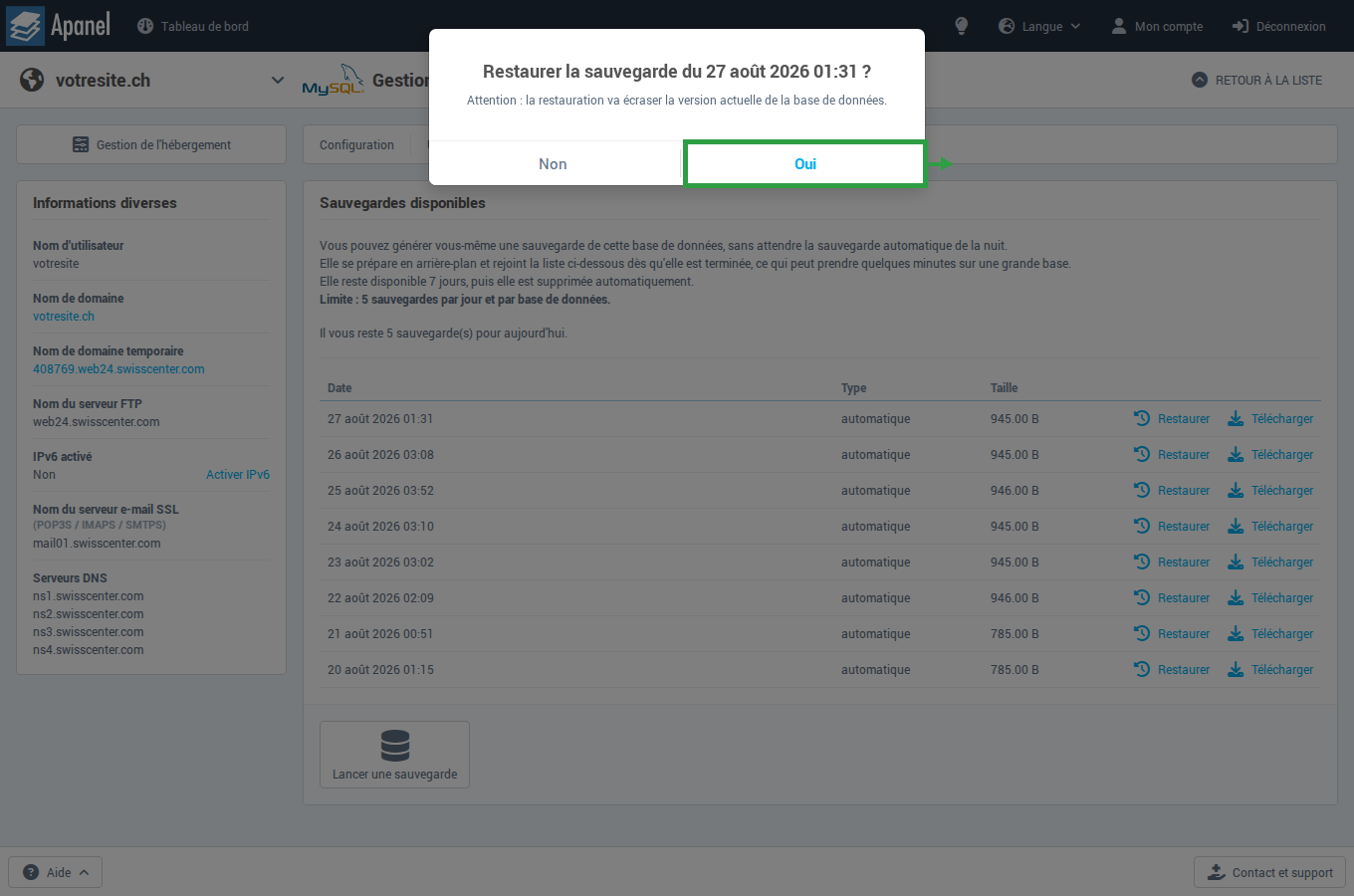
- The restoration overwrites the current version of the database. The message Warning: the restore will overwrite the current version of the database. reminds you of this before you confirm. If the current state of the database matters to you, start a backup first (see below) or download one.
- Backups are kept for 7 days, then deleted automatically.
- Only one operation at a time per database: while a backup or a restoration is running, the buttons are disabled.
How do I restore a database?
- Log in to your Apanel console.
- From the dashboard, click the name of your domain to open Hosting management.
- In the Databases card, click MySQL.
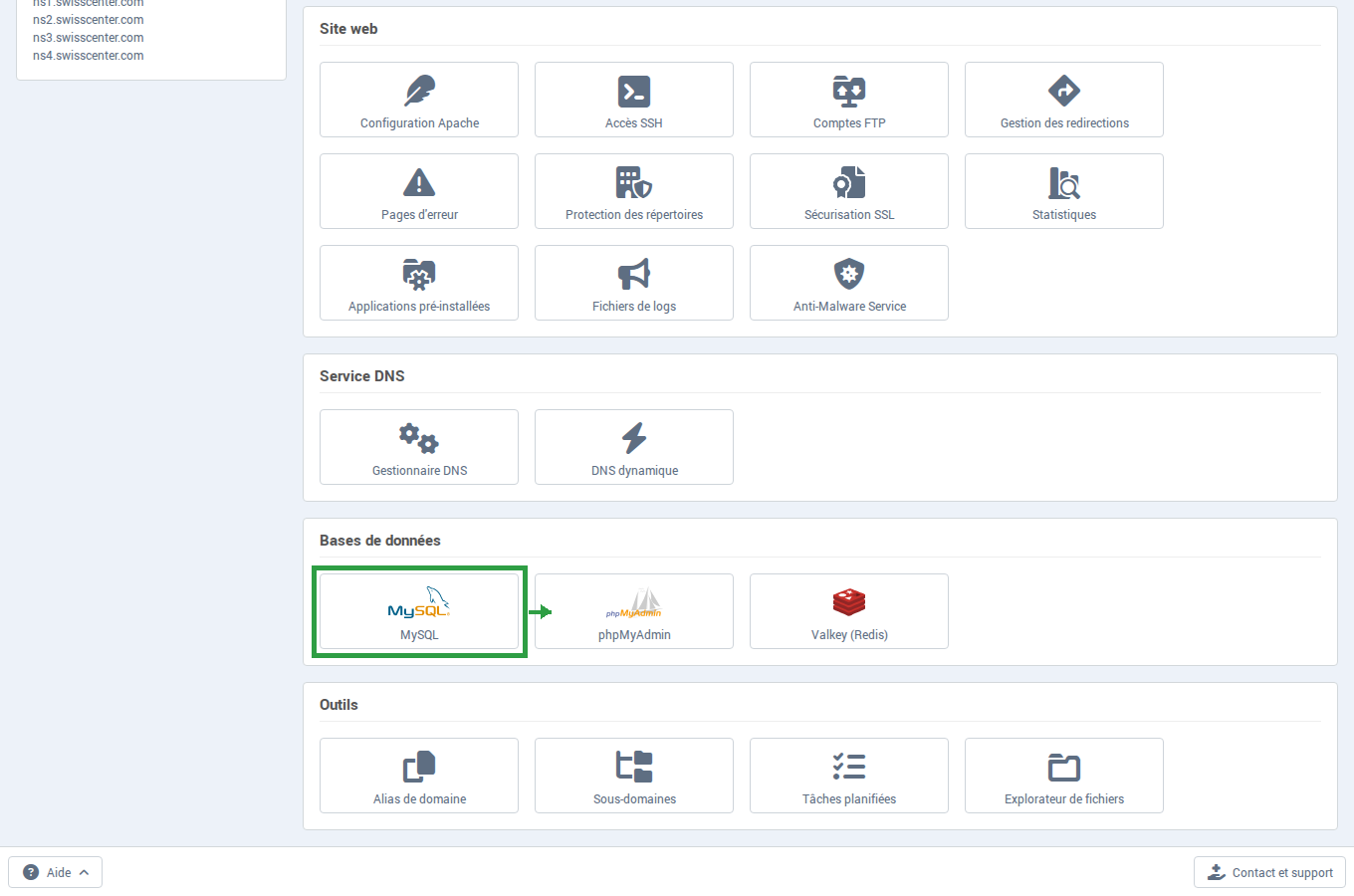
- Click the name of the database concerned.
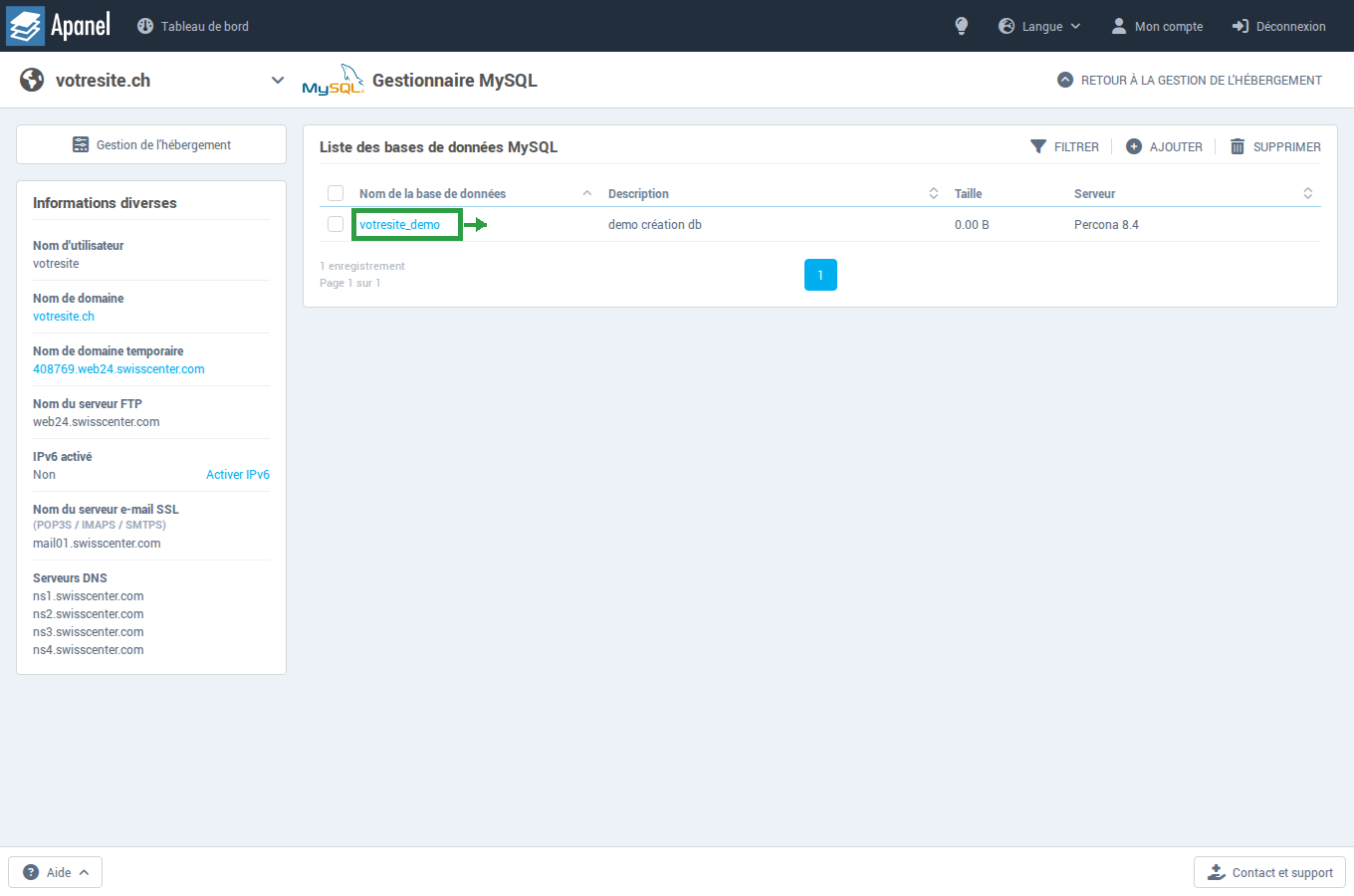
- Open the Backup and restoration tab.
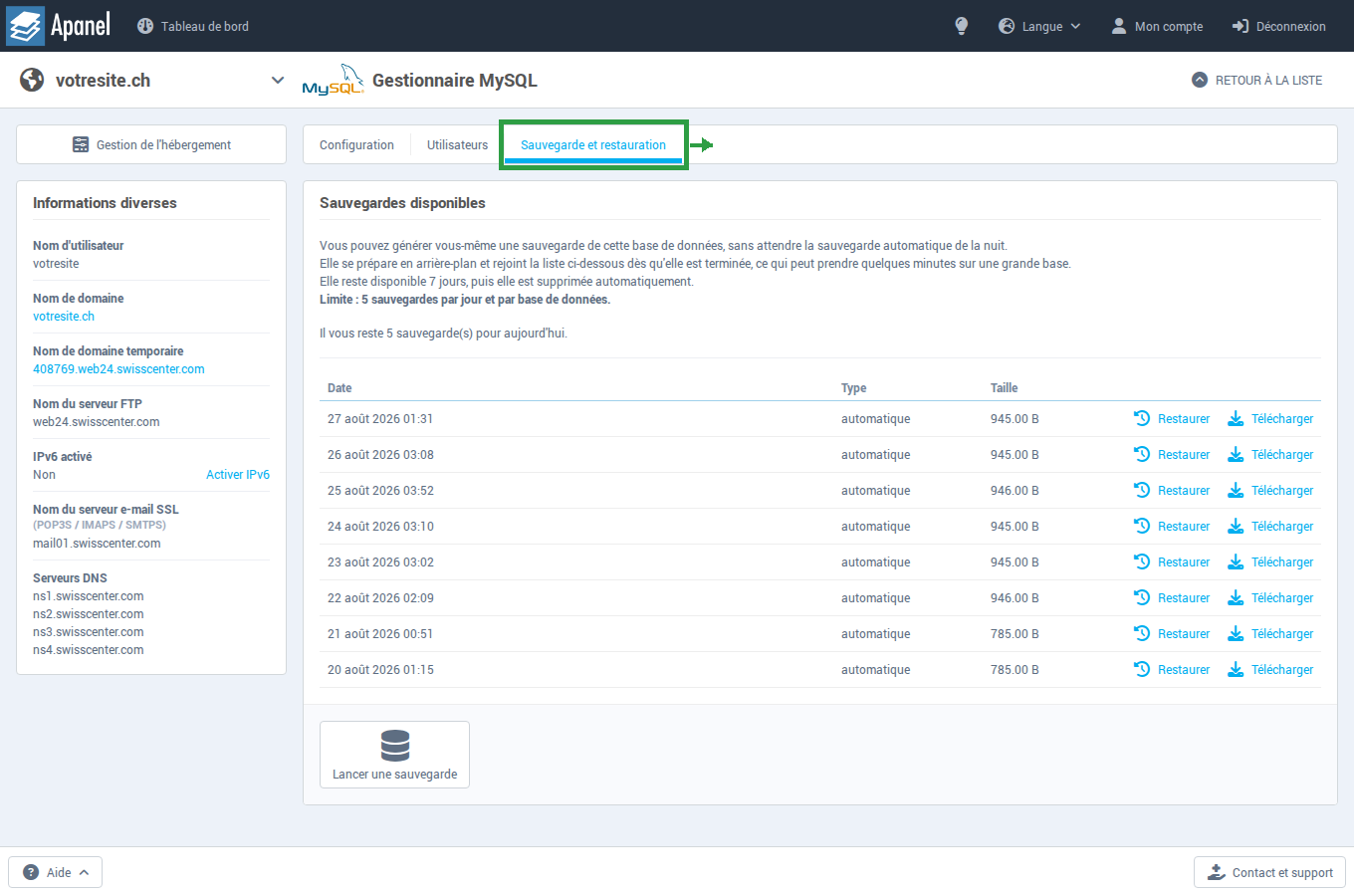
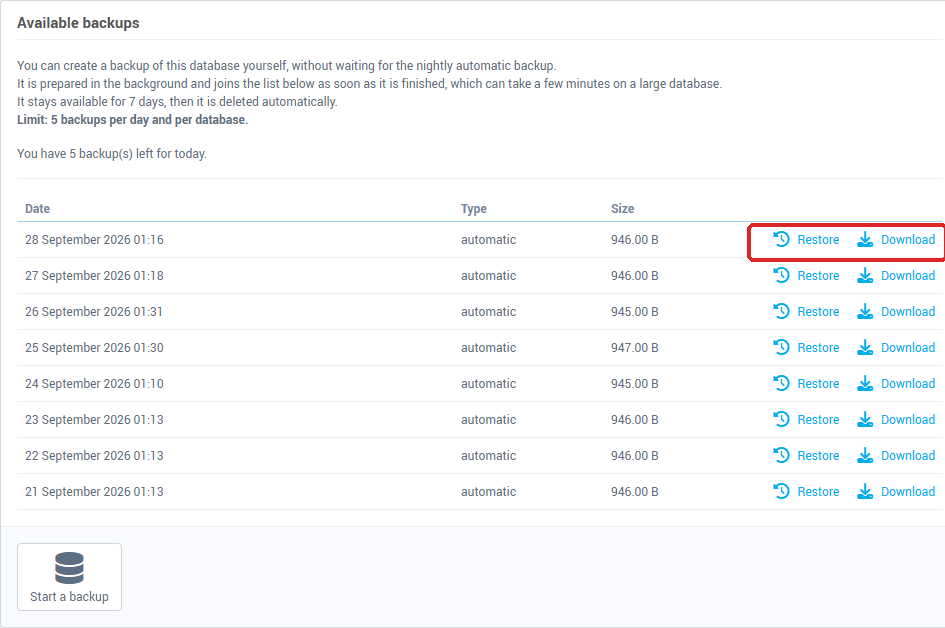
- In Available backups, find the backup you want by its Date, its Type (automatic or manual) and its Size, then click Restore on its row.
- Confirm by clicking Yes at the question Restore the backup from (date) ?.
The page then shows Restoration in progress... with a progress bar. Depending on the size of the database, the operation can take from a few minutes to much longer: you can leave the page open, it updates itself when the operation ends.
Before replacing the database, the restoration takes a safety copy of it, which is used to put the database back if the restoration fails.
How do I start a backup on demand?
On the servers that offer it, the Start a backup button appears at the bottom of the Available backups block. It lets you create a backup of the database yourself, without waiting for the nightly automatic backup.
- It is prepared in the background and joins the list as soon as it is finished, which can take a few minutes on a large database. While it is running, its row shows in progress... and it can be neither restored nor downloaded.
- It stays available for 7 days, then it is deleted automatically.
- The limit is 5 backups per day and per database. The page tells you how many you have left for today.
If the button does not appear, your server does not offer on-demand backups: the nightly automatic backups can still be restored.
How do I download a backup?
Click Download on the backup's row. An interrupted download can be resumed where it stopped with a browser or download manager that supports it. To import the file yourself afterwards, see Export or import a MySQL database.
Troubleshooting
- The message "The last operation failed:" is shown instead of the progress bar: the rest of the message gives the reason supplied by the server. Note it down if you contact support.
- "An operation is already running on this database, wait for it to finish.": a backup or a restoration is already running on this database. Wait for it to end.
- "Waiting: another job is busy on the server.": your request has been taken into account and will start as soon as the server is free.
- "You have reached the limit of 5 backups per day for this database. Please try again tomorrow.": the daily limit is reached.
- The list shows "No element for the moment": no backup is available for this database.
- The backup you need is not in the list: contact our support, giving the domain name, the database name and the date you want.
Going further