The Services tab of an e-mail address decides how that address is allowed to connect to our mail server (SmarterMail): through webmail, through a mail program using POP or IMAP, to send messages, or to synchronize calendars and contacts. For example, you can stop an address from being used in a mail program while keeping it available in webmail.
This article describes each switch, what it really changes, and what happens when you turn it off. The service definitions come from the official SmarterMail documentation, the Service Access card on the Managing Users page.
Prerequisites
- Access to your Apanel console
- An e-mail address already created on your domain and hosted on our SmarterMail mail server (the Services tab does not appear when you create an address, only when you edit an existing one)
What to know before you start
- The settings are not stored in Apanel: they are read from and written directly to the mail server. If the server cannot be reached, the tab shows "The mail server cannot be reached right now, so the services of this mailbox cannot be shown or changed".
- These switches control who can connect and how. They do not affect incoming mail: an address with all access turned off still receives its e-mails.
- Changes are applied with the Save button at the bottom of the page, as with the other tabs.
- If the account is suspended, the tab shows "The account is suspended: this mailbox stays disabled until the account is reactivated".
- Distribution groups do not have a Services tab.
Open the Services tab
-
Log in to your Apanel console, open your domain, then click E-mail addresses in the E-mail card of Hosting management.
-
In the E-mail addresses list, click the address you want to set up:

- On the edit page, click the Services tab:
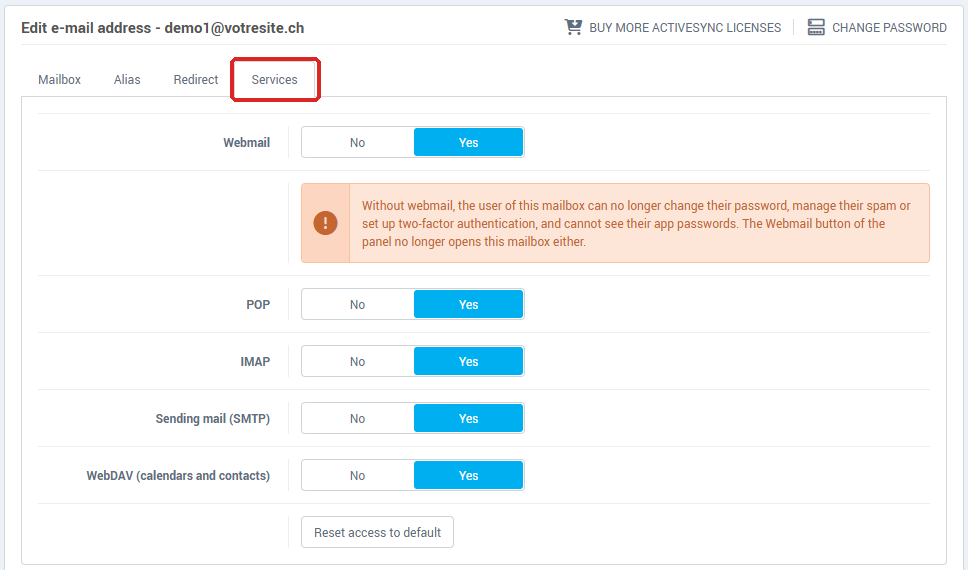
Each service is a No / Yes switch. "Yes" (in blue) means access is allowed.
The services, one by one
| Service |
What it allows (SmarterMail documentation) |
If you turn it off |
| Webmail |
Logging in to SmarterMail from the webmail interface in a browser |
See the section below: the effects go beyond webmail |
| POP |
Downloading mail to a mail program using the POP3 protocol |
A program set up with POP can no longer fetch mail |
| IMAP |
Two-way synchronization of mail between the server and a mail program (IMAP) |
A program set up with IMAP can no longer connect |
| Sending mail (SMTP) |
Sending e-mails to external recipients (outbound SMTP) |
The address can no longer send to the outside |
| WebDAV (calendars and contacts) |
Synchronizing calendars (CalDAV) and contacts (CardDAV) with compatible devices and programs |
Calendars and contacts no longer synchronize with your devices |
To set up a mail program that keeps working, see Mail settings for all programs (IMAP, POP, SMTP). To synchronize calendars and contacts, see Configure Thunderbird to Sync Calendars and Contacts.
Webmail: the most far-reaching service
Webmail is also where users manage their own account. Apanel therefore shows a warning right under the switch:

"Without webmail, the user of this mailbox can no longer change their password, manage their spam or set up two-factor authentication, and cannot see their app passwords. The Webmail button of the panel no longer opens this mailbox either."
In practice, with webmail turned off:
- the Webmail button in the addresses list no longer opens the mailbox. Apanel shows instead: "Webmail access is disabled for this mailbox. It can be turned back on in the Services tab of the mailbox.";

- the user can no longer change their own password, manage their spam or enable two-factor authentication (Two-factor authentication (2FA)). You can still change the password from Apanel with Change password.
To get these features back, set Webmail to "Yes" and click Save.
POP and IMAP
Both are used to read mail in a mail program. IMAP synchronizes mail in both directions between the server and the program: it is the better choice if you read the same mailbox from several devices. POP downloads mail into the program. Turning both off stops the address from being used in a mail program, which is useful for an address you only want to read in webmail.
Sending mail (SMTP)
This switch allows the address to send e-mails to external recipients. Turning it off suits an address that should only receive. If you suspect someone else knows an address's password, change it first (see Change the password of an e-mail address).
WebDAV (calendars and contacts)
WebDAV gives the ability to set up accounts that synchronize calendars (CalDAV) and contacts (CardDAV) with compatible devices and programs. Turning this switch off prevents that synchronization.
What cannot be set in this tab
- ActiveSync (mobile device synchronization): it is enabled in the Mailbox tab, with the Enable ActiveSync option.
- The address status (enabled, or disabled while still receiving or not receiving incoming messages) cannot be changed from your console.
Reset access to default
If you have turned off several services and no longer know which one causes a problem, use the Reset access to default button at the bottom of the tab:
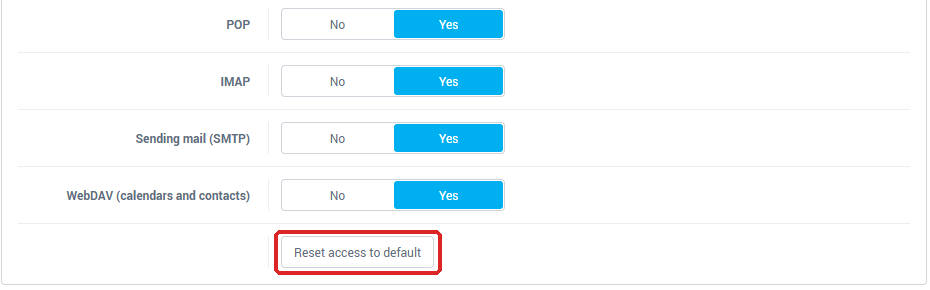
Apanel asks for confirmation ("Turn webmail, POP, IMAP, sending mail and WebDAV back on for this mailbox?"), then sets the five services back to "Yes".
If something goes wrong
- "The mail server cannot be reached right now…": the services can be neither read nor changed. Try again in a few minutes; the other tabs of the address save normally.
- The Webmail button shows "Webmail access is disabled for this mailbox": set Webmail back to "Yes" in the Services tab, then Save.
- A mail program can no longer connect: check that POP or IMAP (depending on its setup) and Sending mail (SMTP) are set to "Yes".
- The Services tab does not appear: it is only offered for an existing address hosted on our SmarterMail server, not for a distribution group.