This guide covers two complementary steps:
- Enable two-factor authentication (2FA) on your SmarterMail account.
- Reconfigure your mail software (Outlook, Thunderbird, Mac Mail…) with an application password, because once two-factor authentication is active, your usual password no longer works in these programs.
In short: in webmail, open More, Settings, Account section, then click Enable in the Two-Factor Authentication card. Your mail software will then use an application password, one per protocol.
Prerequisites
- The credentials of the mailbox, and the Webmail service enabled for this address.
- An authentication app on your phone or computer, or a recovery email address external to this account.
Enable two-factor authentication
How do I access the two-factor authentication setting?
- Log in to your SmarterMail account via webmail (browser).
- Click More, then Settings.
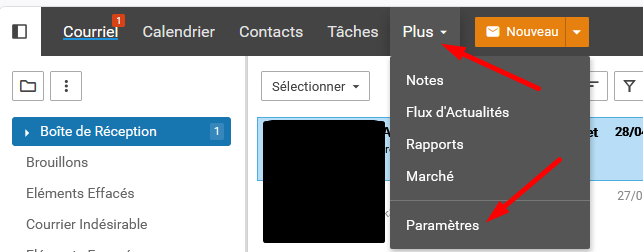
- Open the Account section and locate the Two-Factor Authentication card.
- Click Enable. You are then guided according to the chosen method: authentication app or recovery address.
Then choose your method in the Verification Methods menu.
Method A: authentication app (recommended)
Each time you log in to webmail, you will read the verification code in your app.
- Install an authentication app (e.g. Google Authenticator or Microsoft Authenticator) on your phone or computer.
- Select Authenticator App in the Verification Methods menu.
- Enter and confirm a recovery email address: it will serve as a backup method if the app is not accessible. (It will also be used to reset the password.)
- Click Next: a QR code appears.
- In the app, add a token and scan the QR code with the camera.
- Enter the 6-digit code displayed by the app into SmarterMail.
- Click Check to confirm and finalize.
Unable to scan the QR code? Click "Can't scan the QR code?" in SmarterMail, create a token by manual entry in the app, provide a name in the Account field (e.g. your username), copy the secret key displayed by SmarterMail into the Key field, then enter the generated 6-digit code.
Method B: recovery email address
Each time you log in to webmail, a code is sent to the indicated recovery address.
- Select Recovery Email Address in the Verification Methods menu.
- Enter and confirm the recovery email address that will receive the code.
- Click Next.
- Wait a few moments, then enter the 6-digit code received.
- Click Check to confirm and finish.
Tip: use a recovery address external to the SmarterMail account (e.g. a Gmail or Yahoo! address).
How do I log in afterwards?
Enter your email address and password, then the 6-digit code (read from the authentication app, or received on the recovery address).
Why reconfigure your mail software?
Once two-factor authentication is active, your usual password no longer works in mail software. You must use an application password.
Important points:
- Several passwords are provided, one per protocol type (SMTP, IMAP, POP, EAS, EWS…).
- The same password can be used in several programs.
- They can be reset at any time (you will then need to update them in your programs).
Step 1: where do I find the application password?
- Log in to webmail (password + two-factor authentication code).
- More → Settings → Account section.
- Scroll down to the Two-Factor Authentication card.
- Application passwords are displayed there, sorted by protocol.
- Copy the one corresponding to the protocol you are going to use.
Be sure to use the password for the corresponding protocol: the IMAP password will not work for an EAS configuration, and vice versa.
Step 2: connection settings (default values)
| Item |
IMAP Incoming |
POP Incoming |
SMTP Outgoing |
| Server |
mail01.swisscenter.com |
mail01.swisscenter.com |
mail01.swisscenter.com |
| Port (SSL/TLS) |
993 |
995 |
465 |
| Port (STARTTLS) |
143 |
110 |
587 |
| Encryption |
SSL/TLS recommended |
SSL/TLS recommended |
SSL/TLS recommended |
| Authentication |
Required |
Required |
Required (same credentials) |
| Username |
full email address |
full email address |
full email address |
| Password |
application password |
application password |
application password |
IMAP or POP? IMAP is recommended: messages remain on the server and are synchronized across all your devices. POP downloads messages locally and does not keep them on the server (unless otherwise configured), which causes issues if you check your mail from several locations.
Outlook ("classic" / desktop version)
Outlook 2016, 2019, 2021 and the Microsoft 365 desktop application.
- In Outlook: File → Add Account.
- Enter your email address, then choose manual setup / advanced options.
- Select IMAP.
- Fill in the incoming/outgoing servers and ports (table above).
- In the password field, paste the IMAP application password.
- Make sure the outgoing SMTP server requires authentication with the same credentials.
- Finish and test sending/receiving.
New Outlook
The "new Outlook" (which replaces the Mail and Calendar apps on Windows 11, and the "new" version of Outlook for Mac) does not work like a classic mail program. This applies to any IMAP account, whether two-factor authentication is active or not.
- To add an IMAP account, the new Outlook requires syncing the account to the "Microsoft Cloud". On Windows, there is no option to refuse: if synchronization fails, the account cannot be added.
- Outlook then transmits your IMAP/SMTP credentials and your emails to Microsoft servers, which keep a copy of your mail, even if your mailbox is hosted on SmarterMail. This data is governed by Microsoft's terms of service and privacy statement.
- The free version of the new Outlook displays ads amidst messages.
If you prefer your mail not to pass through a third party, use classic Outlook, Thunderbird or Apple Mail, which connect directly to your server. With the new Outlook, the procedure remains that of an IMAP account: email address, IMAP application password and server settings from the table.
Mozilla Thunderbird
Free and open-source program, which connects directly to SmarterMail (no intermediary).
- Open Thunderbird: ☰ → New → Existing Mail Account.
- Enter your name, email address and the IMAP application password.
- Click Manual Config to fill in the servers precisely.
- Incoming: IMAP, server and port from the table, SSL/TLS encryption, authentication method Normal Password.
- Outgoing: SMTP, server and port from the table, SSL/TLS encryption, Normal Password authentication with the same credentials.
- Validate, then test.
Calendars and contacts: Thunderbird can synchronize SmarterMail calendars (CalDAV) and contacts (CardDAV), natively or via an add-on depending on the version.
Apple Mail (Mac Mail)
- Open Mail → Settings (or Preferences) → Accounts → +. (or System Settings → Internet Accounts → Add Other Account.)
- Choose Other Mail Account….
- Enter your name, email address and the IMAP application password.
- If automatic detection fails, manually fill in the incoming (IMAP) and outgoing (SMTP) servers as well as the ports from the table.
- Keep SSL/TLS enabled and password authentication.
- Validate, then test sending and receiving.
Troubleshooting
- Authentication failure: check that you are using the application password for the correct protocol (IMAP, POP, EAS…), and not your usual password.
- You reset an application password: you must update it in all programs that were using it.
- The program asks for the two-factor authentication code: this means it is trying to use your normal password; replace it with the application password.
- Doubts about the server or ports: contact our support team.
Going further
- Email settings for all email clients (IMAP, POP, SMTP), to find the servers and ports to enter with the app password.
- Set up an email account in Outlook for Windows, to reconfigure Outlook step by step.
- Set up an email account in Thunderbird, to reconfigure Thunderbird step by step.
- Manage the services of an e-mail address (webmail, POP, IMAP, SMTP, WebDAV), to check which protocols are allowed for the address.