This guide explains how to manually configure your SwissCenter email address, using IMAP, in Outlook for Windows (Outlook 2019, 2021, 2024 and Microsoft 365 Outlook, in its classic version).
In short: in Outlook, File, Add Account, check Let me set up my account manually, choose IMAP, then enter mail01.swisscenter.com (or the server shown in your console), port 993 incoming and 465 outgoing, with SSL/TLS.
Prerequisites
- The email address must have been created beforehand in the Apanel console, under E-mail addresses, and you must know its password.
- The name of your domain's email server: it is shown in Hosting management, in the Misc informations box on the left, on the line E-mail SSL server name (POP3S / IMAPS / SMTPS). The values below use
mail01.swisscenter.com; if your console shows another name, use the one from the console.
What you need to know before you start
- The steps below describe classic Outlook, the one with a File menu. The new Outlook for Windows, offered by default to some Microsoft 365 subscribers, follows a different path: the values to enter are the same, and Microsoft's documentation describes where the fields are.
- IMAP is recommended to synchronize your emails across several devices (computer, smartphone and webmail).
How do I start adding the account?
-
Open Outlook.
-
Go to the File menu (top left) and click Add Account.
-
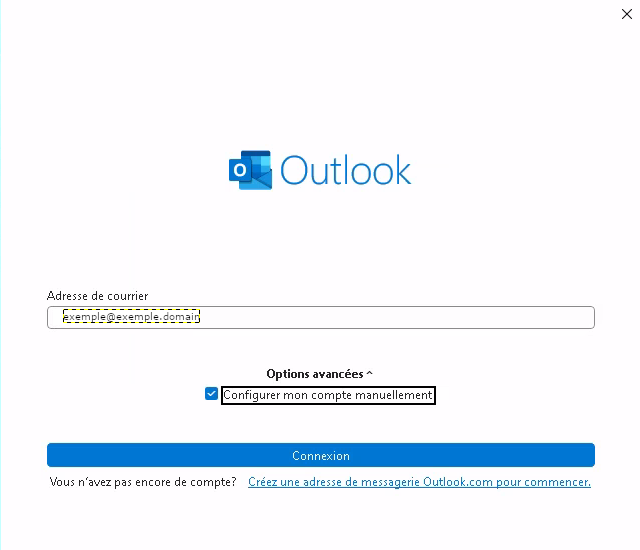
Enter your full email address: it is also your username, Outlook does not ask for it again.
-
Click Advanced options, check the box Let me set up my account manually, then click Connect.
Which protocol should I choose?
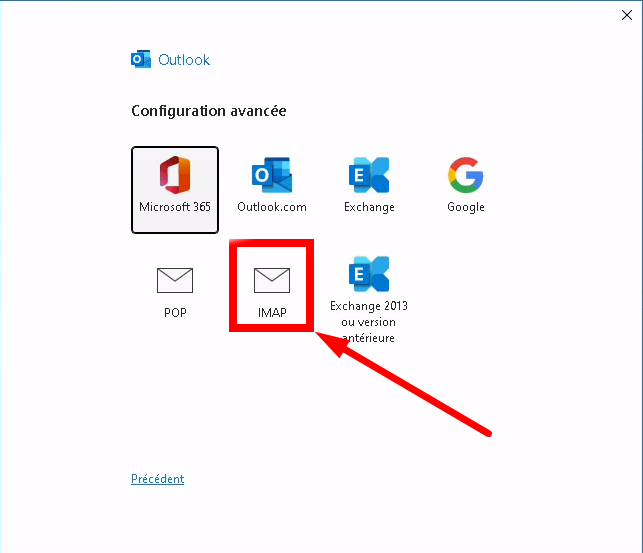
In the list of account types, select IMAP.
Which server settings should I enter?
Fill in the fields exactly as follows to ensure a secure connection:
| Field |
Incoming mail |
Outgoing mail (SMTP) |
| Server |
mail01.swisscenter.com |
mail01.swisscenter.com |
| Port |
993 |
465 |
| Encryption method |
SSL/TLS |
SSL/TLS |
| Username |
Your full email address |
Your full email address |
Leave the Require logon using Secure Password Authentication (SPA) boxes unchecked. The screenshot below shows the outgoing server on port 587 with STARTTLS: this setting works too, but we recommend port 465 with SSL/TLS.
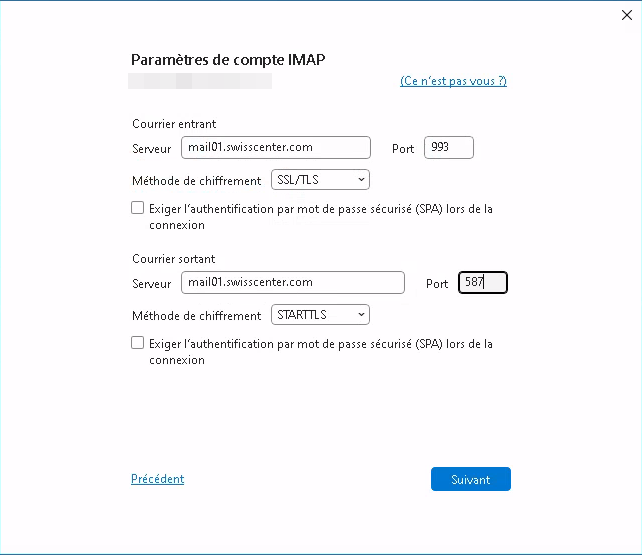
Click Next. If Outlook asks for your password, enter the mailbox password (set in the Apanel console, under E-mail addresses).
Troubleshooting
- The username: your username is your full email address (not just the part before the
@).
- The outgoing port: if port
465 with SSL/TLS fails, check that your firewall or antivirus is not blocking outgoing connections. You can also try port 587 with STARTTLS encryption.
- The password: if in doubt, test your password on the webmail. For a domain whose email server is
mail01.swisscenter.com, that is the Webmail. If it works there, it will work in Outlook.
Going further