This guide explains how to add a SwissCenter email address to the macOS Mail app, using IMAP, then check its incoming and outgoing settings.
In short: in Mail, add an IMAP account with the server mail01.swisscenter.com (or the one shown in your console) and your full email address as user name: port 993 for incoming, 465 for outgoing, with TLS/SSL.
Prerequisites
- The Mail app installed on macOS.
- The full email address and its password. The address is created in the Apanel console, under E-mail addresses.
- The name of your domain's email server: it is shown in Hosting management, in the Misc informations box on the left, on the line E-mail SSL server name (POP3S / IMAPS / SMTPS). This article uses
mail01.swisscenter.com; if your console shows another name, use the one from the console.
What you need to know before you start
- The screenshots below show an older macOS presentation: menu names may differ on your Mac (for example Settings instead of Preferences), and the screenshots do not show our settings. Always enter the values given in the text.
- On recent versions of macOS, you can also start from Mail > Add Account… in the menu bar, then choose Other Mail Account and click Continue (see Apple's guide: Add email accounts in Mail on Mac). Then resume at step 5.
How do I add the account in Mail?
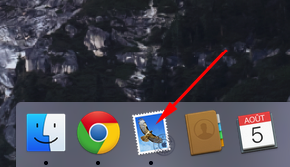
- Launch Mail.
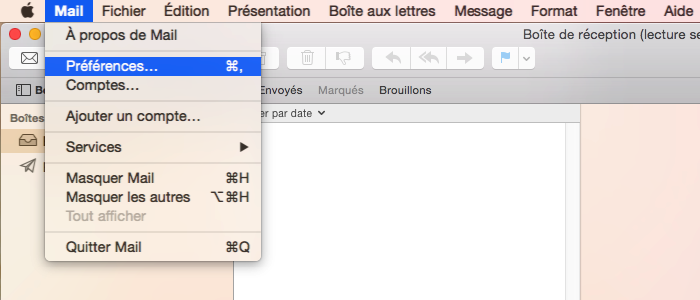
- Open the account settings: Mail > Settings, then the Accounts tab (Mail > Preferences on older versions of macOS).
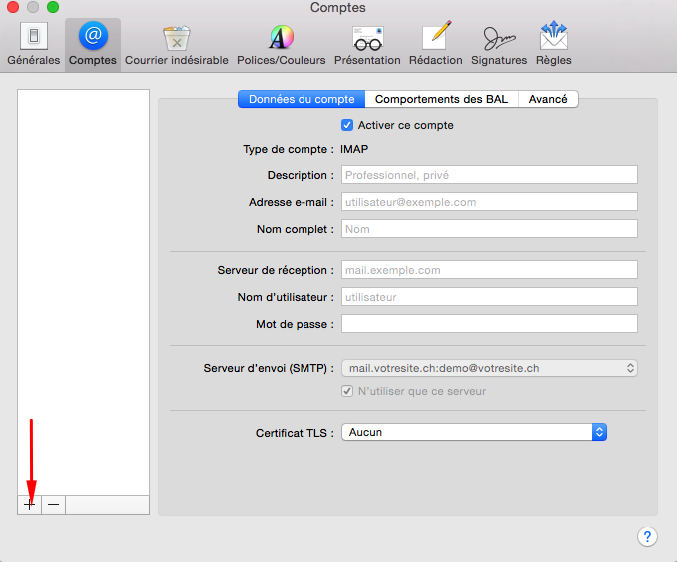
- In the accounts window, click the + sign at the bottom of the list.
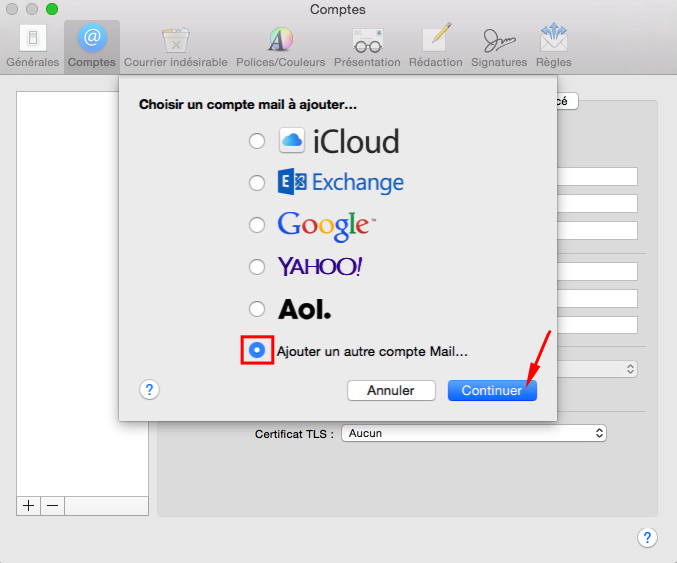
- Choose Other Mail Account…, then click Continue.
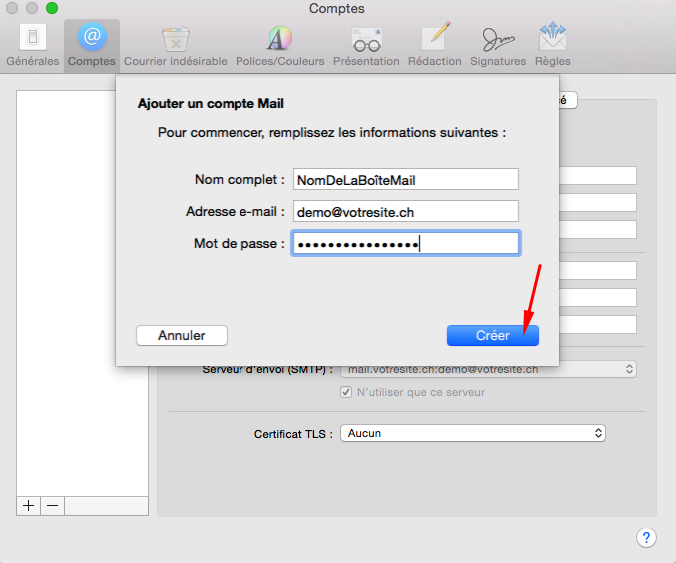
- Enter your name, your full email address and the mailbox password, then click Sign In (Create on older versions).
-
Mail then asks for the server settings. Select the account type IMAP, then fill in:
- Incoming mail server:
mail01.swisscenter.com;
- User name: your full email address;
- Password: the mailbox password;
- Outgoing mail server:
mail01.swisscenter.com, with the same user name and password.
Then click Next (or Sign In). If Mail detects other settings on its own, replace them with these. To compare POP and IMAP, see POP or IMAP: what are the differences and which protocol should you choose?.
-
Fill in the outgoing server information the same way if Mail asks for it again.
How do I check the outgoing server (SMTP)?
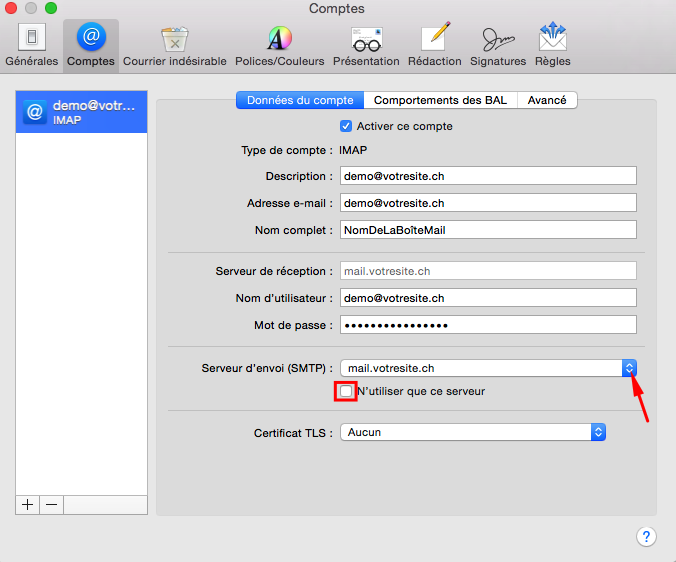
Open Mail > Settings > Accounts, select your account, then the Server Settings tab. If the Automatically manage connection settings box is checked, uncheck it to show the ports.
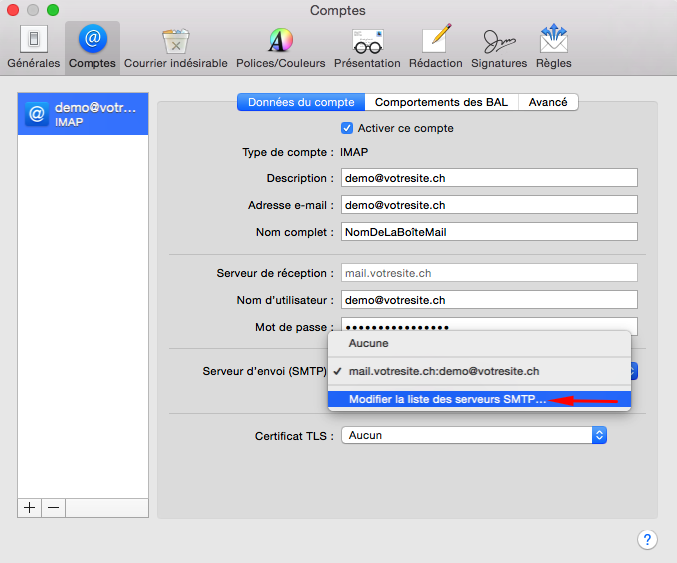
- Click the drop-down menu of the outgoing server (SMTP).
- Select Edit SMTP Server List.
-
Select your account's server, then check:
- the server name:
mail01.swisscenter.com;
- the port:
465, with TLS/SSL enabled;
- the authentication: Password;
- the user name: your full email address, and the mailbox password.
Confirm with OK.
How do I check the incoming server (IMAP)?
- In the same Server Settings tab (Advanced tab on older versions), check that the incoming server port is
993 and that the Use TLS/SSL box is checked: without it the password would travel unencrypted. Port 143 without SSL is not to be used.
- Save the changes so that the configuration applies.
Send yourself a test message to check receiving and sending.
Troubleshooting
- Sending fails while receiving works: port
465 may be blocked by your network. Use port 587 with STARTTLS.
- Mail offers another authentication method (for example "MD5 Challenge-Response"): choose Password.
- The password is refused: the user name is your full email address, not only the part before the
@.
The exact location of the fields depends on your version of macOS: Apple's documentation describes it for each version. The settings common to all email software are listed in Email settings for all clients (IMAP, POP, SMTP).
Going further