The password of an e-mail address is changed from the Apanel console, without having to know the old one. Do it if you have forgotten it, if you think someone else has found it out, or if the console reports a Password too weak.
This article is about the password of a mailbox, for example contact@yourdomain.ch. The password that gives access to the console itself is a different password: see Change the password for the management console access account.
Requirements
Good to know before you start
The new password must follow these rules:
- between 12 and 30 characters;
- at least one lowercase letter;
- at least one uppercase letter;
- at least one digit;
- at least one special character, among these:
^ ! , . $ # % ~ * : @ & + _ - ?
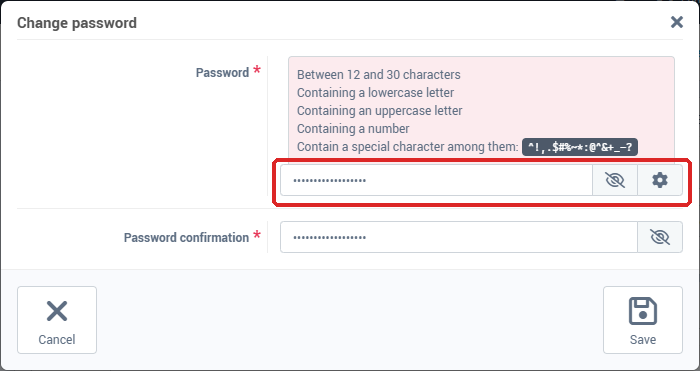
The form offers two aids: the cog button generates a password that follows these rules, and the eye shows what you typed so you can check it. Under the Password field, the console reminds you of the conditions to meet.
Once the password is changed, every program and device that uses this address (Outlook, Thunderbird, phone, tablet) must be updated with the new password: as long as they keep the old one, they can no longer connect.
Change the password
- Log in to your Apanel console.
- From the dashboard, click your domain name to open Hosting management.
- In the E-mail card, click E-mail addresses.
- In the E-mail addresses list, find the address and click the key icon on the right of the row (tooltip Change password).

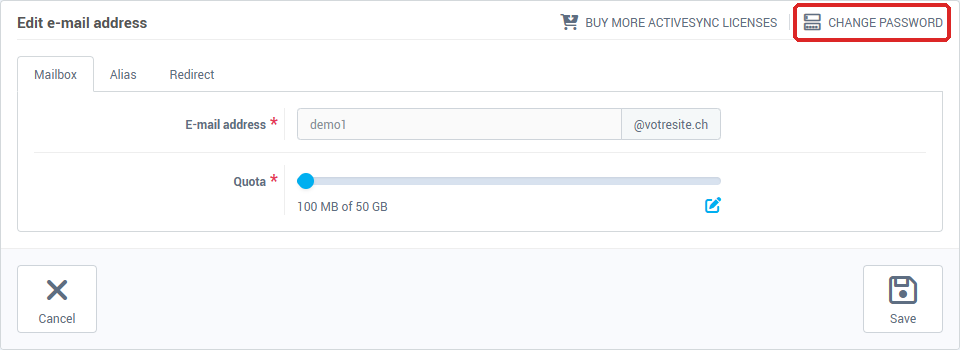
You can also click the name of the address to open it, then Change password at the top right of the card.
- In the Change password window, type the new password in Password.
- Repeat it in Password confirmation.
- Click Save.
The window closes, the page reloads and the message Operation succeded appears. Then update your mail programs. To find the settings to use, see All email clients: global email configuration.
When the console reports a weak password
An address created a long time ago may have a password that does not follow the current rules. In that case:
- its name is shown in red in the list, with the tooltip Password too weak;
- when you click the Webmail icon, a Password too weak window offers Change password immediately or Connect anyway;
- on the edit page of the address, a red banner repeats the rules above and recommends changing the password without delay.
Choose Change password immediately: the window described above opens.
If you think the password has been found out
Change it right away, then update your devices. If the mailbox was sending spam and has been blocked, see Unblocking an email account blocked due to spam sending.
Troubleshooting
-
"The password entered does not match our password requirements": one of the rules is not met. Go back to the list in the Good to know before you start section, or use the generator.
-
"The value is too small (12 character(s) min)" or "The value is too big (30 character max)": the password is too short or too long.
-
"The two password must be the same": the confirmation differs from the password. The eye lets you compare the two entries.
-
"An error occurred during the operation. Error code: …": the change could not be saved. Note the code and send it to our support together with the address.
-
The mail program asks for the password again or refuses the connection: it still uses the old password. Enter the new one in the account settings.
If the problem persists, contact our support and give the e-mail address.