The webmail of your SwissCenter email address can connect its calendar, contacts and tasks to Outlook for Windows, with the Add To Outlook feature. Outlook then shows them next to its own calendars and contacts, with nothing to install.
In short: in webmail, open Calendar, Contacts or Tasks, then Actions and Add To Outlook, and accept the opening of Outlook. Only classic Outlook for Windows is supported, not new Outlook or Outlook for Mac.
Prerequisites
- Classic Outlook for Windows (the desktop application), installed and open on the computer from which you open webmail. This feature relies on classic Outlook's SharePoint connection: new Outlook for Windows and Outlook for Mac do not support it.
- Your full email address and the password of this mailbox.
- Access to the address's webmail: the Webmail service must be set to Yes in the Services tab of the address, in the Apanel console (see Manage the services of an e-mail address).
Before you start
- Each item is connected separately: one calendar, one contact list or one task list at a time. To connect several, repeat the procedure for each one.
- Only your own folders and those another user has shared with you sync properly.
- If the mailbox password changes, the connection stops working: delete it, then go through the procedure again.
- If you have turned on two-factor authentication in webmail, Outlook rejects your usual password: use the application password shown in webmail (see Two-factor authentication (2FA) in webmail).
- For Thunderbird or an iPhone, sync goes through CalDAV and CardDAV: see the dedicated articles at the bottom of this page.
How do I connect a calendar to Outlook?
- Open Outlook on your computer and leave it open.
- On the same computer, log in to webmail, for example from the Webmail button in the E-mail addresses list of the Apanel console.
- Click Calendar in the left-hand menu.
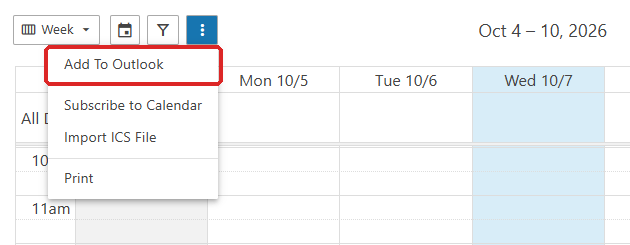
- Click the Actions button (the three vertical dots, in the toolbar above the calendar), then Add To Outlook.
- In the Add To Outlook window, fill in:
- Outlook Display Name: the name the calendar will have in Outlook, for example "Office calendar";
- Calendar: the calendar to connect;
- Outlook Version: keep Outlook 2007 or later.
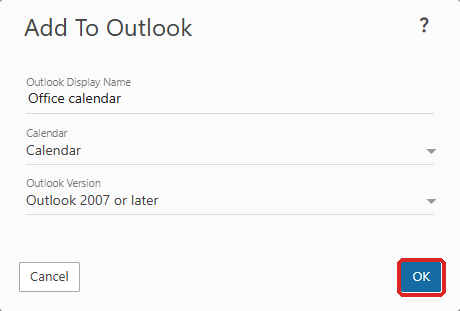
- Click OK.
- Your browser asks whether it may open Outlook: accept.
- Outlook asks whether to connect this calendar: confirm with Yes. If it asks for credentials, enter your full email address and the mailbox password.
The calendar appears in Outlook's calendar list.
How do I connect contacts or tasks?
The procedure is the same:
- Contacts: click Contacts in the left-hand menu, then Actions and Add To Outlook. Choose the contact list in the Contacts field, then click Save.
- Tasks: click Tasks in the left-hand menu, then Actions and Add To Outlook. Choose the list in the Source field, then click OK.
Then accept the opening of Outlook and confirm in Outlook, as for the calendar.
How do I see or delete a connection?
In webmail, click Settings, then Connectivity. The Synchronized Devices card lists the connections in place, Outlook included. Click a connection to see its last sync date, or Delete to stop it. Also remove the connected calendar, contacts or tasks in Outlook.
Troubleshooting
| What you see |
What to do |
| Nothing happens after OK |
Check that classic Outlook is installed on this computer, and that you accepted the opening of Outlook in the browser. A browser may block the request the first time: try again while watching the address bar. |
| New Outlook or Outlook for Mac does not react |
These versions do not support this connection. Use classic Outlook for Windows, or view your calendar in webmail. |
| Outlook rejects the password |
The username is the full email address. If two-factor authentication is on, use the application password from webmail. |
| Sync has stopped |
The mailbox password has probably changed: delete the connection in Outlook and in Synchronized Devices, then go through the procedure again. |
| A shared calendar does not sync |
Only your own folders and those another user has shared with you sync. |
Still stuck? Open a request with the email address, your Outlook version and the message shown.
Going further
- Sync calendars and contacts in Thunderbird (CalDAV, CardDAV), if you use Thunderbird.
- Sync SwissCenter contacts and calendar on iPhone (CardDAV, CalDAV), for your phone.
- Set up an email account in Outlook for Windows, to read your email in Outlook.
- Manage the services of an e-mail address (webmail, POP, IMAP, SMTP, WebDAV), to check webmail access.