SmarterMail, our webmail, offers a migration assistant that imports into your mailbox the messages of another mailbox, hosted with us or with another provider.
In short: in the webmail of the new mailbox, click More, Settings, Connectivity, then Migrate on the Mailbox Migration line, and enter the IMAP server, account name and password of the old mailbox.
Prerequisites
- The credentials of the new mailbox, to log in to webmail.
- The connection details of the old mailbox: incoming (IMAP) server name, account name and password.
- The old mailbox must remain accessible for the whole duration of the import.
How do I start the migration assistant?
-
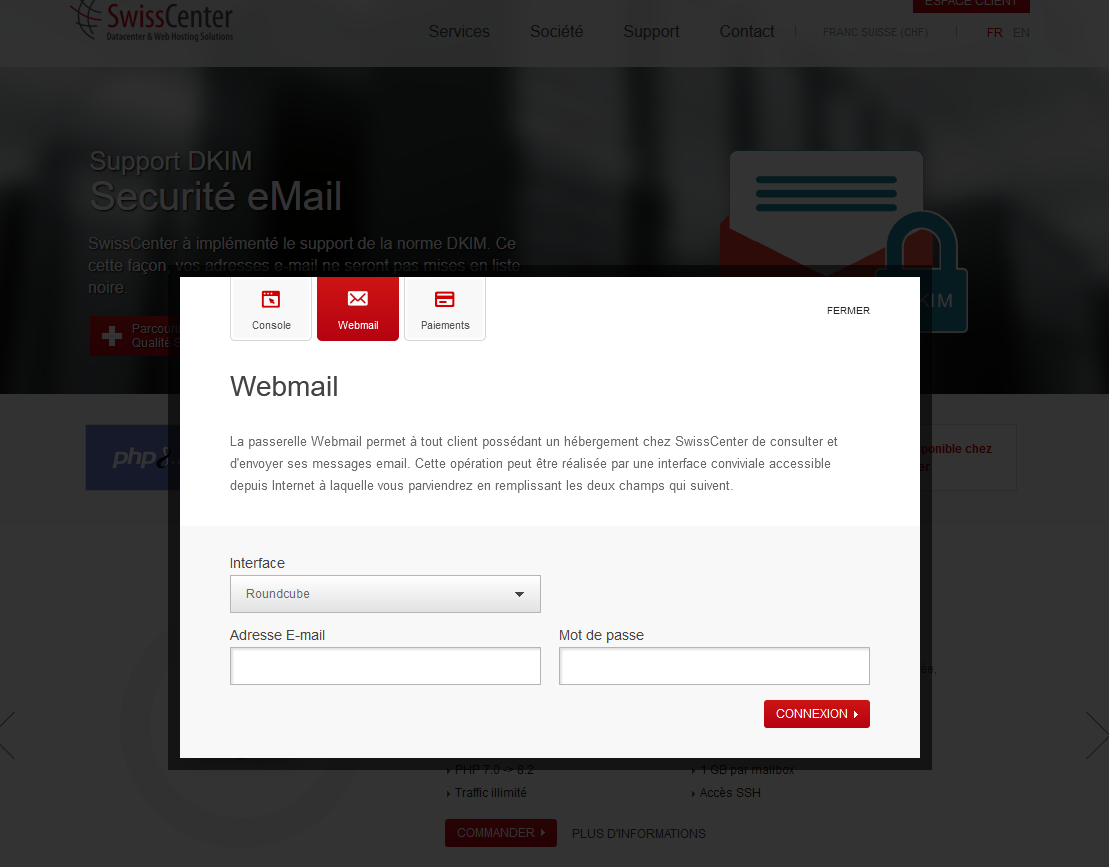
Log in to the new mailbox in webmail, from the login page of our website https://www.swisscenter.com/#webmail.
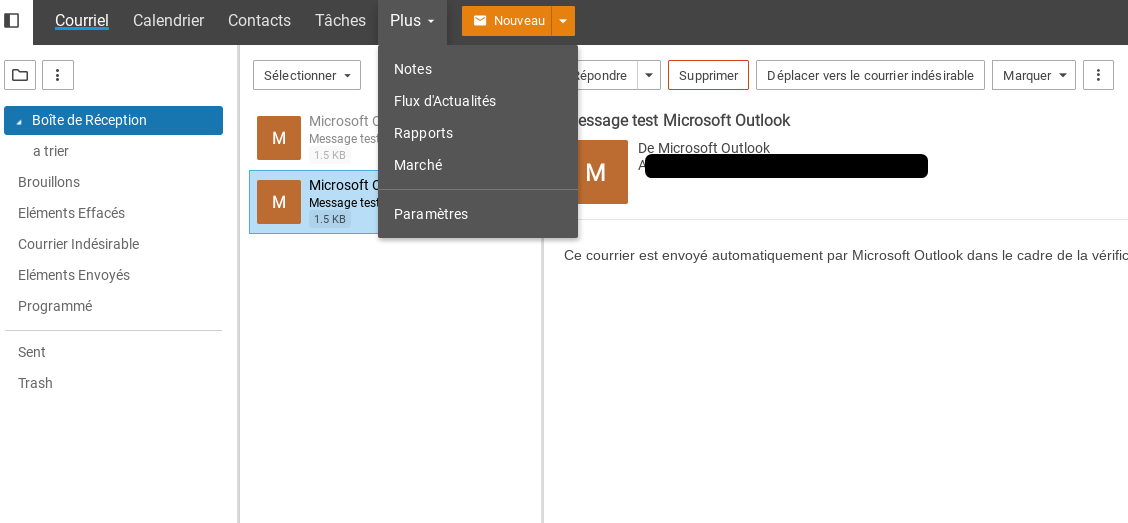
Once logged in, you arrive on the home page, in the inbox.
-
At the top left, click More, then Settings.
-
In the left-hand menu, click Connectivity.
-
On the Mailbox Migration line, click Migrate. A dialog box opens and the assistant guides you through the procedure.
How do I enter the old mailbox details?
-
Choose the account type. Most of the time, it is a simple IMAP account (option Other). If you do not know which is the correct choice, select Other and click Next.
-
Choose IMAP and enter the name or IP address of the old mailbox's incoming server. If you do not know it, you will find it with the provider of that mailbox (in their FAQ) or in the configuration of your email software, under incoming server (or receiving server). If the old mailbox is hosted with us, the server name is shown in your Apanel console (see Email settings for all email clients (IMAP, POP, SMTP)).
-
Enter the account name, often your full email address, and the password of the old mailbox.
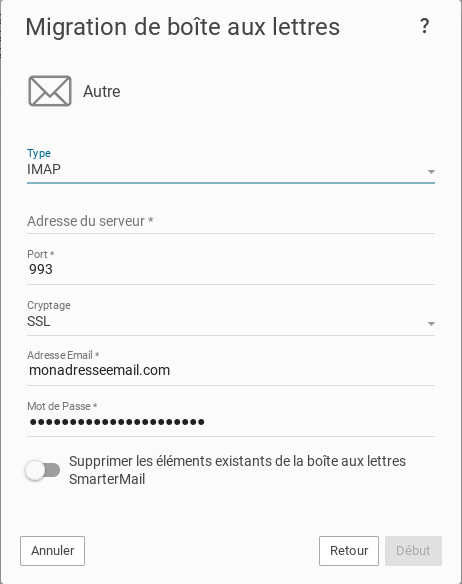
-
Launch the import. A message tells you when the procedure is complete.
Your emails are then imported. Depending on the volume, indexing may take some time.
Going further