You build your website with a coding assistant such as Claude Code or Codex, often called "vibe coding": you describe what you want and the artificial intelligence writes the code. This article explains how to put that site online on your SwissCenter hosting without typing a single command yourself: you prepare two or three settings in the Apanel console, you give your AI a ready-made instruction sheet, and the AI publishes the site.
In short: in the Apanel console, choose the PHP version, create a database if you need one and copy the SSH Connection command. Then ask your AI to save the instruction sheet below in your project, paste into Apanel the SSH key it gives you, and ask it to publish the site.
Requirements
- SwissCenter web hosting and access to your Apanel console.
- Claude Code or Codex installed on your computer: see the Claude Code or Codex documentation.
- A project folder on your computer, opened in your AI: empty if you start from scratch, or the folder of a site you have already begun.
What to know before you start
- We recommend PHP and MySQL. A PHP page only runs while a visitor requests it; a Node.js or Python application stays in memory all the time. On shared hosting, PHP is simpler to maintain and uses far fewer resources. The instruction sheet steers your AI that way.
- Everything published in your site's folder can be read on the internet. The sheet tells your AI what never to upload (its own instructions, your notes, your archives) and where to put files that must not be read.
- Our support covers the hosting, not the code written by the AI. See What your hosting includes, and what remains your responsibility.
Step 1: prepare the Apanel console (once)
Choose the PHP version
- Log in to your Apanel console.
- From the dashboard, click your domain name to open Hosting management.
- In the Web technologies card, click PHP configuration.
- In PHP version, pick the latest version, currently PHP 8.5, then click Save.
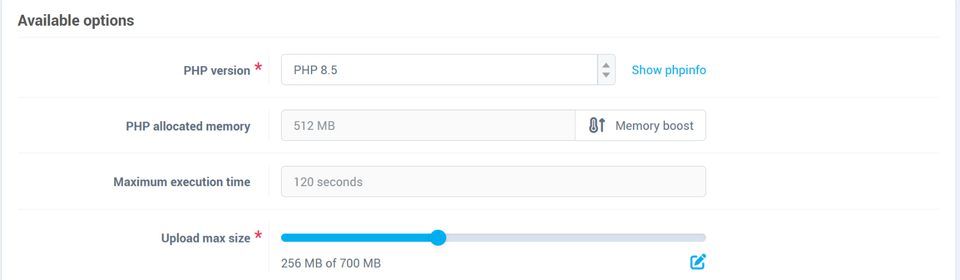
This screen in detail: Change the PHP version and configuration of your website.
Create a database (if your site needs one)
A site that stores data (accounts, messages, orders) needs a MySQL database. A simple showcase site can do without.
- In Hosting management, Databases card, click MySQL, then Add.
- Enter a name, then a Password under Default user, and click Save.
- Write down the full database name (prefix included) and the password.
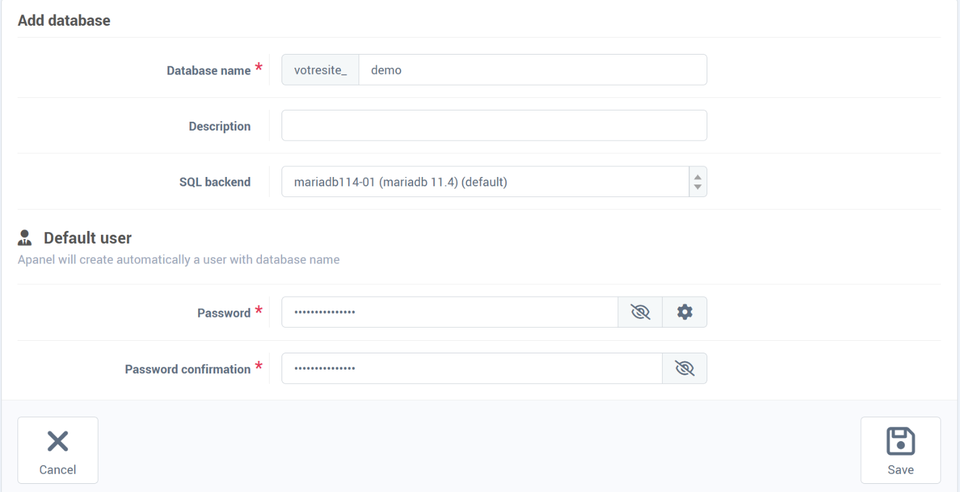
In detail: Create a MySQL database and its user.
Copy the SSH connection command
Your AI publishes the site over a secure connection, SSH.
- In Hosting management, Website card, click SSH access.
- Copy the Connection command from the SSH service block, in the form
ssh yoursite@web24.swisscenter.com.
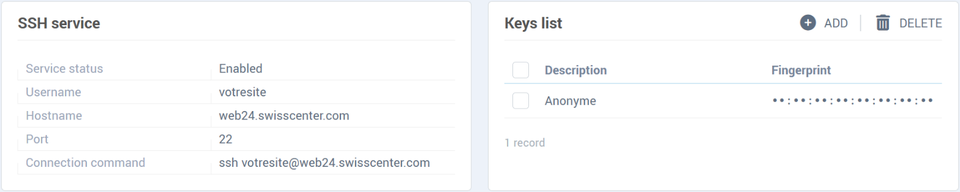
Step 2: give your AI its instructions
-
Copy the whole sheet below.
-
In your AI, write the following sentence with your three values, then paste the sheet after it:
"Save the sheet below in a CLAUDE.md file in this folder, and fill in the Values for this project part: connection ssh yoursite@web24.swisscenter.com, domain yoursite.com, database yoursite_demo (or: no database)."
With Codex, write AGENTS.md instead of CLAUDE.md: that is the file name Codex reads.
# SwissCenter hosting (Apanel): instructions for publishing this site

## Values for this project (fill in)
- SSH connection: <CONNECTION COMMAND, for example ssh yoursite@web24.swisscenter.com>
- Domain (without www): <example.com>
- MySQL database: <database_name>, user <user_name>, host localhost, port 3306
- Below, DOMAIN means the domain above (the site is the ~/DOMAIN/ folder on the server) and CONNECTION means what follows "ssh" in the SSH connection.
- The MySQL password is in this project's .env file (DB_PASSWORD). Do not ask me for it, do not copy it anywhere else, and read it as is: it may contain # or $.

## Technologies
- Shared hosting: PHP and MySQL, in plain PHP. No application that runs permanently (no Node.js or Python server): a PHP page only runs while someone requests it. Do not pick a framework that needs a public/ folder (Laravel, Symfony) without suggesting it to me first.
- The PHP version is the one chosen in Apanel for this domain. Over SSH, `php` and `composer` use the version of the current folder: always run them from ~/DOMAIN/ (`cd ~/DOMAIN && php -v`). If it is not the latest version (currently PHP 8.5), first suggest that I change it in Apanel (Hosting management, PHP configuration) instead of adapting the code or the tools to an old version.
- A compiled front end (React, Vue, Astro, Vite) is built on this computer (`npm run build`) and the CONTENT of the output folder (dist/ or build/) is published, not the project. If it needs a Node server to work (Next.js, server-side rendering), treat it as a Node.js project.
- Existing Node.js or Python project: suggest rewriting it in PHP. If I decline, point me to https://support.swisscenter.com/faq/deploy-a-nodejs-application-on-swisscenter-apanel-cloudlinux-en and do not start anything on the server.
- MySQL cannot be reached from this computer: use the `mysql` client over SSH on the server, or a tunnel (`ssh -N -L 3307:127.0.0.1:3306 …`).

## SSH key
- If the SSH connection is refused: create a key for this project only (`ssh-keygen -t ed25519 -N "" -f ~/.ssh/swisscenter_DOMAIN`), show me only the PUBLIC key (the .pub file) and tell me to paste it in Apanel: Hosting management, SSH access, Add. Then always use that key (`-i`) and add `-o StrictHostKeyChecking=accept-new` on the first connection.
- The host records SSH commands: no heavy or looping commands on the server.

## Publishing
- Destination: the site's content directly in ~/DOMAIN/, not in a subfolder.
- Before the first upload: list what ~/DOMAIN/ already contains and show it to me. Do not delete or replace any file that does not come from this project without my consent (including .htaccess). If there is a swisscenter.php (the SwissCenter placeholder page), suggest deleting it: otherwise it stays on screen. Never touch .well-known/, cgi-bin/ or .ftpquota.
- Never upload (.publish-exclude file, one entry per line, no trailing slash): .publish-exclude, CLAUDE.md, AGENTS.md, *.md, .git, .env, node_modules, package*.json, *.zip, *.tar*, *.gz, *.tgz, *.7z, *.rar, *.sql, *.sqlite, *.db, *.log, *.bak.
- Upload with rsync, without --delete:
  `rsync -rlvz --exclude-from=.publish-exclude ./ CONNECTION:DOMAIN/`
  (compiled front end: `./dist/` instead of `./`).
- If rsync is not available on this computer (Windows): make a dated archive outside the project, upload it, extract it, delete it:
  `tar -czf ../site-YYYYMMDDHHMM.tar.gz --exclude-from=.publish-exclude .` (compiled front end: from dist/)
  `scp ../site-YYYYMMDDHHMM.tar.gz CONNECTION:`
  `ssh CONNECTION "tar -xzf site-YYYYMMDDHHMM.tar.gz -C ~/DOMAIN && rm site-YYYYMMDDHHMM.tar.gz"`
- .env file: upload it separately, and only when it changes (`scp .env CONNECTION:DOMAIN/.env`). The server refuses to serve it on the web.
- Everything in ~/DOMAIN/ can be read on the web. Files the site writes, or that must not be read (data, counters, logs, caches, SQLite database), go in ~/DOMAIN-data/, outside the site; PHP can write there.
- Composer: upload composer.json and composer.lock, then run `cd ~/DOMAIN && composer install --no-dev` on the server. Then create ~/DOMAIN/vendor/.htaccess containing `Require all denied`.
- After each upload, check: https://DOMAIN/ answers 200, https://DOMAIN/CLAUDE.md and /AGENTS.md answer 404.
- If the domain does not point to SwissCenter yet, ask me for the temporary domain name shown in Apanel and test with it.
If you created a database, your MySQL password goes neither in this sheet nor in the conversation. Ask your AI: "Create the .env file with an empty DB_PASSWORD line and open it in the text editor." Paste your password right after the = sign and save. Your AI can read this file on your computer; it is uploaded to the server, which refuses to show it on the web.
Step 3: allow your AI to connect (SSH key)
SSH works with a key rather than a password. Your AI creates it, you register it in Apanel.
- Ask your AI: "Create the SSH key described in the sheet and show me the public key." It shows a long line starting with
ssh-ed25519.
- On the Apanel SSH access page, click Add, paste that line, tick the acceptance box and click Save.
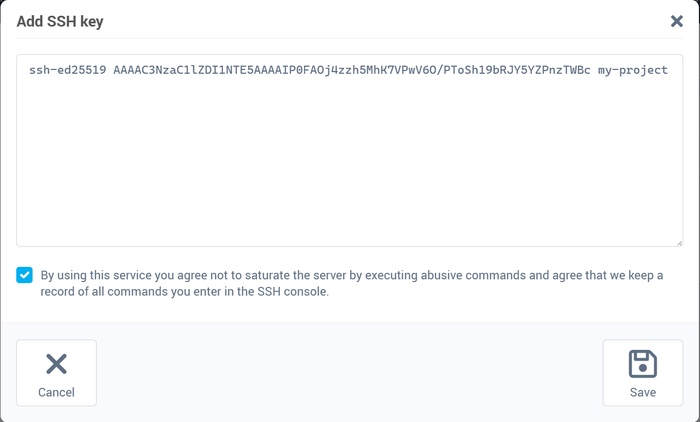
Never paste the private key into the console or anywhere else: only the public key leaves your computer. In detail: Connect to your hosting via SSH.
Step 4: ask your AI to publish
Depending on your situation, simply write:
- You start from scratch: "Build me a website for … (describe your business), then publish it."
- Your site is made with React, Vue, Astro or Vite: "Build the final version of the site and publish it." These sites usually no longer need Node.js once online; if yours does, your AI will tell you.
- Your site is a Node.js or Python application: "Rewrite this site in PHP, then publish it." If you would rather keep Node.js, see Deploy a Node.js application and choose its version.
Before the first upload, your AI shows you what your site's folder already contains and asks for your consent before replacing or deleting anything, including the SwissCenter placeholder page. Read its answer: this is the moment you avoid overwriting an existing site.
Step 5: check your site
Open your address in your browser. If your domain name does not point to SwissCenter yet, use the temporary domain name and give it to your AI: see View your site before pointing the DNS (temporary domain name).
For each later change, just tell your AI what you want to change, then "publish".
Good to know
- Keep your own backups before a big change: see Create a downloadable archive of your site.
- Commands run over SSH are recorded on our servers, as for any SSH connection at SwissCenter.
- Your AI's SSH key can be removed at any time in SSH access, for example when the project is finished.
Troubleshooting
| What happens |
What to do |
| The AI reports that the PHP version is old |
Change it in PHP configuration (step 1), then tell your AI "done". |
| The AI shows "Permission denied (publickey)" |
The public key is not registered in SSH access yet, or was just added: check it, wait a moment and ask the AI to try again. |
| The AI asks for your MySQL password |
Do not give it in the conversation: fill in the .env file (step 2) and tell the AI it is ready. |
| The browser still shows the SwissCenter placeholder page |
Ask your AI to delete swisscenter.php from the site's folder, or see Replace the SwissCenter placeholder page with your website. |
| Your AI wants to start a Node.js server |
Remind it of the instruction sheet, or see the Node.js article linked in step 4. |
Going further