The Applications tool of the Apanel console puts a web application written in Node.js online: you choose the Node.js version, the address the application answers on and the folder that holds its code. The server starts it with Phusion Passenger, restarts it if it stops and connects it to your domain. The same tool is used for Python and Ruby applications.
If you only need the node and npm commands over SSH, for example to build a website's JavaScript or CSS files, you do not need to create an application: see the section Use node and npm over SSH without an application, further down.
In short: in Hosting management, Web technologies card, click Applications then Add application: choose Node.js, the Version, the URL and the folder. Then install the dependencies over SSH with npm install and click Restart.
Prerequisites
- A hosting plan that includes Node.js, on one of our recent servers: the Applications tile then appears in the Web technologies card of Hosting management. On an older server, this tile opens a Request for server change.
- SSH access, to install dependencies with
npm install: see Connect to your hosting via SSH.
Before you start
- Passenger starts the application. Your code must create an HTTP server and call
listen(). Do not run node app.js yourself over SSH: an application started that way is not connected to your domain and is not restarted if it stops.
- The code lives in its own folder, under
~/apps/, next to your website's folder and not inside it.
- Passenger loads CommonJS modules (
require). An application written as ES modules (import) that stops on ERR_REQUIRE_ESM must be started by a small .cjs startup file that imports it: see the CloudLinux Node.js Selector documentation.
- Do not upload your
node_modules folder. Dependencies are installed on the server with npm install. A node_modules folder you upload yourself is renamed node_modules.bak. followed by the date when you save the application.
- Deleting an application erases its folder and every file in it, with no way back.
How do I create the Node.js application?
- Log in to your Apanel console.
- On the dashboard, click your domain name to open Hosting management. For an application on a subdomain, click the subdomain, in the Subdomains group of the dashboard.
- In the Web technologies card, click Applications.

- Click Add application.
- Fill in the Create new application form (see the table below), then click Save.
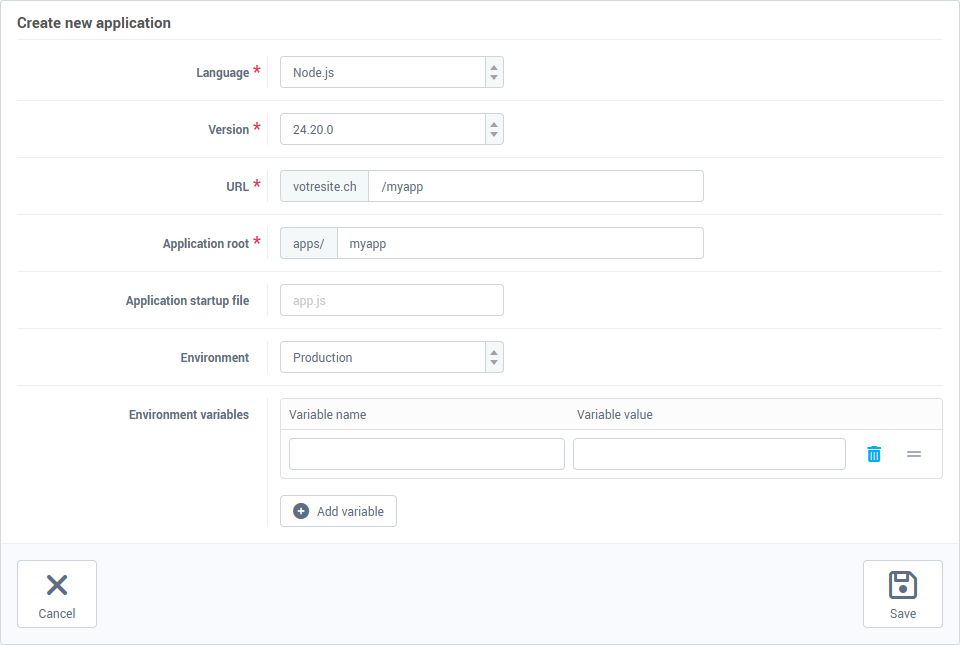
| Field |
What to enter |
| Language |
Node.js. |
| Version |
The Node.js version. The list offers the versions installed on your server, newest first. |
| URL |
The application's address, after your domain shown in grey: / for the root of the domain, /api for yourdomain.ch/api. |
| Application root |
The code folder, under apps/. It fills itself in from the URL: yourdomain.ch for the root, yourdomain.ch-api for /api. |
| Application startup file |
The file Passenger runs. Left empty, it is app.js. |
| Environment |
Development by default. Choose Production for a live website: Passenger passes this choice to your application in the NODE_ENV variable. |
| Environment variables |
Your application's settings (API key, database address): one Variable name and one Variable value per line, Add variable for another line. |
The application is created, then started, and appears in the Applications list.
How do I upload the code and install dependencies?
- Upload your application's files to its folder,
~/apps/ followed by the chosen name, by FTP or over SSH (for example with git clone). Do not upload node_modules.
- In the Applications list, click the application's How to use? icon. The Work in your environment via SSH window shows the command that enters the application's folder and activates its Node.js version. Copy it with the Copy button.

- Connect over SSH and paste the command. It looks like:
cd ~/apps/yourdomain.ch && source /home/youraccount/nodevenv/apps/yourdomain.ch/22/bin/activate
- Install the dependencies:
npm install
- Go back to the Applications list and click Restart.
Repeat steps 3 to 5 after each code update.
How do I manage the application?
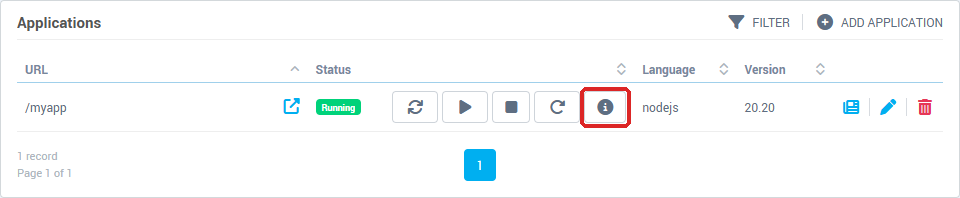
Each line of the Applications list shows:
- the application's URL, with an icon to Open the application in a new tab;
- its Status: Running in green, Stopped in red, Unknown in orange. Next to it, the Refresh status, Start, Stop, Restart and How to use? buttons;
- the Language and Version;
- at the end of the line, View application log, Edit and Delete.
Edit opens the Edit application form: you can change the version, the URL, the startup file, the environment and the variables there. The Language and the Application root can no longer be changed after creation: to change them, create a new application.
View application log shows the last lines written by your application and by Passenger: this is where startup errors appear. The window lets you Refresh it, turn on Auto-refresh, Download it or empty it with Clear log. Over SSH, the same log is in ~/logs/apps/.
Use node and npm over SSH without an application
To build a website's files or run a one-off script, simply activate a Node.js version in your SSH session.
- Connect over SSH.
- List the versions available on your server:
ls -d /opt/alt/alt-nodejs*
- Activate the one you want, for example Node.js 22, and check it:
source /opt/alt/alt-nodejs22/enable
node -v
node, npm and npx then use this version until the end of the session. To activate it at every login, add the line source /opt/alt/alt-nodejs22/enable at the end of the ~/.bashrc file.
In the folder of an application created with the Applications tool, use the How to use? command instead: it activates the same version as the application.
A script that must run regularly (sending reports, synchronising data) does not belong in the Applications tool, which serves websites: run it as a scheduled task, see Schedule a task (cron job).
Troubleshooting
| What you see |
What to do |
| The Applications tile is not shown |
Your plan does not include Node.js. Contact us to upgrade it. |
| The Applications tile opens a Request for server change |
Your hosting is on an older server that does not offer the tool. Send the request to be moved to a recent server. |
| This URL is already used by another application |
Another application of the domain already answers on this address: choose another URL, or edit the other application. |
Startup file '...' was not found in the application root (...) |
The Application startup file does not exist in the folder. Upload the file first, then save again. |
| Incorrect startup file |
The name contains refused characters: use only letters, digits, ., _, - and /. |
| The status stays Stopped, or the website shows an error page |
Open View application log: the last error is written there (missing module, syntax error, ERR_REQUIRE_ESM). Fix it, then click Restart. |
Cannot find module in the log |
The dependencies are not installed: activate the environment with the How to use? command, run npm install, then Restart. |
npm install fails with gcc, make or node-gyp |
A module must be compiled on the server. Contact support and include the full message. |
Going further