SSH access gives you a command-line console on your hosting, to run tools such as Composer, WP-CLI or Node.js, handle your files or read your logs. It works with key authentication: you create a key pair on your computer, register the public key in the Apanel console, and keep the private key secret.
Only ever share the public key (the file ending in .pub, or the text shown by PuTTYgen). The private key never leaves your computer: anyone who holds it can connect as you.
In short: in the Website card of Hosting management, open SSH access, add your public key with Add, then connect with the Connection command shown (port 22).
Prerequisites
- A domain with web hosting in your Apanel console (the SSH access tile is in the Website card).
- A terminal on your computer: Terminal on macOS and Linux, PowerShell on Windows 10 and later (or PuTTY, see below).
What to know before you start
- Keys belong to your account, not to a domain: the list is the same whichever domain you open the page from.
- The console alone manages the list of authorised keys. Each time you add or delete a key, it rewrites your account's
~/.ssh/authorized_keys file from its own list: a key you added by hand in that file disappears. Register all your keys in the console.
- Accepted key types:
ssh-rsa, ecdsa-sha2-nistp256, ssh-ed25519 and ssh-dss. Any other key is refused.
- By using this service you agree not to saturate the server by running abusive commands, and you agree that we keep a record of all commands you enter in the SSH console. This is the text of the tick box shown when you add a key (step 3 below).
- The port is 22.
Open the SSH access page
- Log in to your Apanel console.
- From the dashboard, click your domain name to open Hosting management.
- In the Website card, click SSH access.
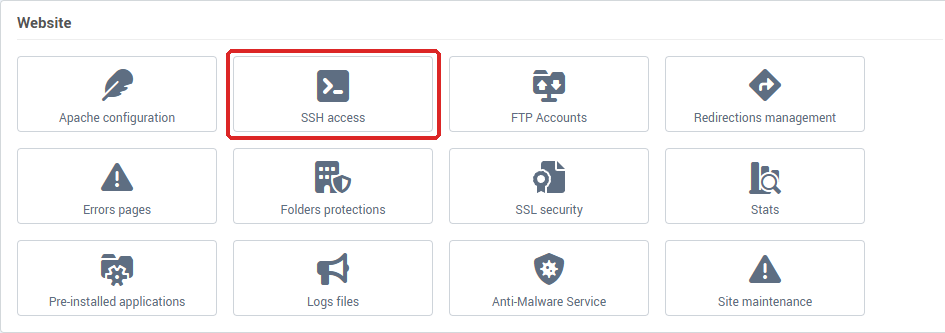
The page has two blocks.
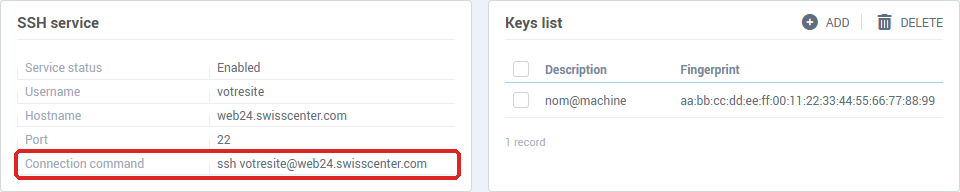
The SSH service block gives you everything you need to connect:
- Service status: Enabled;
- Username: the login to use for the connection;
- Hostname: the server that hosts your account;
- Port: 22;
- Connection command: the full command, in the form
ssh username@hostname, to copy as is into your terminal.
The Keys list block shows your registered keys, with their Description and Fingerprint.
How do I create my key pair?
Linux, macOS and Windows (PowerShell)
Open a terminal and run:
ssh-keygen -t rsa -b 4096
Follow the prompts: accept the suggested location and set a passphrase. The console also accepts an Ed25519 key (ssh-keygen -t ed25519).
Then display the public key, changing the path if you chose another location:
cat ~/.ssh/id_rsa.pub
The output is a single long line, of this shape:
ssh-rsa AAAAB3NzaC1yc2EAAAADAQABAAABAQC8teh2NJ42qYZV98gTNhumO1b6rMYIkAfRVazl... name@machine
Windows with PuTTY
Download PuTTY and PuTTYgen, then start PuTTYgen. In Number of bits in a generated key, enter 4096, click Generate and move the mouse over the grey area. Enter a passphrase, then click Save private key to keep the .ppk file somewhere safe.
The key to register in the console is the text in the top box, labelled Public key for pasting into OpenSSH authorized_keys file. It is not the file saved by Save private key.
How do I register the public key?
- On the SSH access page, in the Keys list block, click Add.
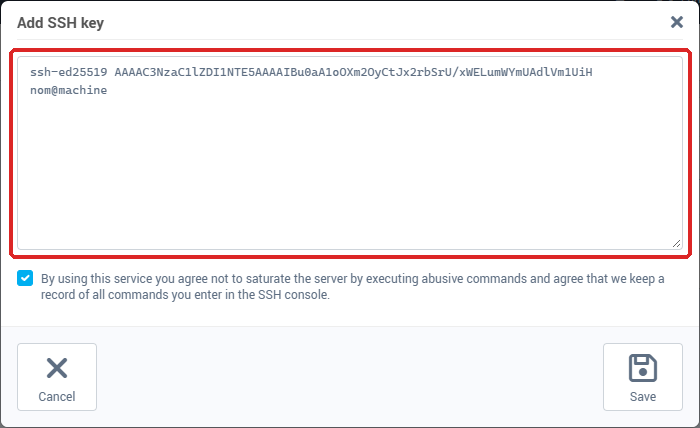
- In the Add SSH key window, paste your public key into the field: the whole line, from the key type (
ssh-rsa, ssh-ed25519...) to the final comment.
- Tick the box that repeats the commitment described above (proper use of the server and recording of commands). Without it, the key is not saved. On an older server this box does not exist (see the last section).
- Click Save.
The key appears in the list. Its Description is the key's comment (the end of the line, for example name@machine); a key without a comment is shown with the description "Unknown". Its Fingerprint is its MD5 fingerprint, written as pairs of characters separated by :. Pasting an already registered key a second time updates its row instead of creating another one.
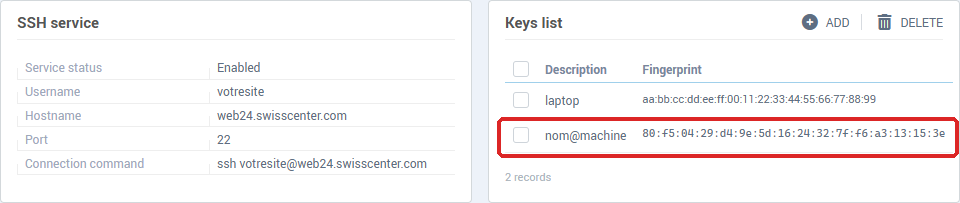
The key is sent to the server in the background. If the connection is refused right after you add it, wait a moment and try again.
How do I connect via SSH?
macOS, Linux and Windows (PowerShell)
Copy the Connection command shown in the SSH service block and paste it into your terminal:
ssh username@hostname
On the first connection, the server shows its fingerprint and asks you to confirm: answer yes. If your private key is not in the usual location, add -i followed by its path.
Windows with PuTTY
In PuTTY, on the left, choose Session and fill in Host Name (or IP address) with the Hostname from the page, the port being 22. Still on the left, go to Connection > SSH > Auth, and on the Private key file for authentication line click Browse to choose your .ppk file. Go back to Session, save the profile, then click Open. PuTTY asks for the login: enter the Username from the page.
How do I delete a key?
- In the Keys list, tick the key to remove.
- Click Delete, then confirm with Yes.
Remove the keys of a lost computer, of a former colleague or of a contractor whose work is finished.
On an older server
On an older server, the Service status may be Disabled: the principle is the same, but you enable the service yourself, and the commitment described above is shown when you enable it rather than when you add a key.
- In the SSH service block, click Enable.
- In the Enable SSH service window, read the commitment shown, then click Enable.
The service then shows Enabled, with an Automatic deactivation line giving the date and time it will stop: 24 hours after activation. To stop it earlier, click Disable, then confirm with Disable in the Disable SSH service window.
Troubleshooting
-
The key is refused when you save it (the console shows "Incorrect value" under the field): the pasted line is not a recognised public key. Check that you paste the content of the .pub file (not the private key), that it starts with ssh-rsa, ssh-ed25519, ecdsa-sha2-nistp256 or ssh-dss, and that it has not been cut.
-
The connection is refused ("Permission denied"): check that you use the Username and Hostname from the page (not your domain name), that the registered key matches the private key you use (compare the Fingerprint in the list with the MD5 fingerprint of your key, which the command ssh-keygen -l -E md5 -f ~/.ssh/id_rsa.pub prints after the MD5: prefix), and that the key is still in the list.
-
A key you added by hand on the server has disappeared: see "What to know before you start". Register it in the console.
-
An error with a code is shown ("An error occurred during the operation. Error code: ..."): note the code and send it to our support along with your domain name.
If the connection is still refused after you register your key, contact our support, telling us the domain and the username you used.
Going further