A subdomain is an address placed in front of your domain, such as shop.yourdomain.ch. It has its own folder of files: you can host another website, a shop or a test application there without touching your main site. It takes a few seconds to create from the Apanel console.
This article covers subdomains hosted with SwissCenter. To point a subdomain to a server located elsewhere, see Point a subdomain to an external server.
Requirements
- The main domain must be hosted with us.
- Your account must still have web space available. Otherwise the form is greyed out and shows "Your web disk quota is reached, please make room for further". See See your disk space usage and add more.
Open the Subdomains page
- Log in to your Apanel console.
- From the dashboard, click your domain name to open Hosting management.
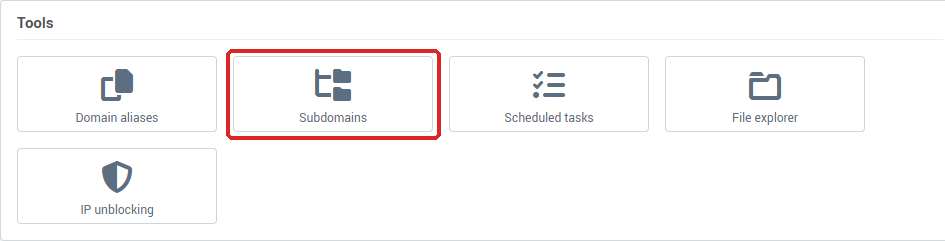
- In the Tools card, click Subdomains.
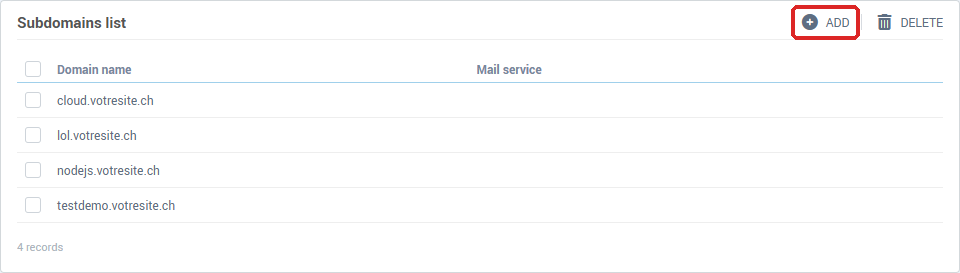
The Subdomains list shows the existing subdomains and, for each, whether the Mail service is enabled.
Create a subdomain
- Click Add.
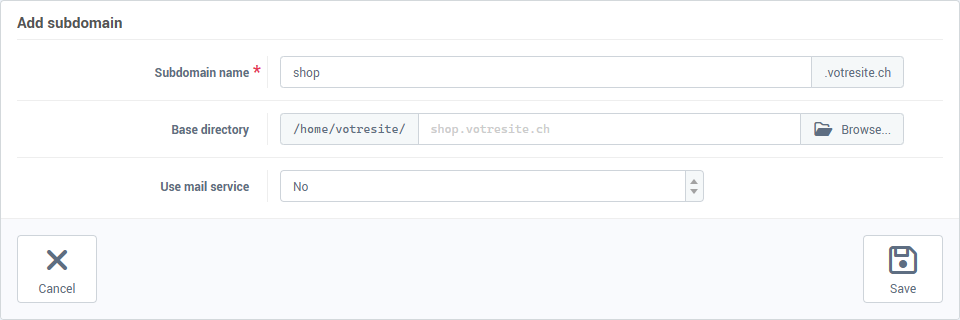
- In Subdomain name, enter only the part that comes before your domain:
shop for shop.yourdomain.ch.
- In Base directory, enter the folder that will hold the subdomain's files. Left empty, the folder is named after the full subdomain (
shop.yourdomain.ch): this is what appears in grey in the field. The Browse button lets you pick an existing folder.
- In Use mail service, leave No if you do not want e-mail addresses on this subdomain.
- Click Save.
The subdomain is created with its own website. If your DNS is managed by SwissCenter, the subdomain's record is added by itself to your DNS zone: there is nothing to do in the DNS manager. If your DNS is managed elsewhere, add there the record that points the subdomain to our server.
Then upload the subdomain's files into its folder, by FTP or with the File explorer in the Tools card.
Delete a subdomain
- In the list, tick the subdomain.
- Click Delete.
- The window asks "Are you sure you want to delete this subdomain?" and offers Remove files also, with the folder path. This choice is set to Yes by default: if you want to keep the files, set it to No before confirming.
- Click Yes to confirm, or No to cancel.
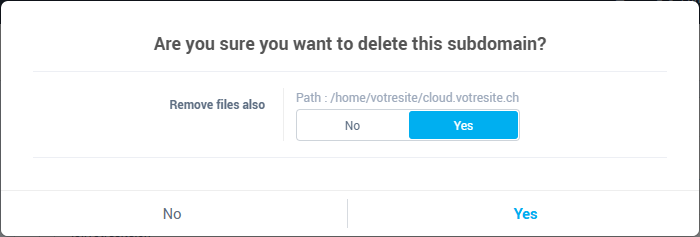
Deleted files cannot be recovered from the console.
Troubleshooting
- "This domain already exists": this name is already used on your account or on another one. Choose another one.
- The form is greyed out: web space is full. Free up space or order more.
- The subdomain does not show your site: check that the files are in the folder given in Base directory, and that the start file is called
index.html or index.php. After a creation, allow a few minutes for the DNS to update.
- The browser reports an invalid certificate: see Install an SSL certificate on a domain.