The domain names console gathers the domain names you have registered with SwissCenter. It lets you follow their renewal dates, manage their contacts, name servers and DNSSEC, get the transfer code, delete a domain, and order or transfer new domains.
In short: in your Apanel console, click Domain names management console: the Domain names list gives each domain's Renew date, and its page offers Transfer code and Remove the domain (owner only).
Prerequisites
- Domain names registered with SwissCenter, of which you are the owner or the technical contact.
- Access to the domain names console: through the Domain names management console entry of your Apanel console menu, or directly with your domain names console login on the Apanel login page.
What you need to know before you start
- Only domains registered with SwissCenter appear. A domain registered with another registrar is not listed, even if it uses our name servers or your hosting.
- Your rights depend on your role on the domain. The Domain name permission line shows Owner or Technical:
| Action |
Owner |
Technical contact |
| View the domain and its Whois |
yes |
yes |
| Change the name servers and DNSSEC |
yes |
yes |
| Change the technical contact |
yes |
yes |
| Change the owner contact |
yes |
no |
| Get the Transfer code |
yes |
no |
| Remove the domain |
yes |
no |
- Some statuses prevent opening the domain. While a domain is Waiting for payment, Transfer in progress, in Error during transfer, Suspended or in Updates disabled, its name cannot be clicked in the list.
How do I open the domain names console?
- Log in to your Apanel console.
- In the top menu, click Domain names management console. The console opens in a new tab, on its Dashboard.

If your account only holds domain names, the Apanel login page takes you straight to this console.
The dashboard
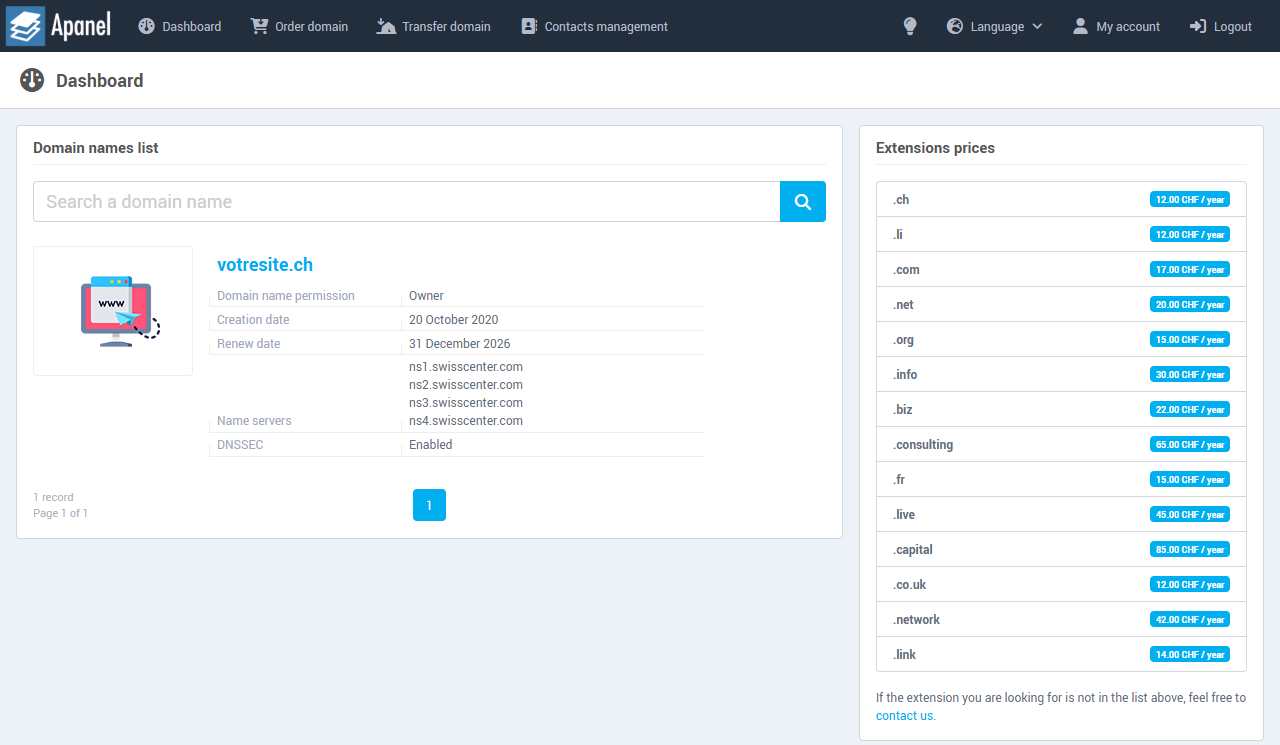
The top menu leads to four pages: Dashboard, Order domain, Transfer domain and Contacts management. Language changes the console's language.
The Domain names list block shows your domains, 15 per page; the Search a domain name field filters the list. For each domain, it shows:
- the domain name, which opens its page, and a badge if its status is special (for example Scheduled deletion);
- Domain name permission: Owner or Technical;
- Creation date and Renew date, or Removal date in red if a deletion is scheduled;
- Name servers: the current servers, or Not configured;
- DNSSEC: Enabled or Disabled, for a domain served by our name servers.
A Pay my invoice button appears under the preview of a domain whose invoice is unpaid.
The Extensions prices block lists the yearly price of each extension; clicking a line opens the order. For an extension that is not listed, the contact us link shows our contact details.
The domain page
Click a domain name in the Domain names list. At the top of the page, the selector lets you switch to another of your domains, and Back to dashboard takes you back to the list.
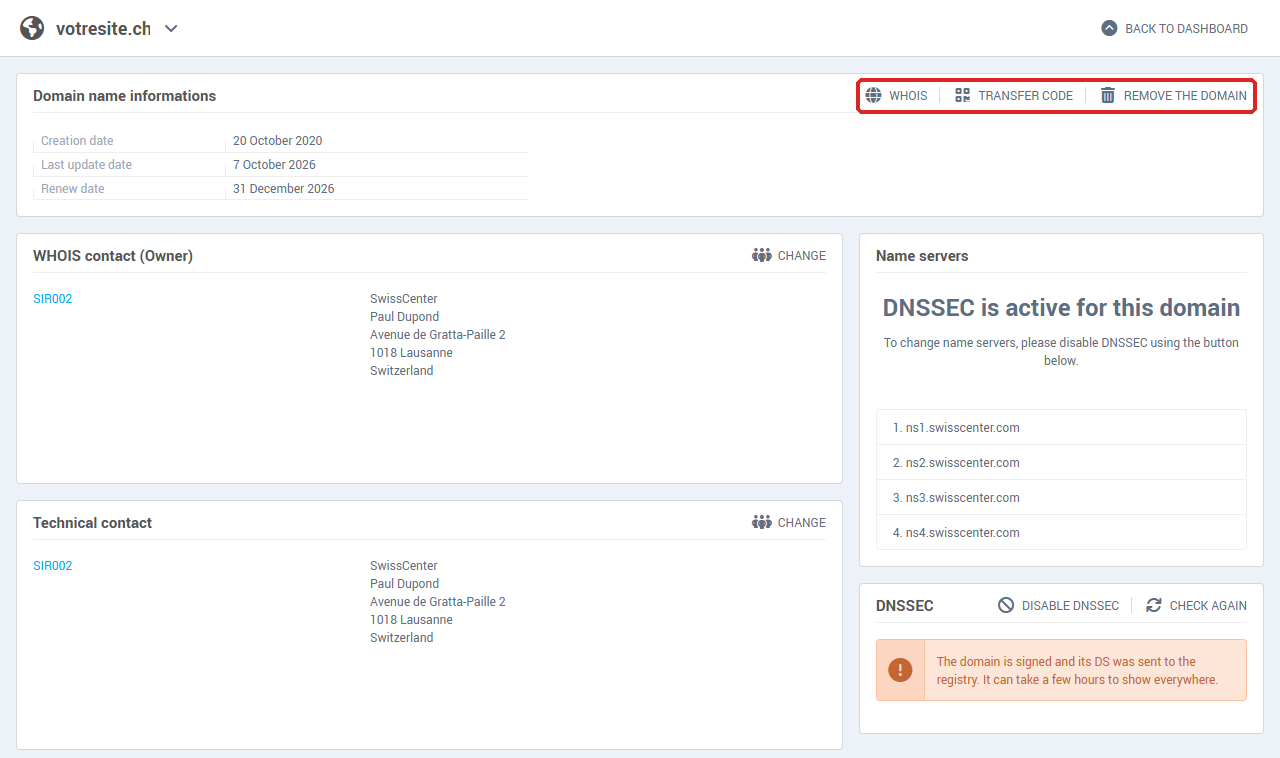
The page holds:
How do I transfer a domain to another provider?
To leave SwissCenter, your new provider asks you for the domain's transfer code.
- On the domain page, click Transfer code.
- The Transfer code for yourdomain.ch window shows the code. Click Copy, then give it to your new provider, who starts the transfer.
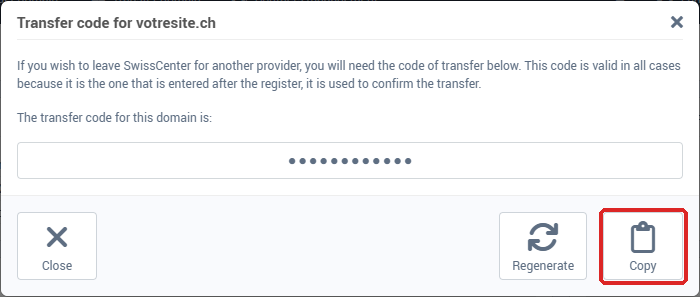
Regenerate replaces the code with a new one: the old one no longer works. Once the transfer is complete, the domain leaves our services automatically: do not use Remove the domain to move to another provider.
How do I remove a domain or cancel the removal?
- On the domain page, click Remove the domain.
- In the window, choose the Desired removal date (by default, the day before renewal).
- Type the domain name again in the confirmation field: copy and paste is disabled there.
- Click Confirm removal.
The list then shows the Scheduled deletion badge and the Removal date. Warning: once the domain is deleted, it may not be possible to register it again during a grace period of up to 60 days, depending on the domain.
To go back before the chosen date, click Cancel removal on the domain page, then Yes.
How do I change a domain's contacts?
Contacts are the people or companies registered as owner or technical contact of your domains.
- To change a domain's contact, click Change in the WHOIS contact (Owner) or Technical contact block of its page. Choose a contact from your list, or click Create new contact, then Save.
- To keep your contacts up to date, open Contacts management in the top menu: the Contacts list lets you Add, edit (click a contact) or Delete a contact. Some details of a contact cannot be changed: then create a new contact and assign it to the domain with Change.
Order or transfer a domain to SwissCenter
- Order domain: enter the name you want and click Search, tick the available domains, then click Next step. At the Contact assignment step, choose the contacts and click Next step. In the order summary, accept the terms and conditions and click Confirm order.
- Transfer domain: enter the Domain name to transfer and the Transfer code obtained from your current provider, then follow the same steps. Disable DNSSEC at your current provider before starting the transfer. The details are in Transfer a domain name to SwissCenter.
The ordered or transferred domain then appears in the Domain names list, with the Pay my invoice button until the invoice is paid.
Troubleshooting
| What you see |
What to do |
| The Domain names management console entry does not appear in the Apanel menu |
It only appears when a domain names console is attached to your contract, and not when you are logged in through delegated access. Log in with the account holder's login, or contact support. |
| A domain is missing from the list |
It is registered with another registrar, or you are neither its owner nor its technical contact. |
| A domain name cannot be clicked |
Its status prevents it: pay the invoice with Pay my invoice, wait for the transfer to finish, or contact support for a domain that is Suspended, in Error during transfer or in Updates disabled. |
| The Transfer code and Remove the domain buttons do not appear |
You are the domain's technical contact: only the owner has access to them. |
| Maintenance in progress when ordering or transferring |
The domain console is undergoing maintenance: try again a little later. |
| An error occurred during the operation. Error code: … |
Try once more; if the message comes back, contact support and give the domain name and the error code. |
| An unexpected email about your domain |
See Understanding the "ICANN ERRP" email about your domain name. |
Going further