The IP unblocking feature allows you to check if an IP address is blocked by the hosting firewall (CrowdSec protection) and unblock it in a few clicks, directly from the Apanel console, without contacting support.
This feature is useful when:
- your own IP address has been blocked (too many login attempts, scans, or errors) and you can no longer access your site;
- you wish to allow access to an IP address that was blocked by mistake.
In short: in Hosting management, Tools card, click IP unblocking, then Search and, if the address is blocked, Unblock. Fix the software that causes the block first, or it may come back.
Prerequisites
- A domain hosted in your Apanel console.
- The IP address to check. If you cannot reach the console from the blocked address, log in from another connection (for example your phone's hotspot) and enter the blocked address in the field.
What you need to know before you start
- A block is temporary: it is lifted automatically when it expires, as shown in the Expires in column.
- Unblocking an address does not fix the cause of the block: if some software keeps trying a wrong password (email, FTP, SSH), the address may be blocked again. Fix its settings first (see the links at the end of the article).
How do I unblock an IP address?
- Log in to your Apanel console.
- From the dashboard, click the name of the relevant domain to open Hosting management.
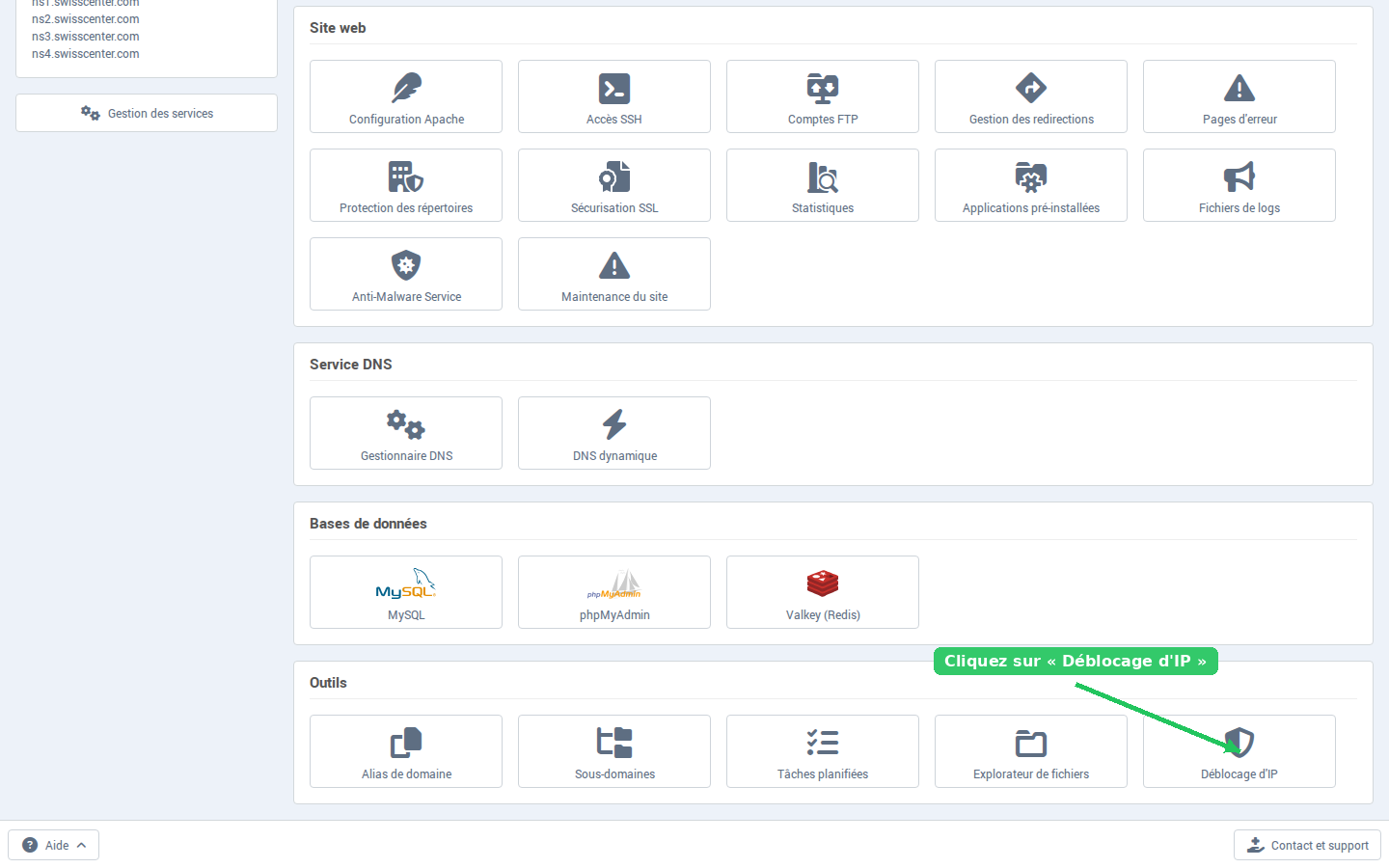
- In the Tools card, click the IP unblocking button. It is in the last row of the card, to the right of File explorer.
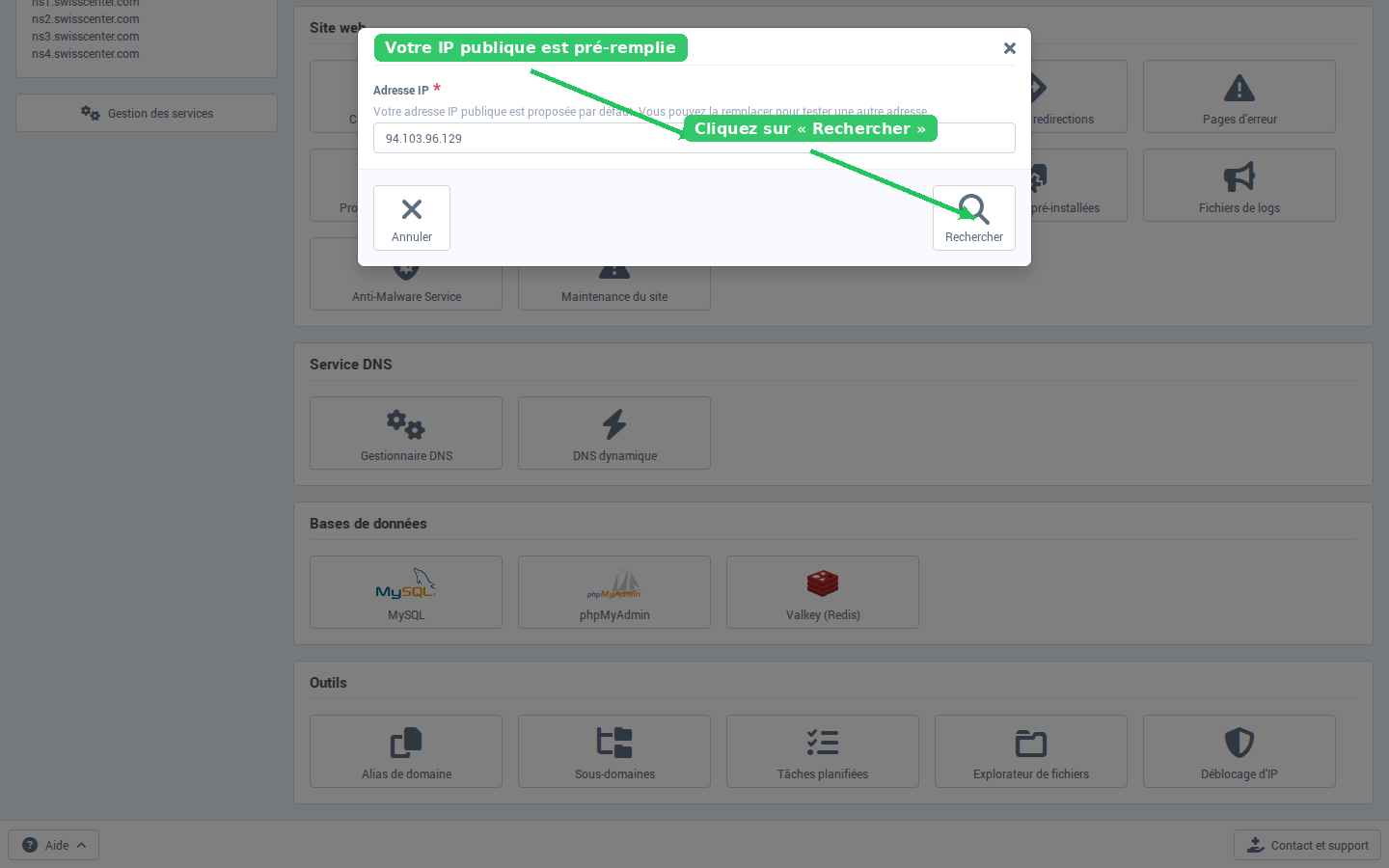
- The IP unblocking window opens. The IP address field is pre-filled with your public IP address. You can keep it or replace it.
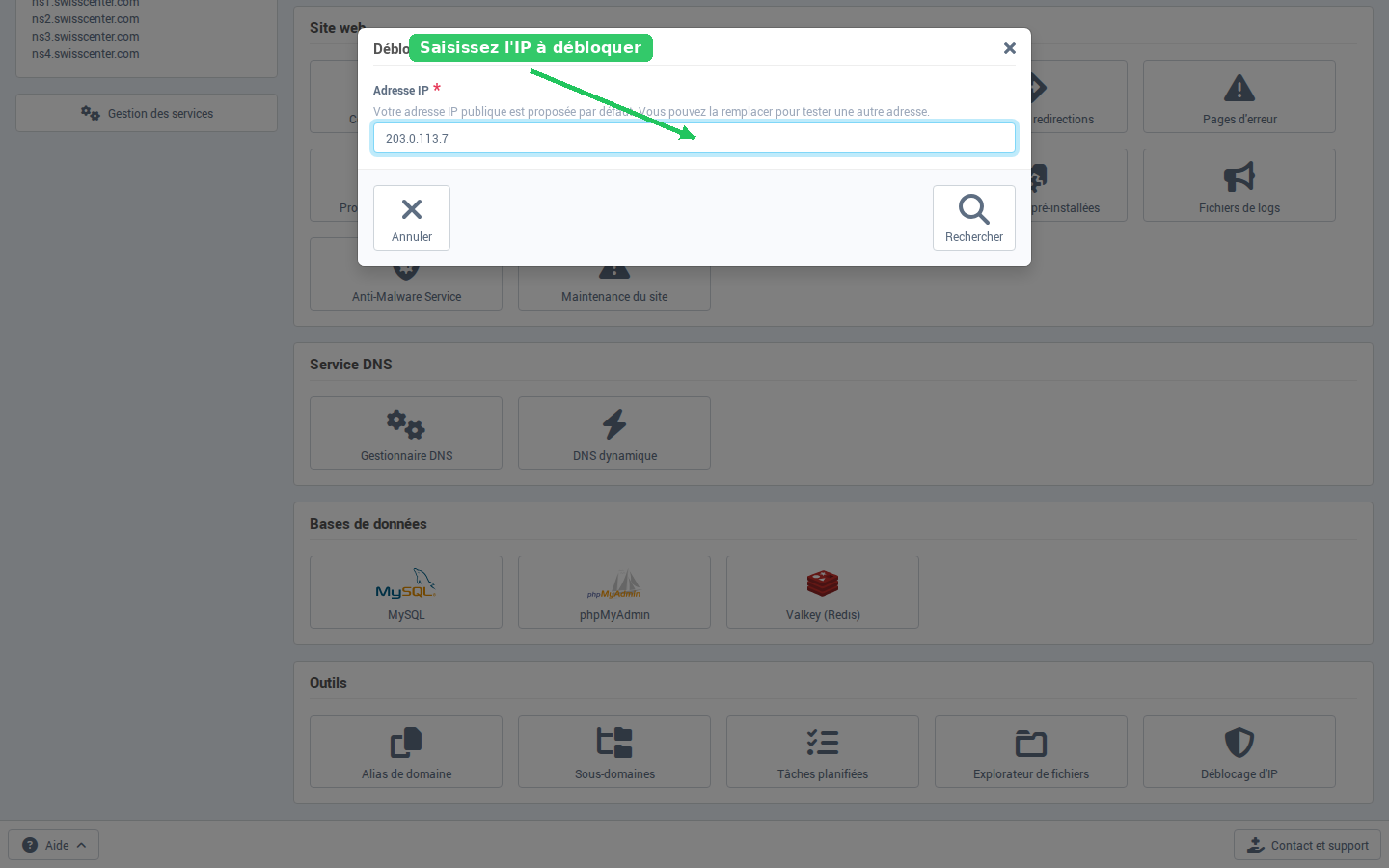
If you need to unblock another address, clear the field content and enter the address to check (example: 203.0.113.7).
- Click Search.
- If the address is not blocked, a green message says so ("Address … is not blocked by our firewall."): there is nothing to do.
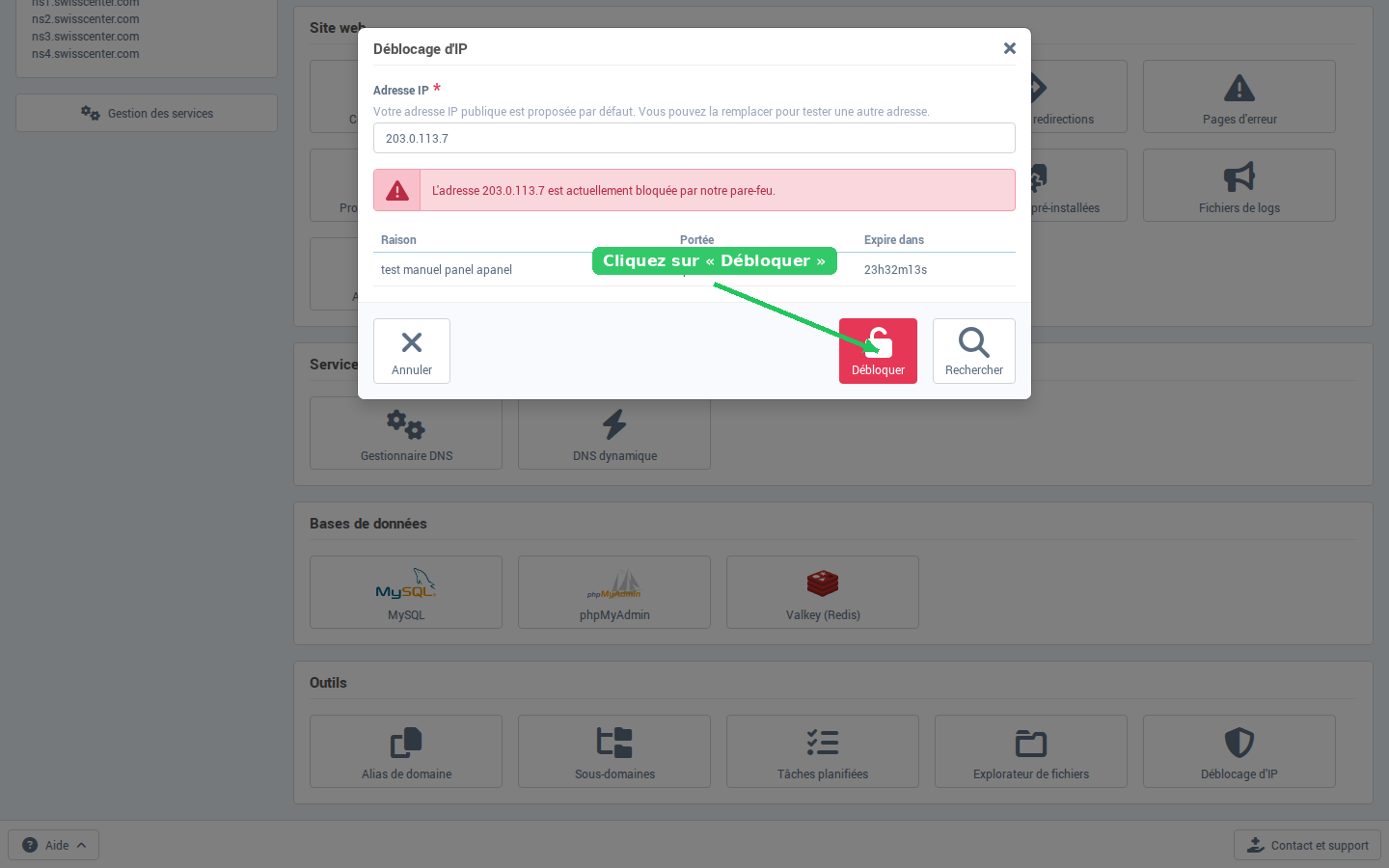
- If the address is blocked, a red banner appears ("Address … is currently blocked by our firewall.") and a table details the block:
| Column |
Description |
| Reason |
Reason for the block in plain words (for example "Repeated login attempts: passwords were tried one after another."), with the technical name of the block below it, to quote if you contact support |
| Scope |
Blocked address or range (e.g. Ip:203.0.113.7) |
| Expires in |
Time remaining before the block is automatically lifted |
- Click the red Unblock button, then confirm the question "Unblock this IP address?". The message "The IP address has been unblocked." appears: the IP address is removed from the firewall's block list and the site becomes accessible again from this address.
Troubleshooting
- The message "Invalid IP address." appears: the address entered is incomplete or mistyped. Check it (for example
203.0.113.7) and search again.
- The address is blocked again shortly after: a device or some software keeps causing the block. Check the passwords saved in your email, FTP or SSH software, then unblock the address once more.
Going further