Thunderbird can store your old emails in an archive folder of your choice. Archiving is done on demand: you select the messages and click Archive, and Thunderbird moves them to the configured folder and sorts them according to the options you chose.
In short: in Account Settings, under Copies & Folders, click Other and choose your archive folder, then select the emails and click Archive.
Prerequisites
- Thunderbird installed and at least one email account configured.
How do I configure the archive folder?
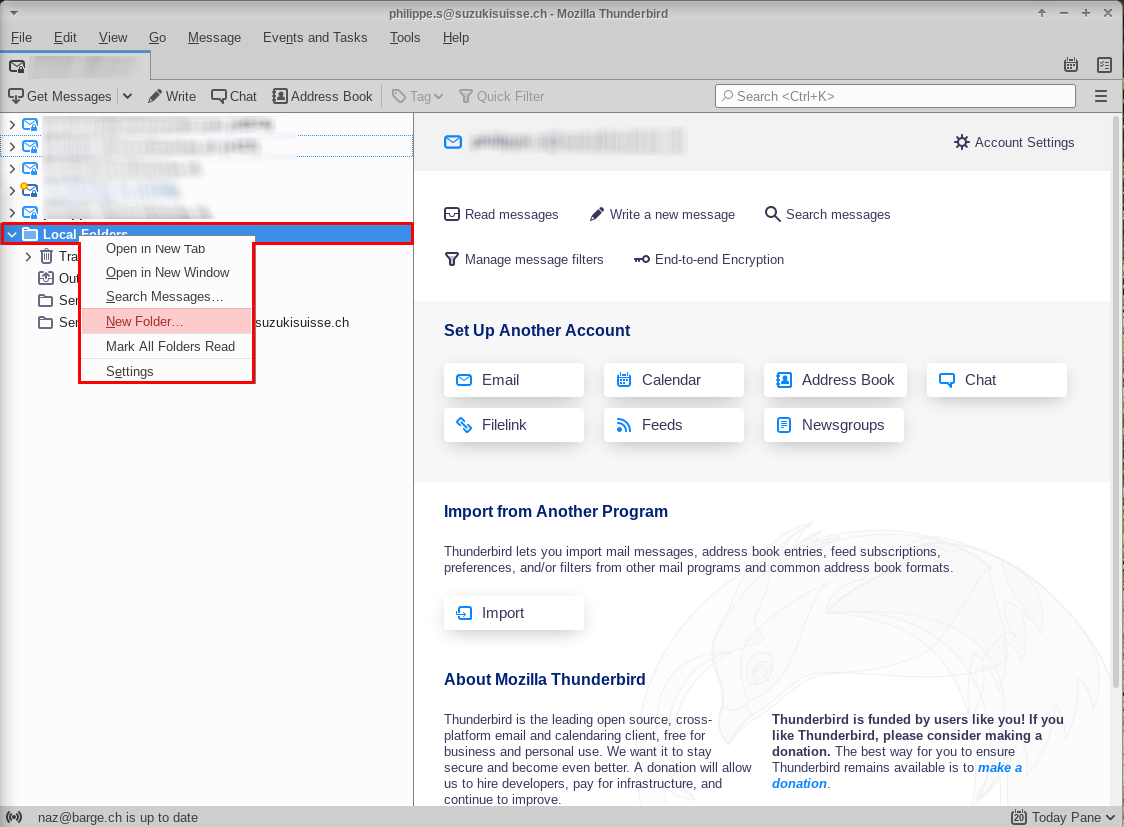
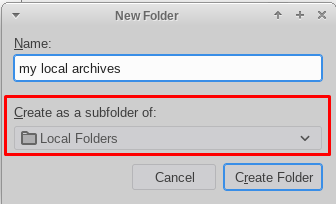
- Create, in Thunderbird, the folder that will receive your archives, for example under Local Folders so that archived messages are stored on your computer.
-
Open Account Settings.
-
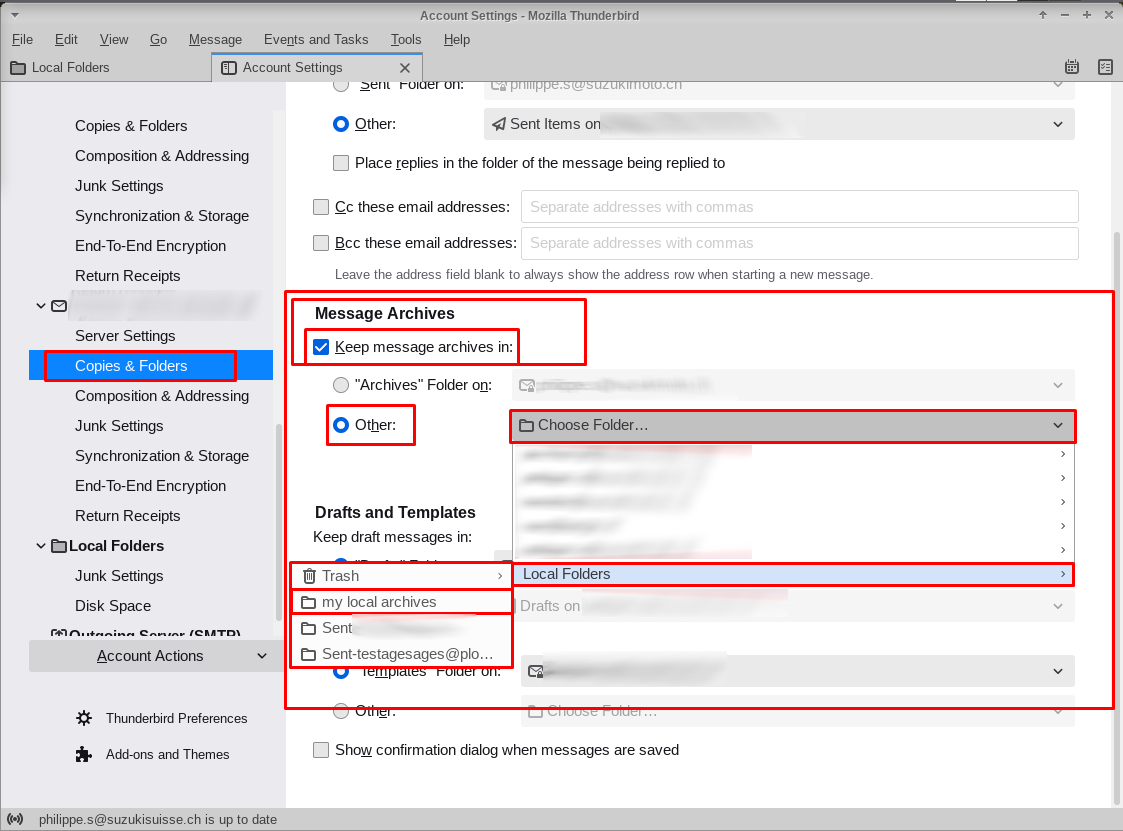
Under the relevant account, select Copies & Folders.
In the message archiving section, click Other and choose the folder you just created.
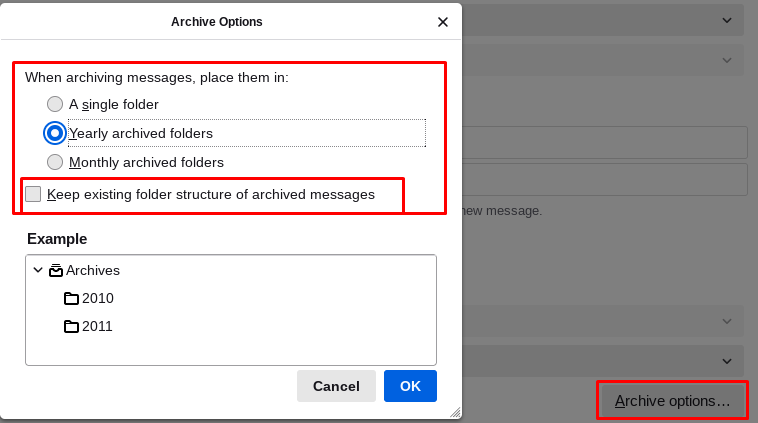
- In the archiving options, select the options that suit you. We recommend checking the box to keep the folder structure, as well as sorting by year.
How do I archive messages?
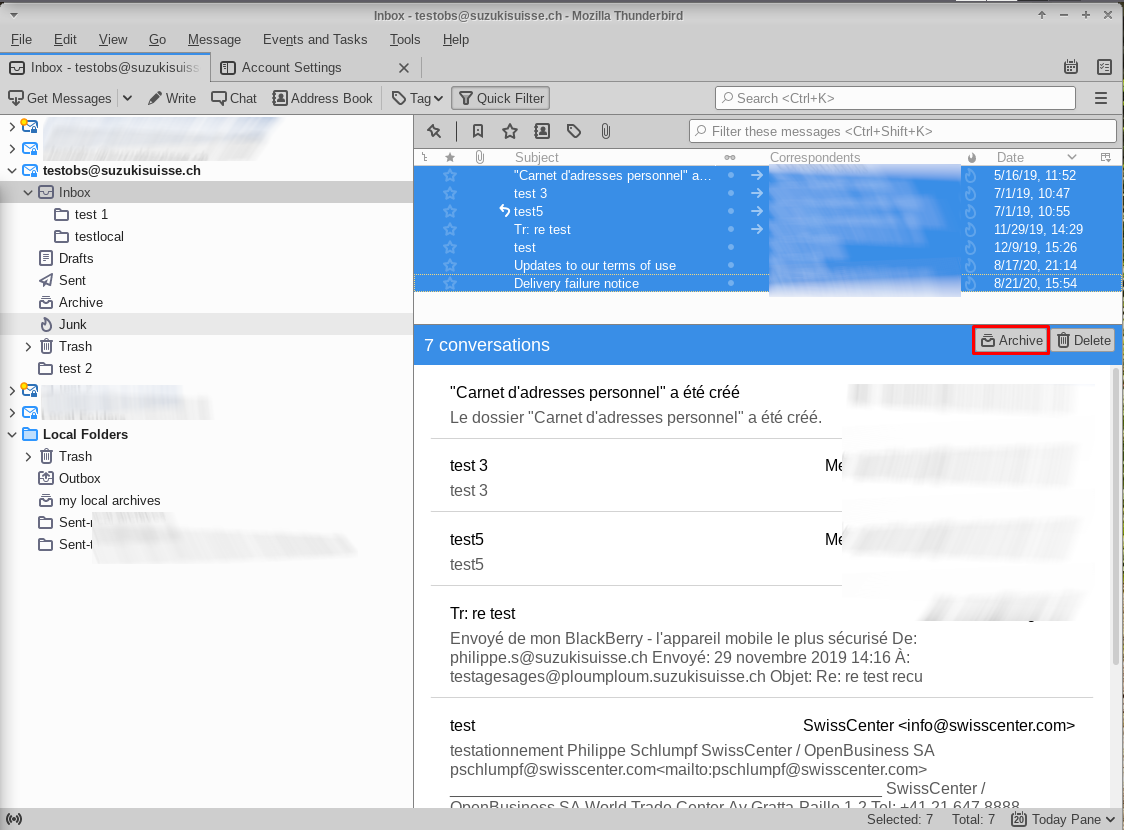
In the email list, select the emails you wish to archive and click the Archive button.
For the official procedure, see the Archived messages page of Mozilla Support.
Going further