This guide explains how to access a Swisscom Internet Box connected to the Internet with a dynamic IP via a domain name.
It is provided for informational purposes only. We invite you to contact Swisscom support for any questions regarding your Internet Box.
In short: in the box interface (http://192.168.1.1), open Network, DynDNS tab, enable DynDNS under Other DynDNS providers, choose SwissCenter, enter the dynamic DNS credentials created in Apanel, then Save.
Prerequisites
What you need to know before you start
- The box screens described here may change with Swisscom updates: if a label differs, look for the section dedicated to dynamic DNS (often called DynDNS).
- Dynamic DNS only publishes the IP address of the box. To reach a device behind it (NAS, camera, server), you also need to forward the ports you use to that device on the box.
How do I link the box to the domain name?
-
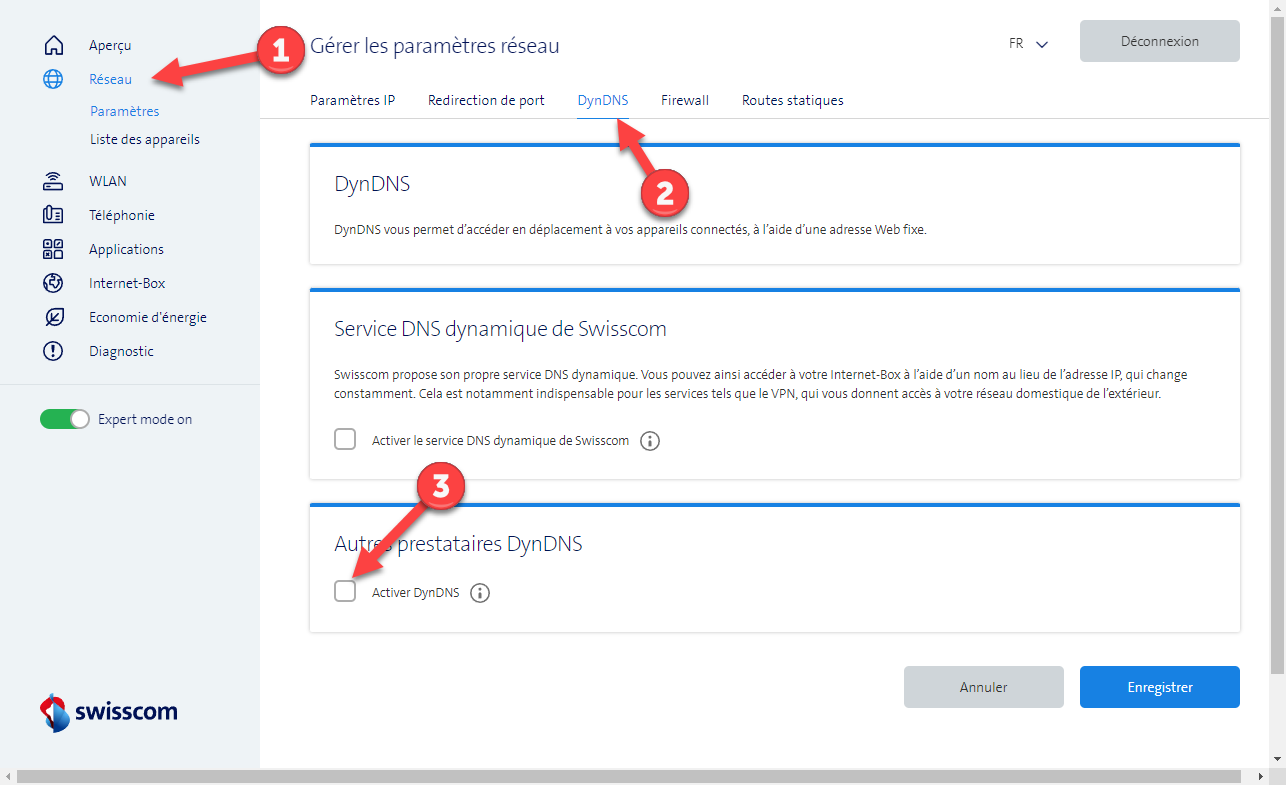
Open your browser and log in to the Swisscom Internet Box administration interface at the address http://192.168.1.1.
-
Click Network in the top-left menu.
-
Select the DynDNS tab.
-
Enable DynDNS in the Other DynDNS providers section.
-
Choose SwissCenter from the list of providers.
-
Fill in the requested fields with the dynamic DNS credentials created in Apanel and click Save.
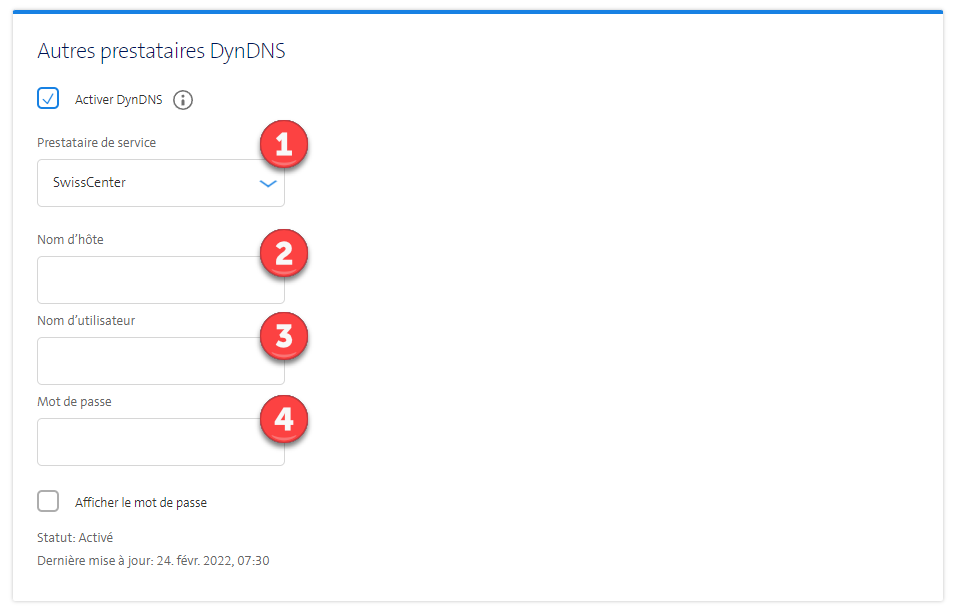
- Hostname: the full hostname of the dynamic DNS
- Username: the username of the dynamic DNS
- Password: the password of the dynamic DNS
If something goes wrong
- The hostname does not answer: check in the DNS change history that the box actually sends its updates. If nothing arrives, check the hostname, username and password: they are those of the dynamic DNS, not those of your Apanel console.
- The name answers but the device cannot be reached: check the port forwarding on the box.
Going further