This guide explains how to access a Sunrise Internet Box connected to the Internet with a dynamic IP address via a domain name.
This information is provided for guidance only. We invite you to contact Sunrise support for any questions regarding your Internet Box.
In short: in the box interface, in expert mode, open DynDNS, enable the client with the Custom provider and the credentials of the dynamic DNS defined in Apanel, then the custom server api.swisscenter.com (port 443).
Prerequisites
- Have a box that allows configuring a custom dynamic DNS provider.
- A dynamic DNS must have been created on the relevant domain, with its hostname, username and password. Follow this guide if needed: Set up a dynamic DNS (DDNS) record at SwissCenter.
What you need to know before you start
- The box screens described here may change with Sunrise updates: if a label differs, look for the section dedicated to dynamic DNS (often called DynDNS).
- Dynamic DNS only publishes the IP address of the box. To reach a device behind it (NAS, camera, server), you also need to forward the ports you use to that device on the box.
How do I link the box to the domain name?
-
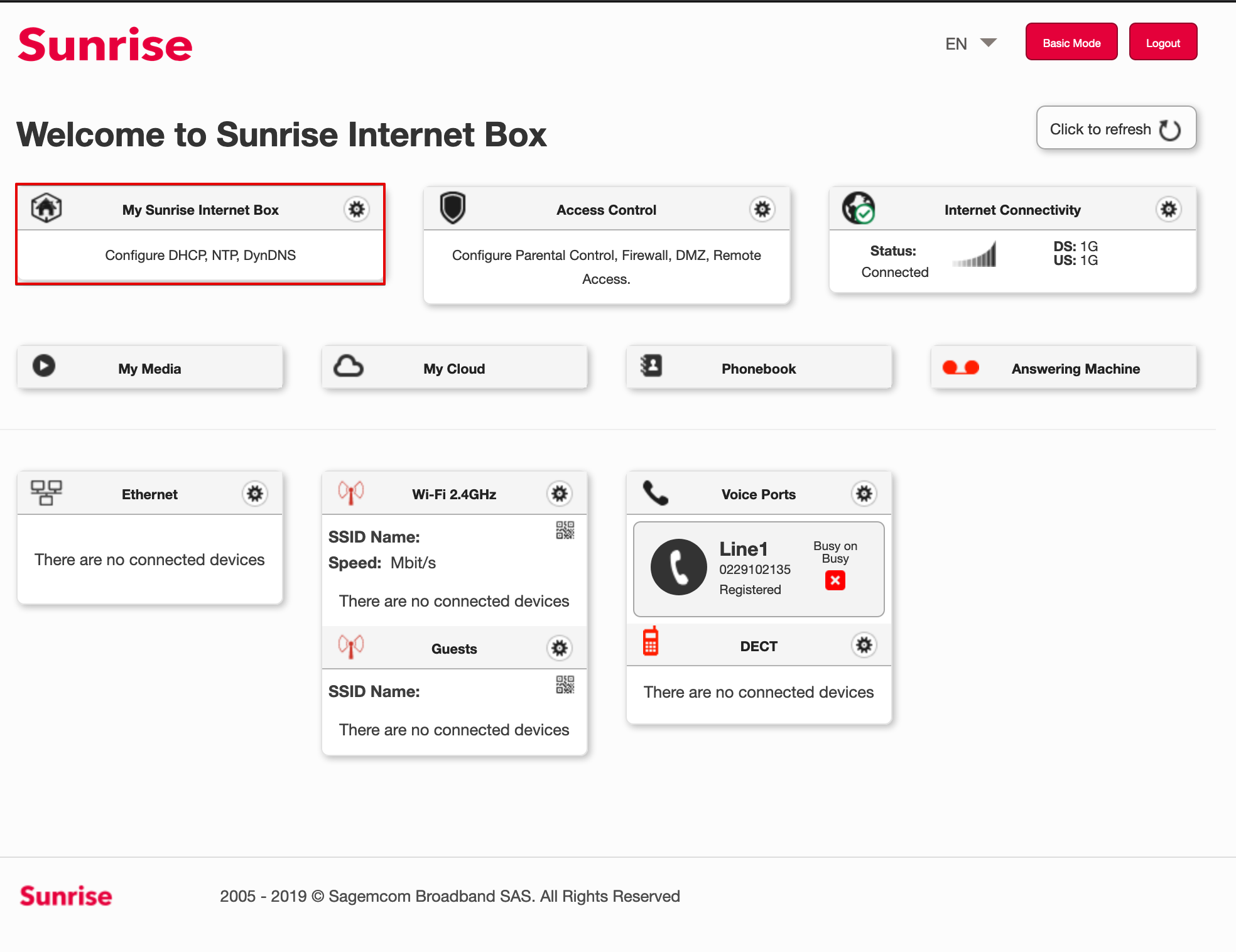
Log in to the administration interface of the Sunrise Internet Box (http://192.168.1.1).
-
Enable expert mode (button in the top right corner) to access advanced settings.
-
Go to DynDNS (top left).
-
Click the DynDNS tab.
-
Enable the Dynamic DNS client and fill in:
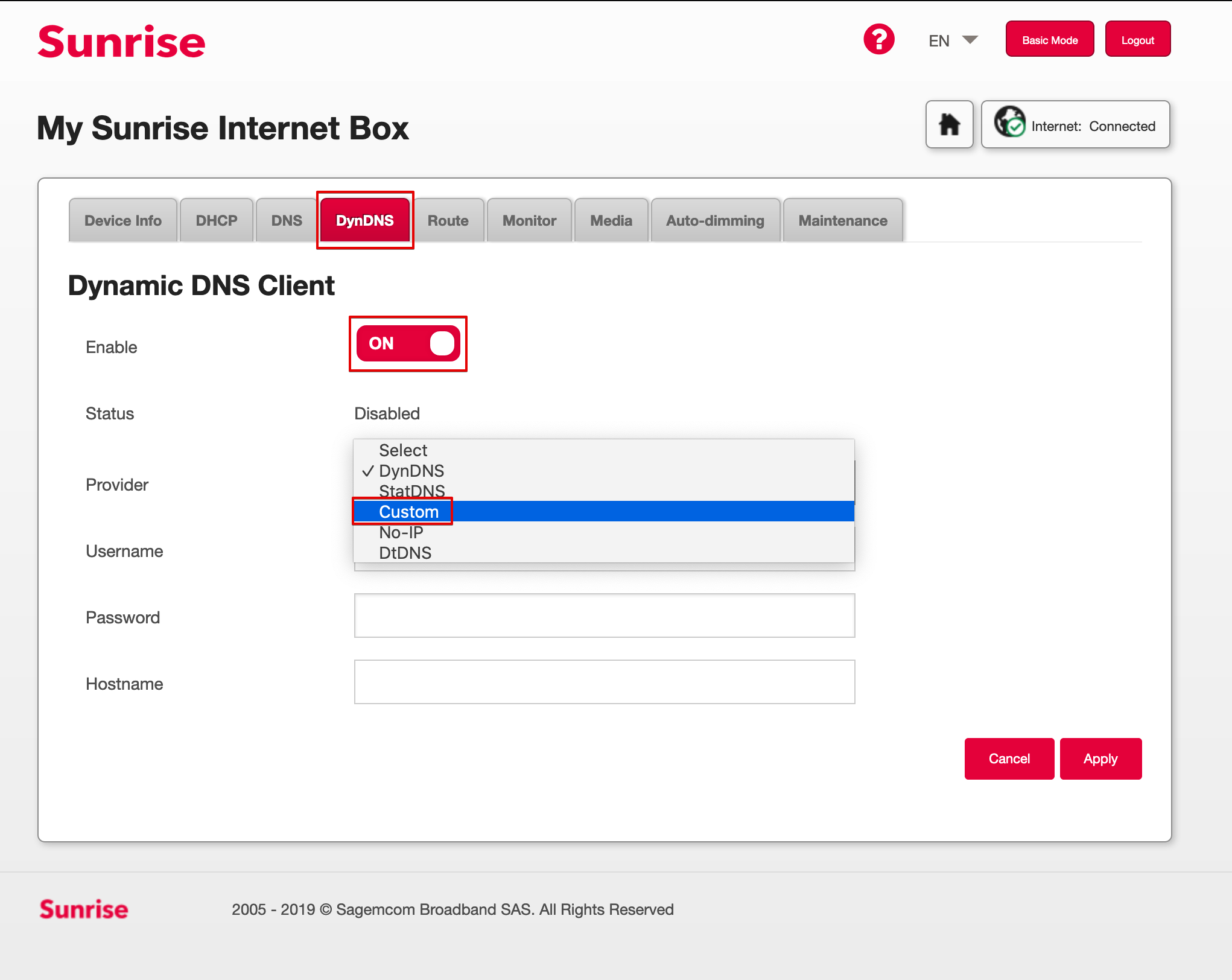
- Service provider: Custom
- Username: the username of the dynamic DNS defined in Apanel
- Password: the password of the dynamic DNS defined in Apanel
- Hostname: the full hostname of the dynamic DNS defined in Apanel
-
Enable the custom server and fill in:
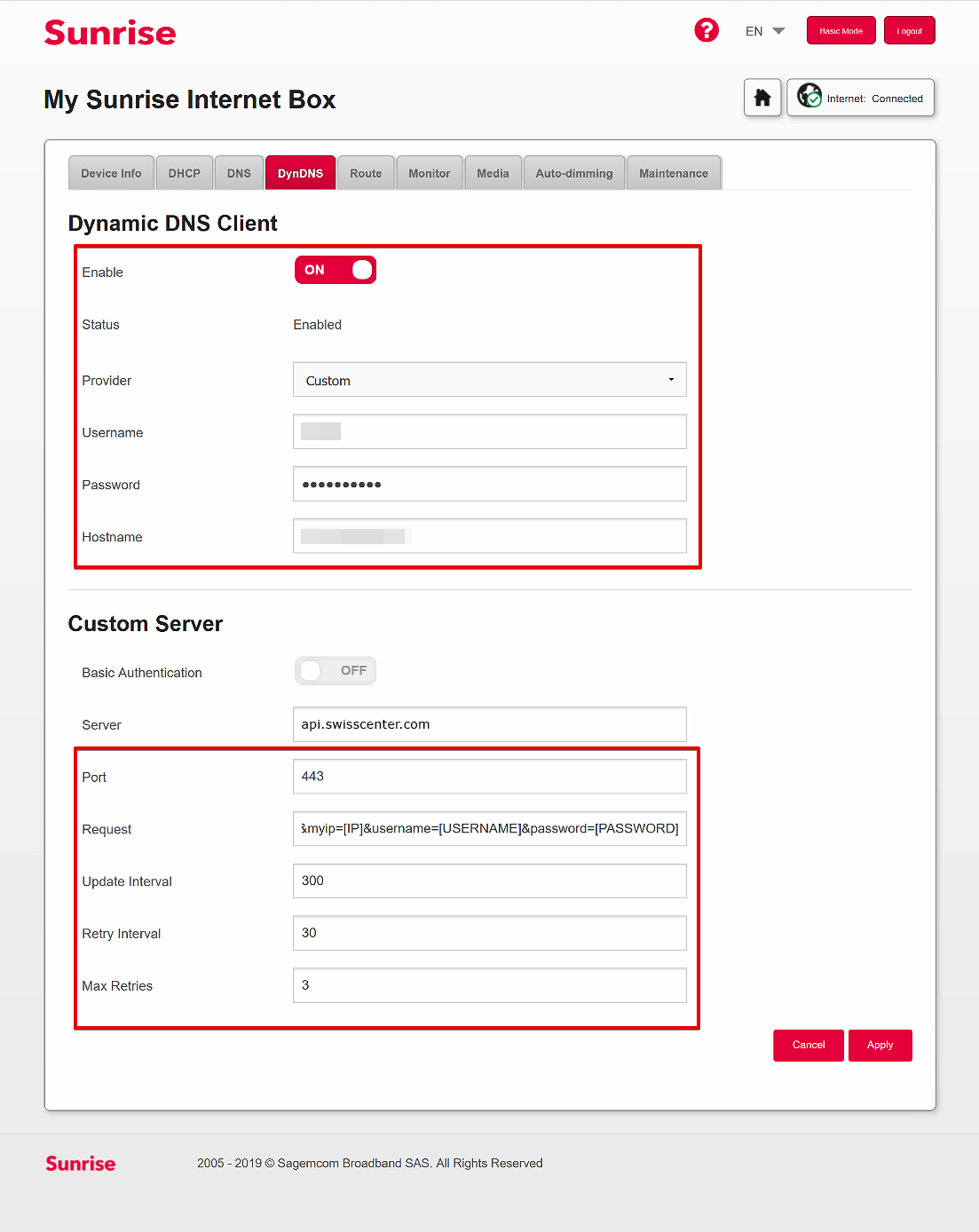
- Server: api.swisscenter.com
- Port: 443
- Request (copy/paste as is):
https://api.swisscenter.com/webservices.php/nic/update?host=[DOMAIN]&ip=[IP]&username=[USERNAME]&password=[PASSWORD]
-
Set the intervals:
- Update interval (seconds): 300
- Retry interval (seconds): 30
- Max attempts: 3
Once these settings are applied, the box automatically updates the IP address registered on your domain name.
If something goes wrong
- The hostname does not answer: check in the DNS change history that the box actually sends its updates. If nothing arrives, check the hostname, username and password: they are those of the dynamic DNS, not those of your Apanel console.
- The name answers but the device cannot be reached: check the port forwarding on the box.
Going further