To enable access to your Synology NAS via a domain name while it is connected with a dynamic IP, configure the DDNS service in two steps: adding the SwissCenter provider and then creating the record for your hostname.
In short: in DSM, Control Panel then External Access, DDNS tab: declare SwissCenter with Customize (the API Query URL), then click Add with the hostname, username and password of the dynamic DNS, not those of Apanel.
Prerequisites
- Own a Synology NAS connected to the Internet with a dynamic IP address.
- A dynamic DNS must have been created on the relevant domain, with its hostname, username and password. Follow this guide if needed: Set up a dynamic DNS (DDNS) record at SwissCenter.
What you need to know before you start
DSM screens (the NAS operating system) change from one version to another: the labels below may differ slightly on your NAS. The principle stays the same: declare SwissCenter as a custom provider, then associate your hostname with it.
How do I add SwissCenter as a service provider?
- Open the Synology NAS management interface (DSM).
- Go to the Control Panel.
- Click on External Access (under the Connectivity section).
- Click the Customize button (under the DDNS tab).
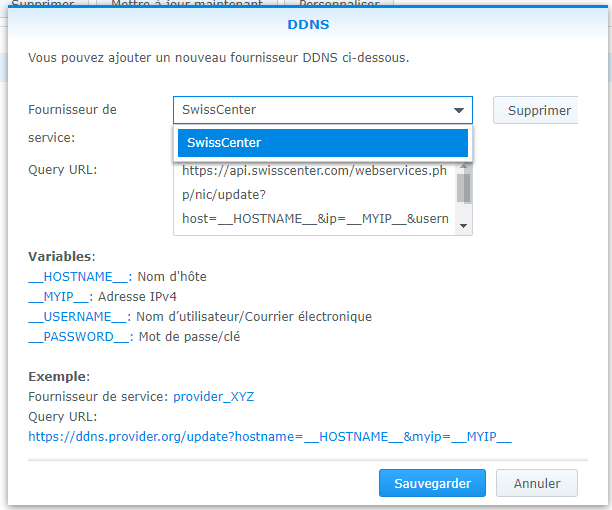
Then fill in the fields:
Service Provider:
SwissCenter
Query URL:
https://api.swisscenter.com/webservices.php/nic/update?host=__HOSTNAME__&ip=__MYIP__&username=__USERNAME__&password=__PASSWORD__
Click Save.
How do I add the dynamic DNS to the Synology?
Now that SwissCenter has been added as a service provider:
- Open the Synology NAS management interface (DSM).
- Go to the Control Panel.
- Click on External Access (under the Connectivity section).
- In the DDNS tab, click the Add button.
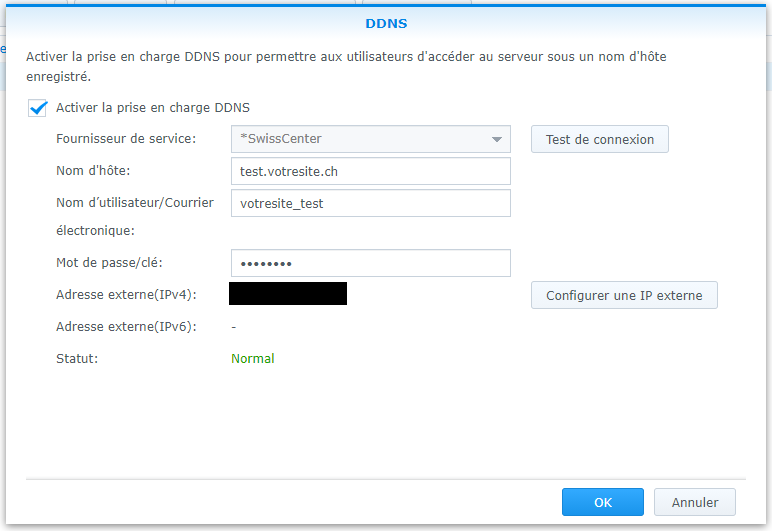
Fill in the following information, defined in Apanel when you created the dynamic DNS:
- Service Provider: SwissCenter (the profile we just created in the previous step)
- Hostname: the full hostname of the dynamic DNS
- Username: the username of the dynamic DNS
- Password: the password of the dynamic DNS
Confirm the window. From this point on, the dynamic IP address of your Synology NAS will be automatically synchronized with your domain name.
If something goes wrong
- The NAS reports an authentication error: check that the hostname, username and password are those of the dynamic DNS, not those of your Apanel console.
- The hostname does not answer: check in the DNS change history that the NAS actually sends its updates, then allow a few minutes for caches to expire.
- The name answers but the NAS cannot be reached: the dynamic DNS only provides the IP address of your connection. If the NAS is behind a box or a router, you also need to forward the ports you use to the NAS there.
Going further