An SRV record tells which server, and on which port, provides a given service for your domain: SIP telephony, instant messaging, automatic configuration of an application, and so on. The service concerned gives you the values to enter; this article explains where to put them in the DNS manager of the Apanel console.
In short: in the DNS manager of the Apanel console, click Add, choose SRV (Service), enter the Service name without the underscore, then click Save and Synchronize. For our mail service, use Automatic autodiscover instead.
Requirements
- The DNS service enabled for the domain: the DNS service card appears in Hosting management.
- Your domain on our name servers (
ns1.swisscenter.com to ns4.swisscenter.com).
- The values given by the service: service name, protocol, priority, weight, port and target server.
Before you start
- For our mail service, do not create the SRV record by hand. The Tools menu of the DNS manager offers Automatic autodiscover, which creates in one go the
_autodiscover._tcp SRV record and the two autodiscover and autoconfig CNAME records that let email software configure itself. It only works if the mail service is enabled and your MX records point to our servers.
- An SRV record is entered in several fields. A service often gives you a complete line, such as
_sip._tcp.yourdomain.ch 3600 IN SRV 10 5 5060 sip.provider.example (an example only). The Apanel form splits it up: the table below shows which part goes into which field.
- Priority and weight: a client first tries the server with the lowest Priority. Between several servers with the same priority, it shares the connections according to the Weight: the higher the weight, the more connections the server gets. With a single server, simply use the values you were given.
How do I add the SRV record?
- Log in to your Apanel console.
- Click your domain name to open Hosting management.
- In the DNS service card, click DNS manager.
- Click Add.
- In Type, choose SRV (Service). The form then shows the SRV fields under Record définition.
- Fill in the fields according to the table below, then click Save.
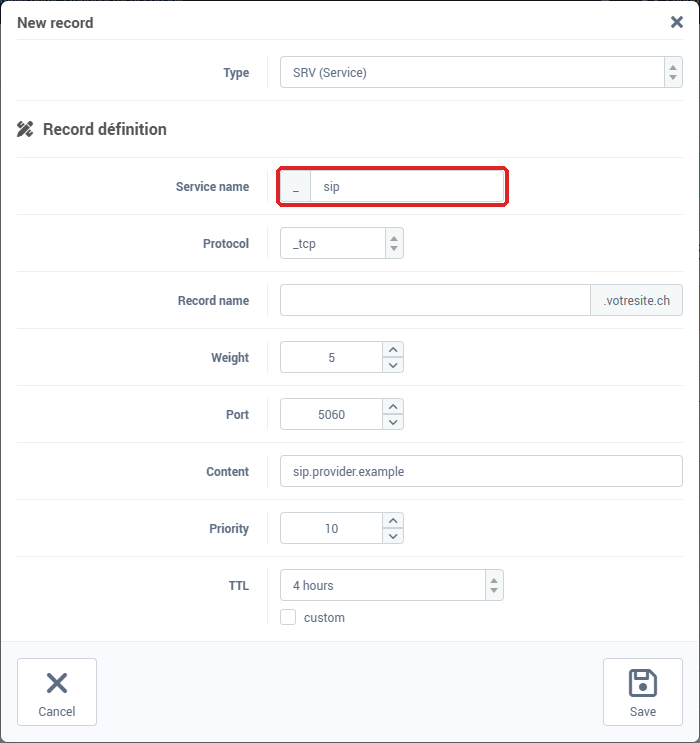
- Click Synchronize in the orange banner to publish the record.
| What the service gives you |
Field to fill in |
The service, for example _sip |
Service name: enter sip, without the underscore. Apanel already shows it in front of the field. |
The protocol: _tcp, _udp or _tls |
Protocol, from the list. |
| The name the record applies to |
Record name: leave the field empty for your domain itself; for a subdomain, enter only the part before your domain (shop for shop.yourdomain.ch). |
| The weight |
Weight, from 0 to 65535. |
| The port |
Port, from 0 to 65535. |
| The target |
Content: the server name, for example sip.provider.example, without a final dot. An IP address is not accepted. |
| The priority |
Priority. |
| The TTL |
TTL: keep the suggested value (4 hours) unless the service requires another one. |
In the list, the record appears under its full name (_sip._tcp.yourdomain.ch), with the weight, port and target in the Content column, and the priority in the Priority column.
To edit or delete an SRV record, proceed as for any other record: see Adding or editing a DNS record.
Troubleshooting
| What you see |
What to do |
| This field require a domain name, on the Content |
Enter only the name of the target server, without a final dot, without spaces, and without the port or weight, which have their own fields. |
The name shown in the list starts with two underscores (__sip._tcp...) |
The underscore was typed in addition to the one Apanel adds. Delete the record and create it again, entering the service name without an underscore. |
The name shown ends with your domain twice (...yourdomain.ch.yourdomain.ch) |
The full name was typed in Record name. Delete the record and create it again, leaving this field empty or entering only the part before your domain. |
| Operation canceled because the mail service for this domain is not active!, with Automatic autodiscover |
Automatic configuration only applies to our mail service: the mail service must be enabled for the domain. |
| Operation canceled because the mail server is not hosted by SwissCenter! |
Your MX records point to another provider: that provider gives you its own automatic configuration values. |
| The service cannot find the record |
Check that the orange banner is gone (Synchronize), then wait until the TTL of the old value has run out. |
Going further