You can add an image to your SmarterMail signature, for example your company logo:

The image is added by editing the HTML code of your signature, with a tag that points to the address of the image.
In short: in the webmail settings, open the signature, switch the editor to the source code view and add an <img src=""> tag containing the full public address of the image, then save.
Prerequisites
- An image published online, at a full public address (preferably
https://), for example in your hosting: https://www.your-domain.ch/images/logo.png.
- The credentials of the mailbox, to log in to webmail.
What to know before you start
- The image is not attached to the message: the signature only contains its address. It must therefore stay online at that address.
- Many email programs block remote images by default: your recipient may have to allow them to be displayed to see the logo.
How do I add an image to the signature?
-
Log in to webmail and open the signature to edit in the settings.
-
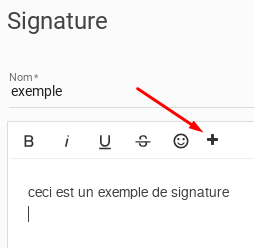
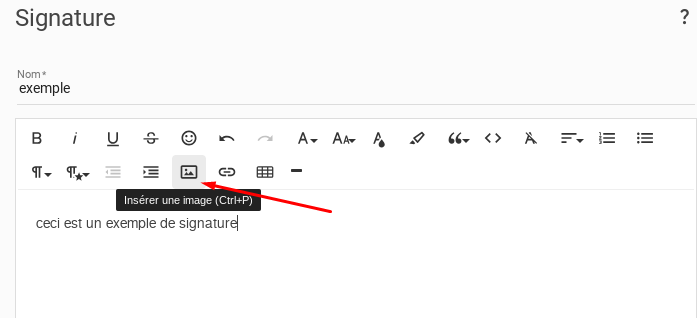
In the signature editor, switch from the design view to the source code view.
-
Wherever you want (before, after or within the text), add the <img src=""> tag, writing the full address of your image between the quotation marks, for example <img src="https://www.your-domain.ch/images/logo.png">. For several images, add one tag per image; separate them with a <br> tag to put them on different lines.
-
Save your changes.
Going further