Site maintenance takes your website offline in a few clicks from the Apanel console, without FTP or SSH. During an update, a redesign or an incident, your visitors see a "Maintenance en cours" page instead of the site, while you keep working on it from your own connection.
In short: in Hosting management, Website card, click Site maintenance, add your address under Allowed IP addresses, set Site under maintenance to Yes, then click Save: visitors get an HTTP 503 error.
Requirements
- Web hosting on our current servers: the Site maintenance tile then appears in the Website card of Hosting management. If it is not there, your hosting is on an older-generation server that does not offer this feature: contact our support.
What to know before you start
- Every address of the site answers with an HTTP 503 error and the maintenance page, and PHP is never executed: your application, its forms and its scripts do not run while the site is down. The response carries the
Retry-After: 3600 header, which tells search engines that the outage is temporary.
- Only the allowed IP addresses see the site normally. If the list is empty, nobody can reach it, including you.
- Maintenance applies to a directory, not to a domain name. It targets the Document root. Another domain of your account served from the same directory goes into maintenance at the same time; the page warns you and names it.
- Only the website is affected: your email, your databases and your FTP and SSH access keep working.
- A maintenance set by our support team cannot be lifted from the console (see below).
How do I put the site into maintenance?
- Log in to your Apanel console.
- From the dashboard, click your domain name to open Hosting management.
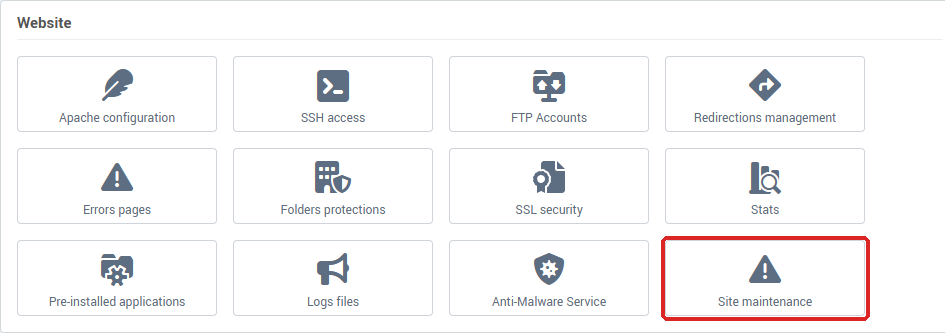
- In the Website card, click Site maintenance.
The Site maintenance page shows the Maintenance settings block:
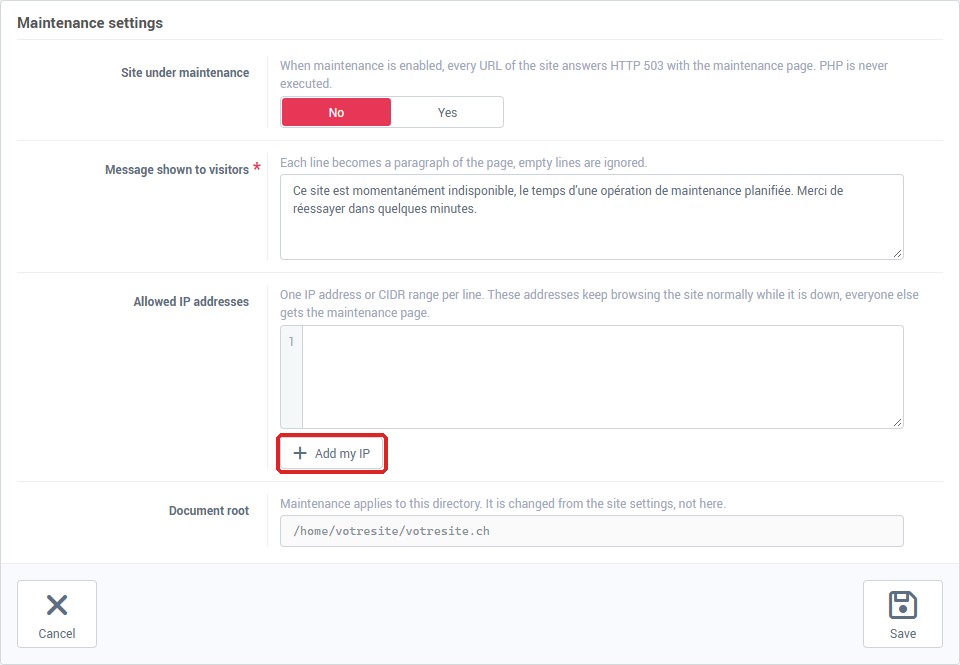
- In Message shown to visitors, keep the suggested text or write your own, up to 2000 characters. Each line becomes a paragraph of the page, empty lines are ignored. The field cannot be left empty.
- In Allowed IP addresses, enter one IP address or CIDR range per line, for example
203.0.113.10 or 198.51.100.0/24; IPv6 addresses are accepted too. The Add my IP button adds the address you are using to connect to the console.
- Set Site under maintenance to Yes.
- Click Save. The console confirms with a success message.
The read-only Document root field shows the directory the maintenance applies to. It is changed from the site settings, not from this page.
While maintenance is on, Hosting management shows in red "This site is currently under maintenance: it answers an unavailability page to every visitor.", and the tile reads Site under maintenance.
What do your visitors see?
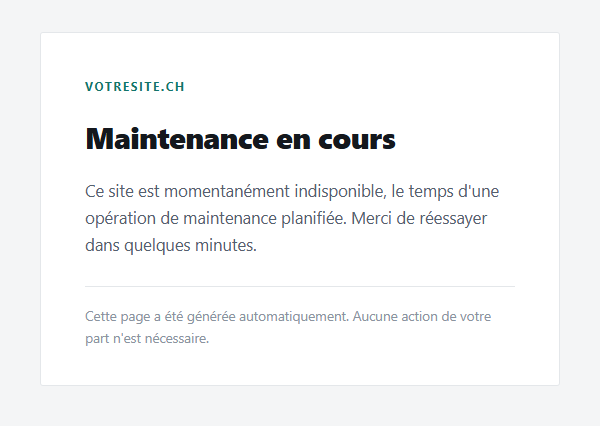
From an address that is not in the list (for example your phone on the mobile network, with Wi-Fi off), the site shows a plain page: the domain name, the title "Maintenance en cours", your message, then the line "Cette page a été générée automatiquement. Aucune action de votre part n'est nécessaire." The title and that line are always in French: if your site also speaks to visitors in other languages, write your message on several lines, one per language.
How do I bring the site back online?
- Go back to the Site maintenance page.
- Set Site under maintenance to No.
- Click Save. The site is reachable by everyone again.
Your message and your address list stay saved for the next maintenance.
What if our support team put your site into maintenance?
When a site spreads malicious content, especially after a SWITCH report that went unanswered, our support team can put it into maintenance itself (see My website was hacked: what happens and what you need to do). In that case:
- No address is allowed: you see the maintenance page too. For a maintenance set after a SWITCH report, the message shown is "Ce site est temporairement indisponible." followed by its English version, "This website is temporarily unavailable."
- In the console, the Site maintenance page shows in red: "This site was put into maintenance by our support team. It cannot be brought back online from the panel: please contact us by replying to the message we sent you." The form and the Save button are not shown; Cancel takes you back to Hosting management.
- To bring the site back online, have it cleaned, then reply to our support team's message. We lift the maintenance once the cleanup has been checked.
- Your previous message and address list are not restored afterwards: check them before your next maintenance.
Troubleshooting
| What you see |
What to do |
| "This site was put into maintenance by our support team. It cannot be brought back online from the panel…" |
The maintenance belongs to our support team. Reply to the message we sent you (see the previous section). |
| "This maintenance was set by our support team and cannot be changed from your account." |
Our support team set the maintenance while the page was open. Reload the page and reply to our message. |
| ""…" is not a valid IP address or CIDR range" |
A line in Allowed IP addresses is neither an IP address nor a CIDR range (a typo, a domain name, a mask such as /33). Fix it, one address per line. |
| "The state was saved but the server did not apply it: …" |
The server did not apply the change and the site stayed as it was. Try again a few minutes later; if the message comes back, send it in full to our support team. |
| "An error occurred during the operation. Error code: …" |
Note the code and send it to our support team with your domain name. |
| You see the maintenance page although you clicked Add my IP |
Your browser reaches the site with a different address than the console: an IPv6 address, a VPN, or an address that has changed since. Add that address too, or your VPN's range. |
| Nobody can reach the site, including you |
The Allowed IP addresses list is empty or does not contain your address. Add it, then click Save. |
| Another of your domains is offline too |
It is served from the same directory as the site under maintenance: the Site maintenance page names it in its warning. |
| The Site maintenance tile does not appear |
Your hosting is on an older-generation server. Contact our support team. |
Going further