You redirect one address to another from the console. Which method to use depends on a single question: is the redirect temporary or permanent?
In short: temporary (302) redirect → Hosting management → Website → Redirections management. Permanent (301) redirect → a rule in the .htaccess file.
Should I use a temporary or a permanent redirect?
|
302: temporary |
301: permanent |
| The message sent |
"Go over there for now" |
"The address has changed, for good" |
| Search engines |
Keep the old address in the index |
Move the ranking to the new one |
| Browsers |
Ask for the old address on every visit |
Remember the new one, sometimes for a long time |
| When to use it |
Maintenance, one-off operation, test |
Domain name change, site redesign |
| Where to do it |
Console: Redirections management |
.htaccess file |
A 301 is cached by the visitor's browser, sometimes for a very long time. Do not use it for a temporary situation: you will not be able to "take it back" for those who already saved it.
How do I create a temporary redirect in the console?
- Log in to your Apanel console.
- From the dashboard, click your domain name to open Hosting management.
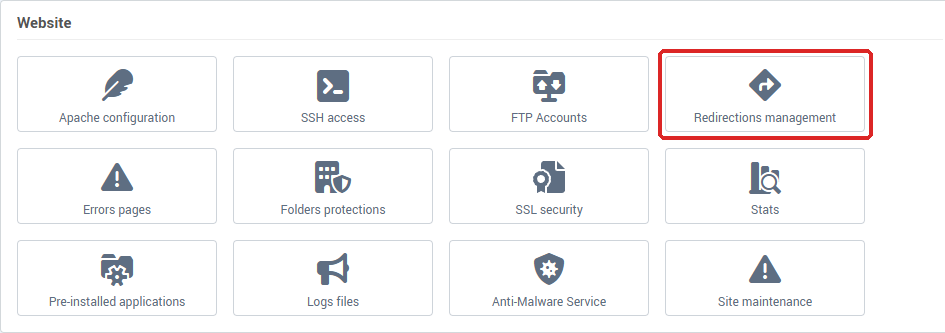
- In the Website card, click Redirections management.
The Redirections list shows each rule's Source url and Destination url.
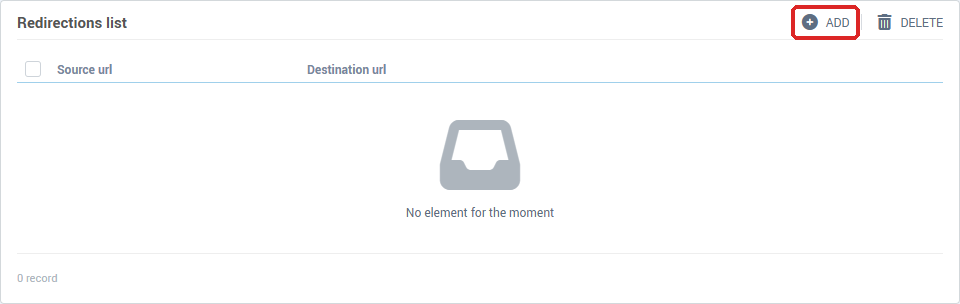
- Click Add.
- In Source, enter the path to redirect on your site, without the domain:
old-page for yourdomain.ch/old-page. The console adds the leading /. Left empty, this field means the root of the site, that is the whole site.
- In Destination, choose
http:// or https://, then enter the address to send visitors to: example.com/new-page. It must be a valid web address.
- Click Save.
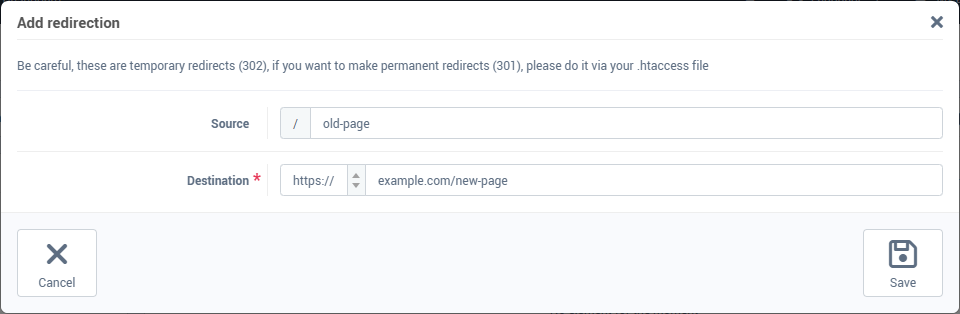
The redirect applies immediately. A given source can only be declared once: otherwise the console answers "This source is already configured in the redirections, please enter another value".
A source applies to everything that starts with that path. With the source old-page and the destination https://example.com/new-page, a visit to /old-page/photo.jpg is sent to https://example.com/new-page/photo.jpg.
To change a redirect, click its name in the list. To delete some, tick them, click Delete, then confirm with Yes.
How do I create a permanent redirect with .htaccess?
Create or edit the .htaccess file at the root of your site, by FTP or from the console's File explorer.
Redirect one specific page:
Redirect 301 /old-page.html https://example.com/new-page.html
Redirect a whole site to a new domain, keeping the paths:
RewriteEngine On
RewriteRule ^(.*)$ https://new-domain.com/$1 [R=301,L]
Redirect from example.com to www.example.com:
RewriteEngine On
RewriteCond %{HTTP_HOST} ^example\.com$ [NC]
RewriteRule ^(.*)$ https://www.example.com/$1 [R=301,L]
If a correct .htaccess rule has no effect, check that the Enable htaccess files option is turned on in Website → Apache configuration.
Troubleshooting
| Symptom |
Likely cause |
Fix |
| The browser reports a redirect loop |
The destination is itself redirected back to the source, or a console rule and an .htaccess rule answer each other |
Keep a single method for a given path |
| The redirect does not apply |
The browser remembered the old answer |
Test again in a private window |
Error 500 after editing .htaccess |
Syntax error in the rule |
Remove the rule you added, the site comes back; try again line by line |
| The whole site is redirected |
The Source was left empty |
Edit the redirect and enter the path you want |
To redirect the whole site to its secure version, do not write the rule yourself: the console has a dedicated option. See Force HTTPS on your whole site.
Going further