The Anti-Malware Service tile of the Apanel console opens the interface of ImunifyAV+, the anti-malware tool from CloudLinux installed on our web hosting servers. Imunify searches the files of your hosting for malware: backdoors (web shells), code injected into legitimate files, spam pages planted by an attacker. There you can review the files it found, start a scan and clean up infected files.
In short: in the Apanel console, open Hosting management, then Anti-Malware Service in the Website card. The Malicious tab lists the files found and Scan starts a scan; back up your site before cleaning.
Requirements
- Web hosting on our current servers. On an older-generation server, the same tile offers a server change instead (see Troubleshooting).
What to know before you start
- Our servers regularly scan every hosting account, with no action on your part. You can also start a scan whenever you want, for example after cleaning or updating your site.
- A scan covers your whole hosting account, all domains included, not only the domain from which you open the interface.
- The result of a scan you start yourself is sent to you by email, to your account's address. You can find it in My account, under Notifications, as the Default e-mail.
- Imunify detects and cleans; it does not replace prevention. It does not block an intrusion as it happens: your site's protection relies first on regular updates and strong passwords.
- A cleanup changes or deletes files. Back up your site before cleaning.
- A hosting account over its disk quota cannot be cleaned properly: the cleanup may fail and leave empty files behind. Free up some space or contact our support team before starting a cleanup.
How do I open the Anti-Malware Service?
- Log in to your Apanel console.
- From the dashboard, click your domain name to open Hosting management.
- In the Website card, click Anti-Malware Service.
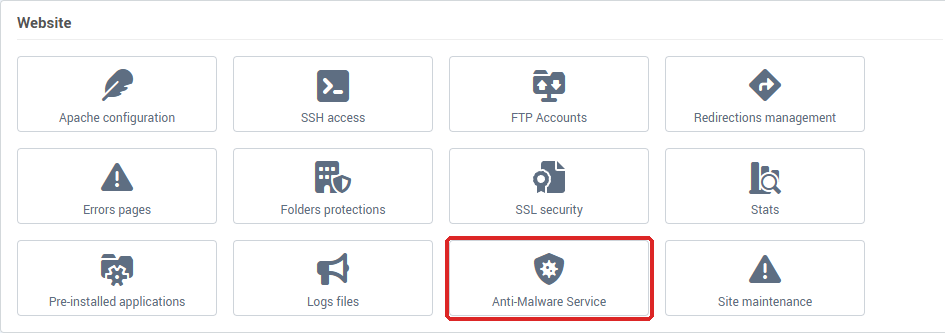
- A new tab opens and shows Login in progress..., then the Imunify interface. You are logged in to your hosting account directly, with no password to type.
How do I use the Imunify interface?
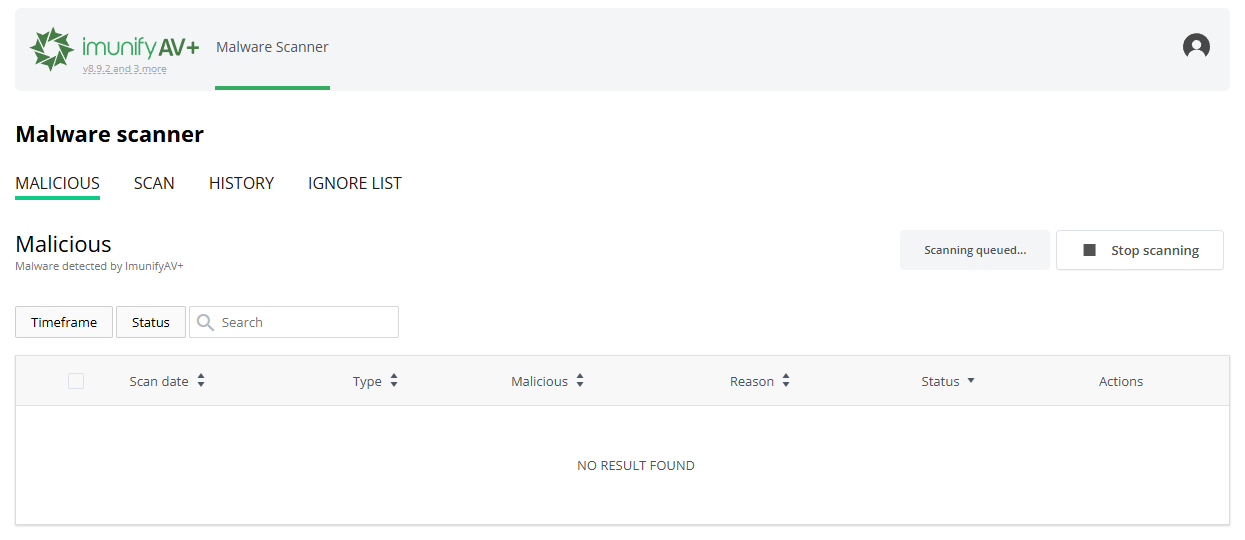
The interface is the vendor's own. Its Malware scanner page has four tabs:
- Malicious: the files that were found, with the Scan date, Type, Malicious (the file), Reason (the signature that was matched) and Status columns, and the Actions available on each one depending on its status: view it, clean it, delete it, restore the original after a cleanup, or add it to the ignore list;
- Scan: start a new scan of your hosting;
- History: past actions;
- Ignore list: the files excluded from scanning.
The interface language is changed from the profile icon at the top right (Change Language).
Each screen is described in the vendor's documentation: ImunifyAV, end user interface.
Only add a file to the ignore list if you are sure it is safe: an ignored file is never scanned again.
What should I do if infected files are found?
An infected file means your site has been hacked. Cleaning it is not enough: you also have to find and close the way the attacker got in (a vulnerable plugin, a stolen password), otherwise they will come back.
- Back up your site as it is now.
- Clean or delete the detected files from the interface.
- Update your application, its plugins and its theme, then change the passwords: site administration, FTP, database.
- Run a new scan to check that nothing is left.
For the full procedure, see My website was hacked: what happens and what you need to do and, for WordPress, Cleanup after a hack.
Troubleshooting
| What you see |
What to do |
| "The Anti-Malware service is taking a moment to start. Please close this tab and click the button again." |
Close the tab, then click Anti-Malware Service again. If the message comes back, contact our support team. |
| The Request for server change window opens ("The selected technology is not available on the current server.") |
Your hosting is on an older-generation server. Click Yes to request a server change: it is free, needs no action on your side, and our team carries it out manually in 24 to 48 hours. The new server runs MySQL 8: some older sites may no longer be compatible. |
| The window says you are on a dedicated server |
The server change cannot be requested from the console: contact your reseller. |
| The Anti-Malware Service tile does not appear |
Your hosting is managed by a reseller and is on an older-generation server: contact your reseller. |
| You did not receive the result email |
Check the Default e-mail in My account, under Notifications, and your spam folder. |
| After a cleanup, files are empty or the site shows an error |
Do not run the cleanup again. Contact our support team with your domain name: an exceeded disk quota may be the cause. |
Going further